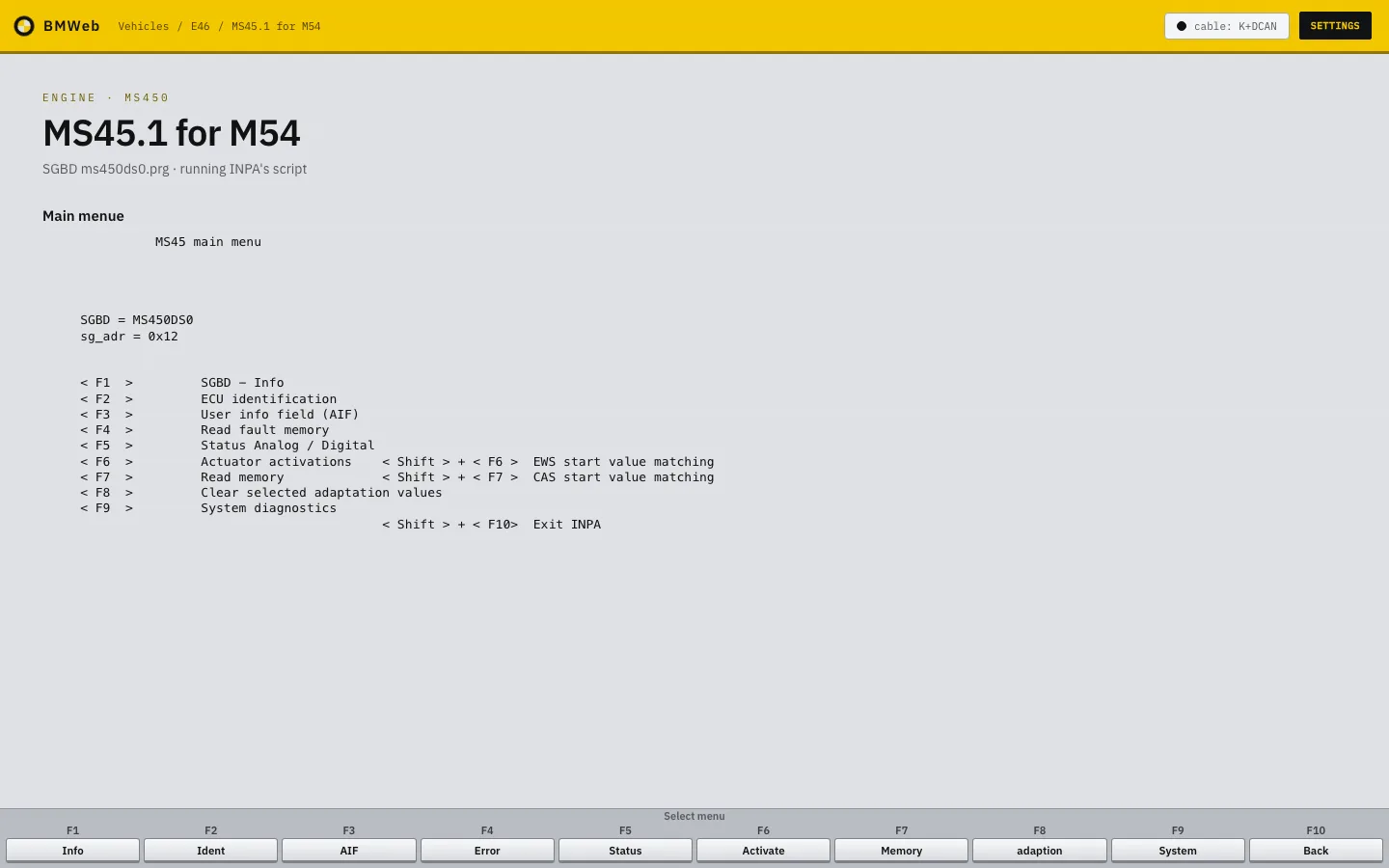
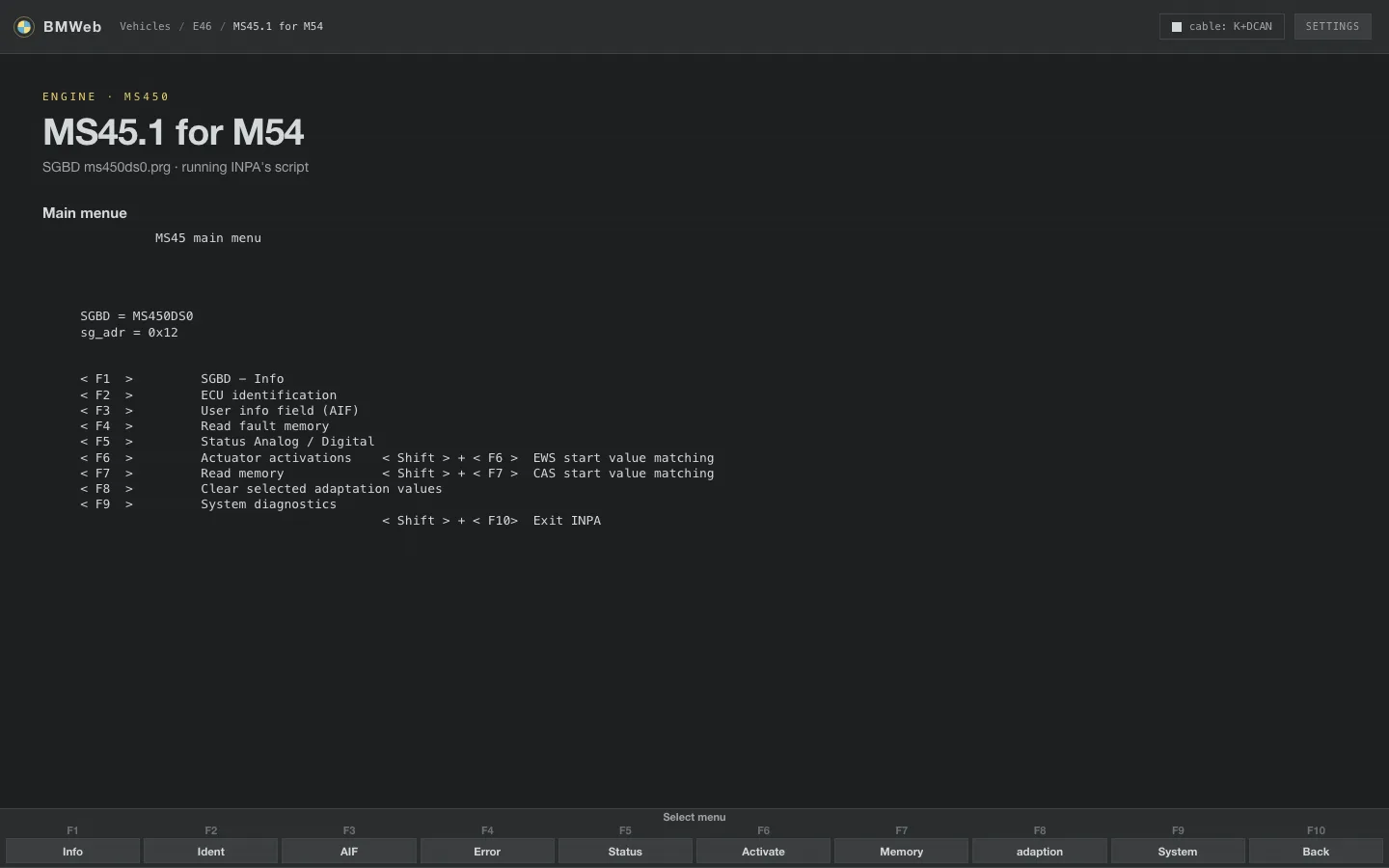
Pick the car, pick a module, and the module's own menu comes up.
On a desktop the default is the classic text layout, with the
F-keys along the bottom; Settings switches to a modern layout with
the same keys and the same screens.
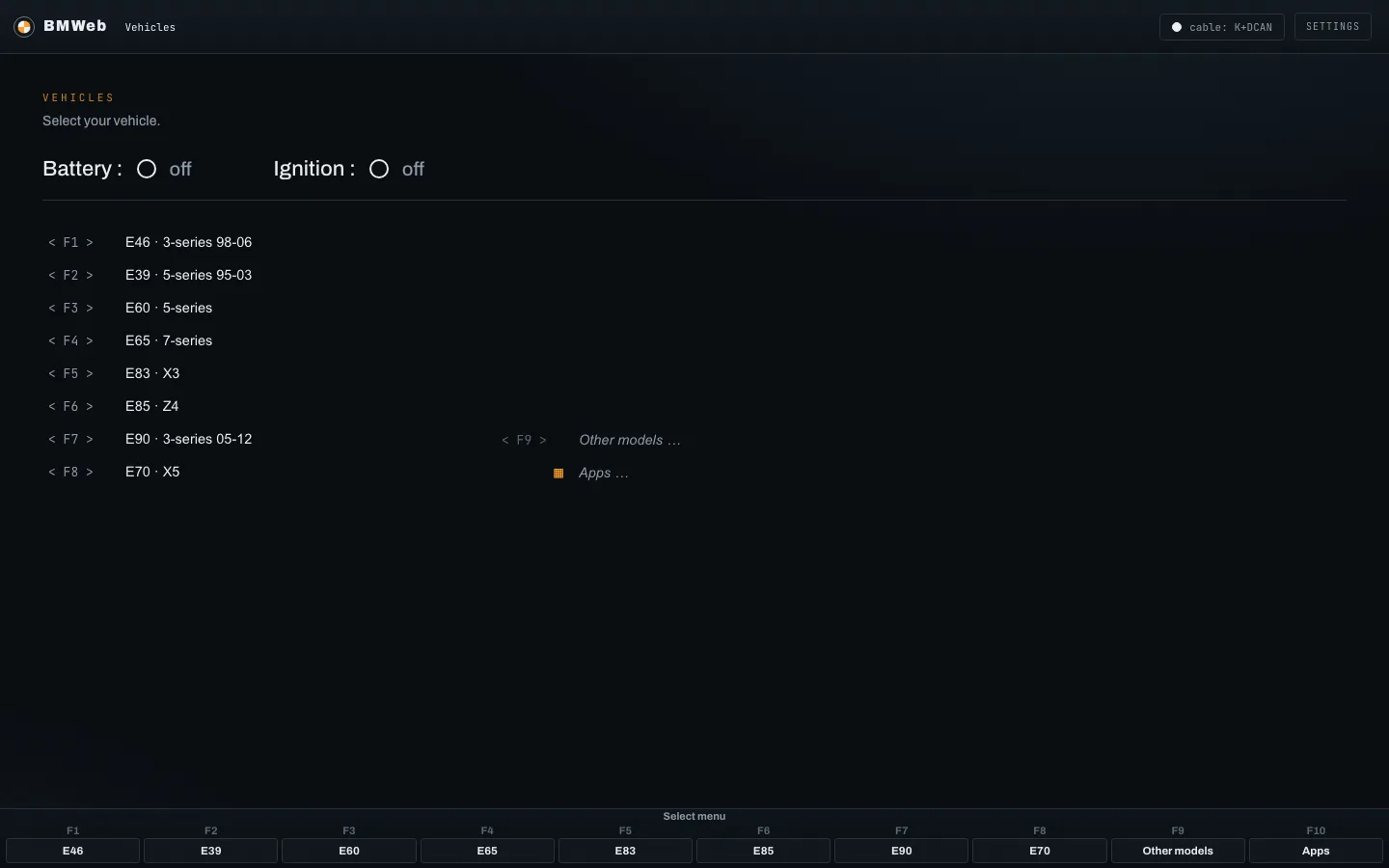
Vehicle list. The first screen. Each key is a chassis;
the cable and the battery and ignition state show at the
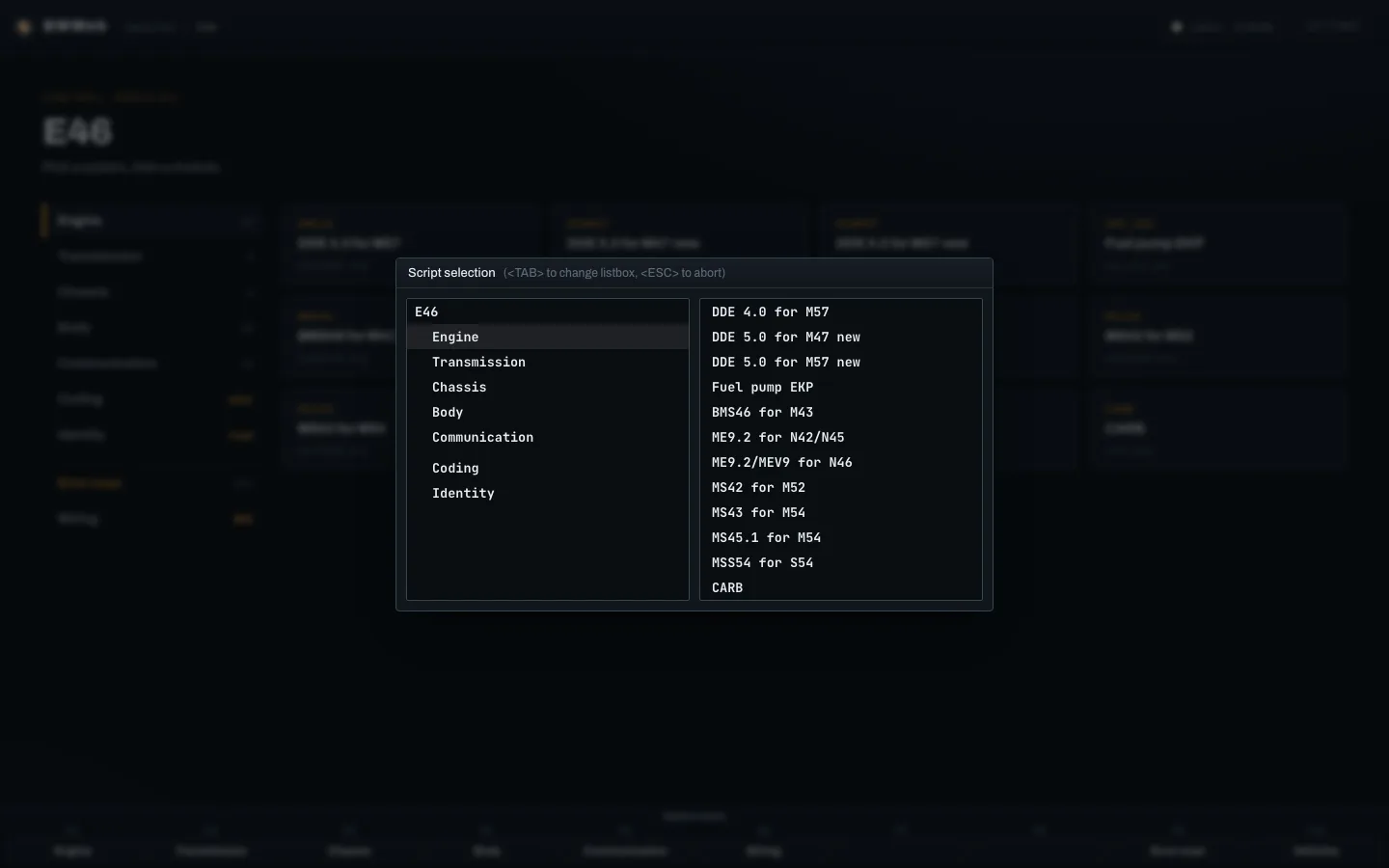
top.classicModule picker. Systems on the left, the modules in that
system on the right, plus Coding and Identity entries and the
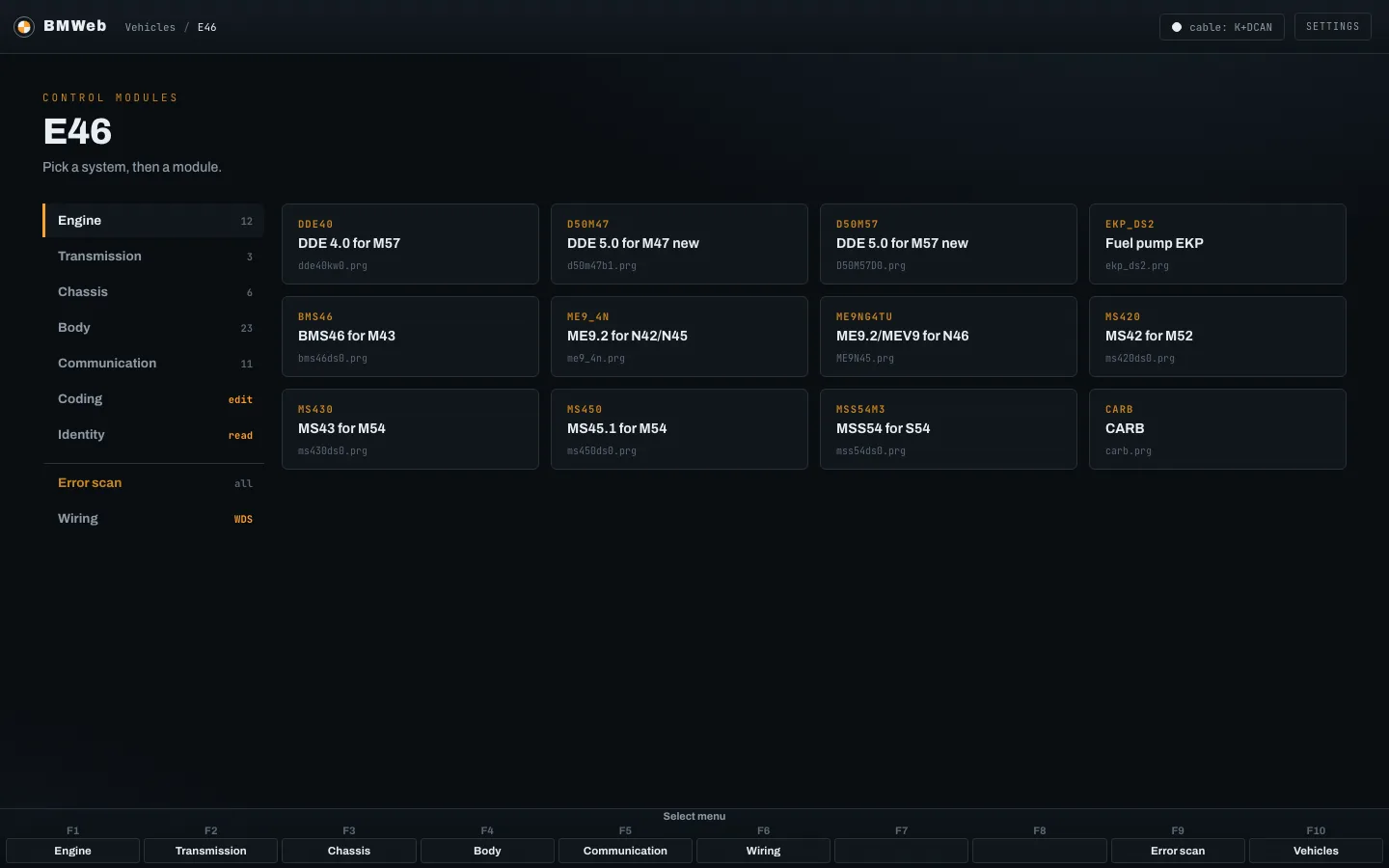
whole-car jobs.classicModule list. The same list as cards: each shows the
module's code, its name and the definition file it talks
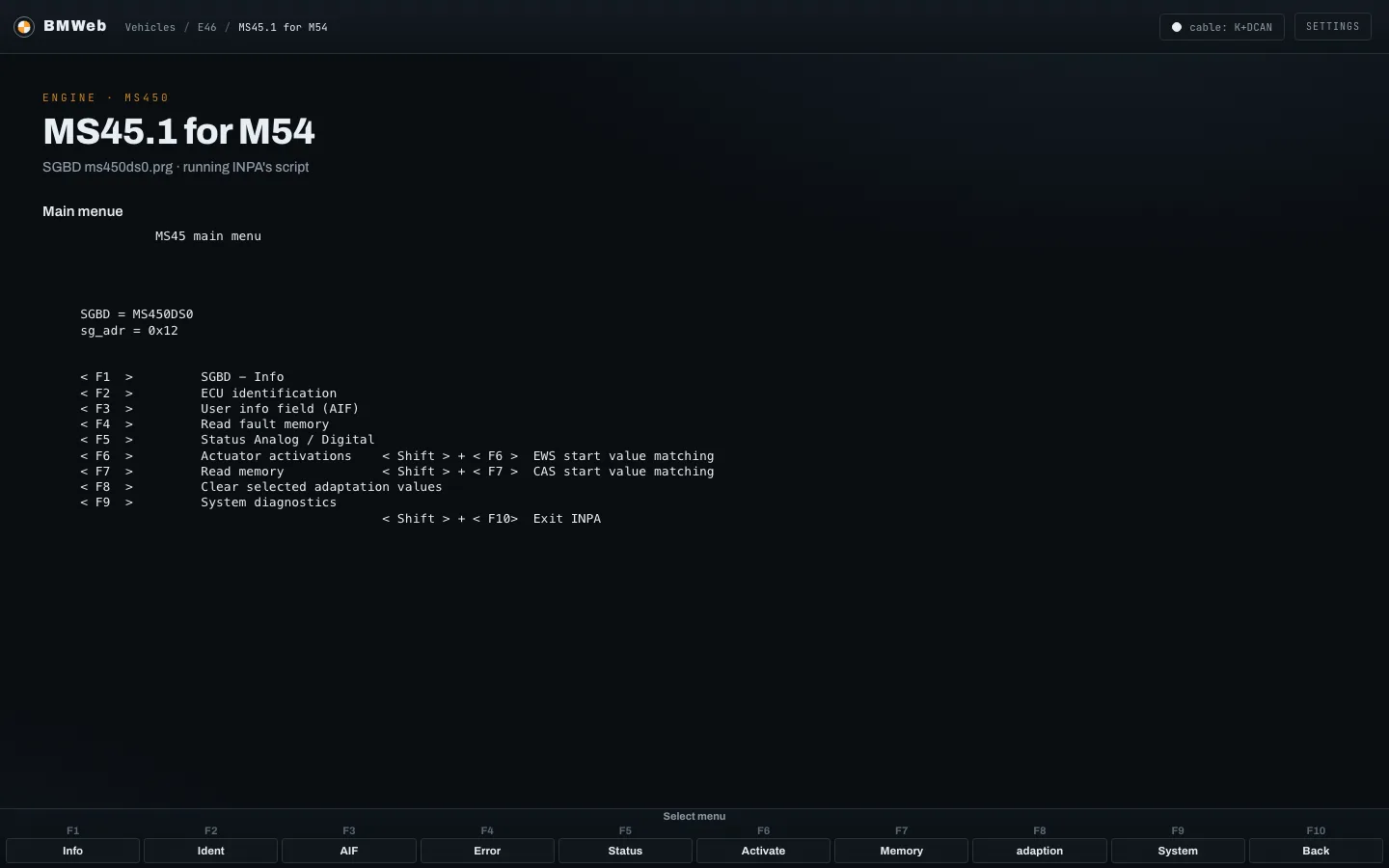
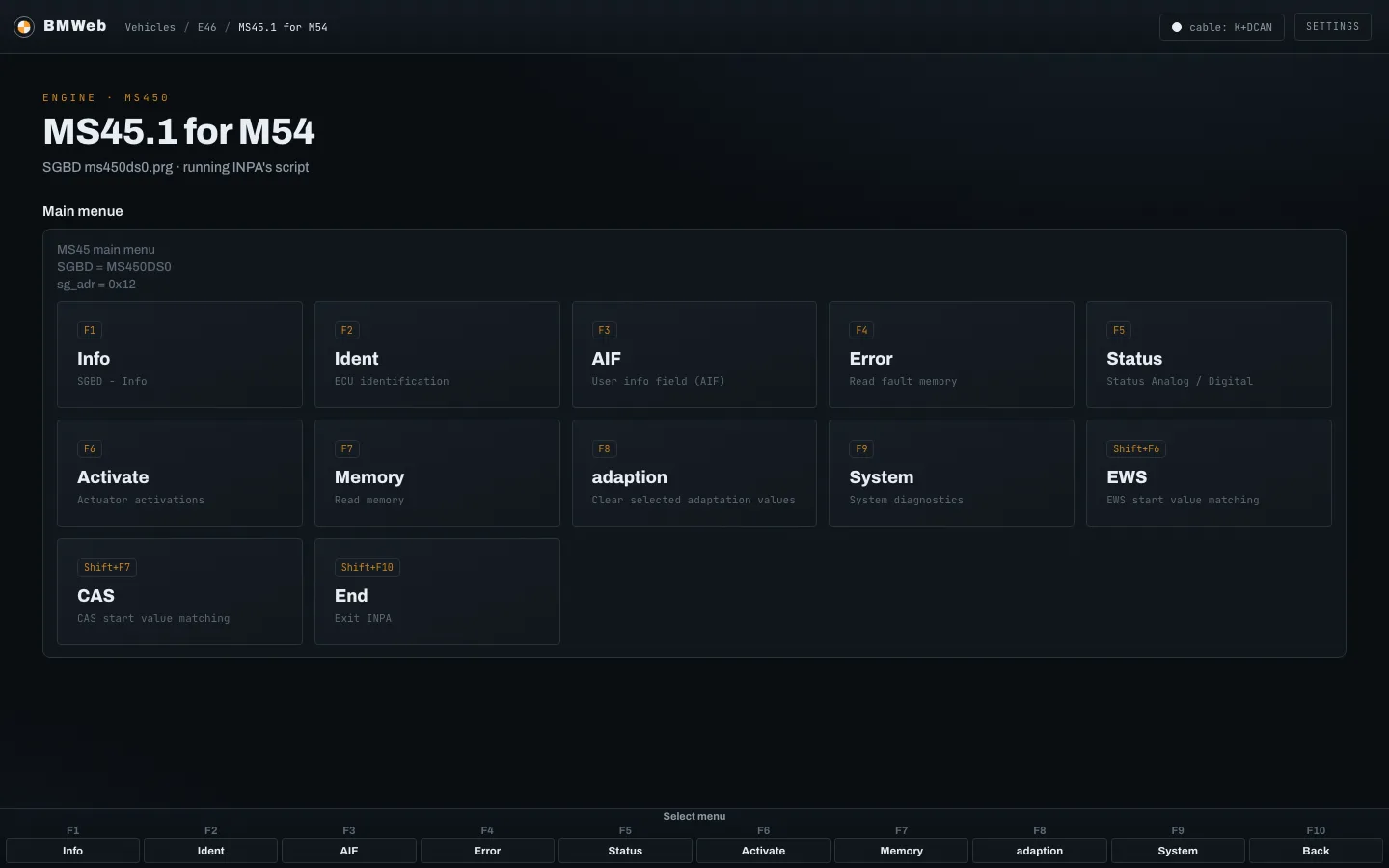
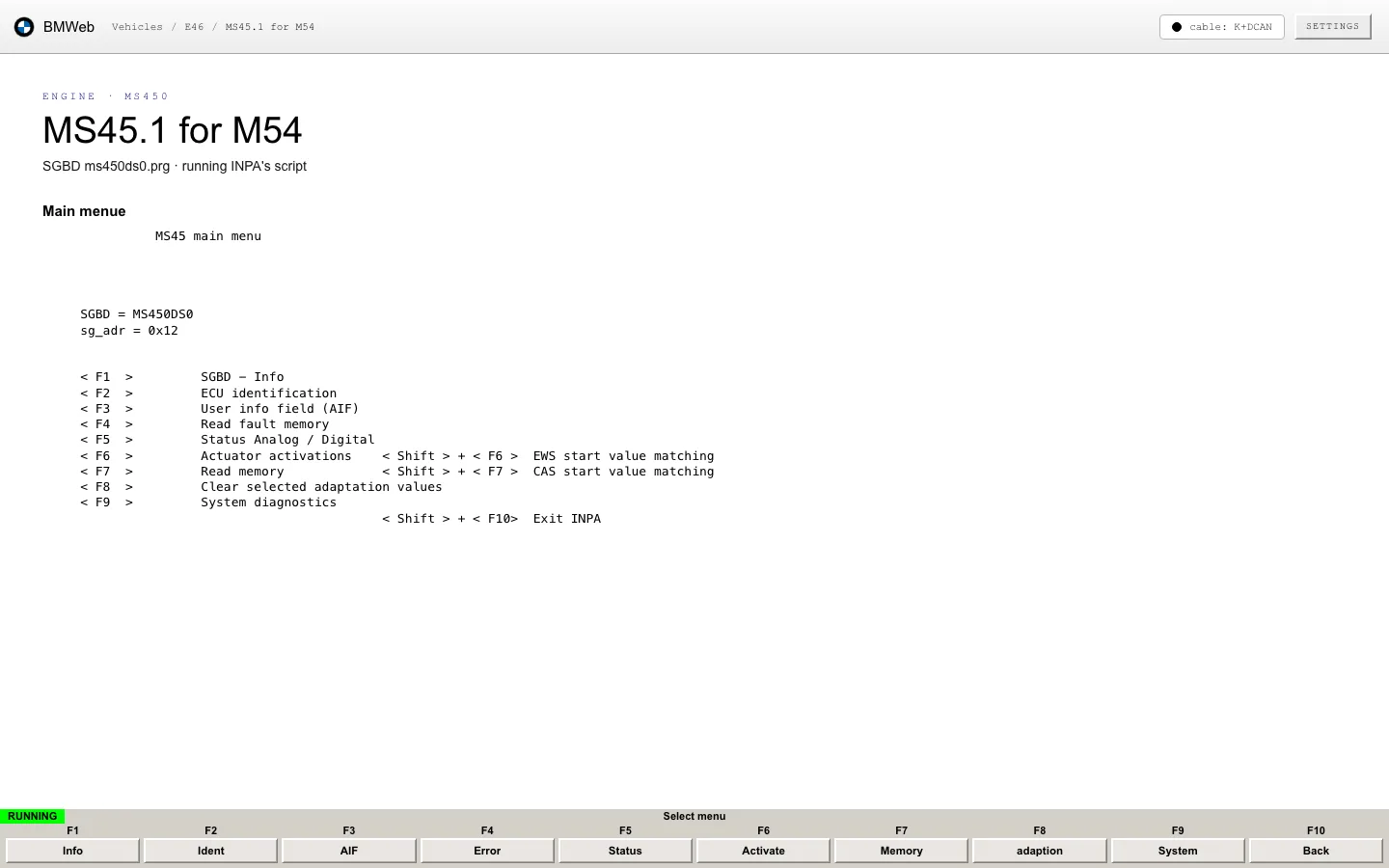
with.modernModule main menu. The engine module's own menu, drawn
by the module's script exactly as the dealer tool draws it.
The F-keys below are live.classicModule main menu. The same script, one tile per key,
described by the menu's own legend.modern
Fault memory
Read the stored faults of any module, with the module's own
wording and status flags, and look at the conditions the module
recorded when each fault was set.
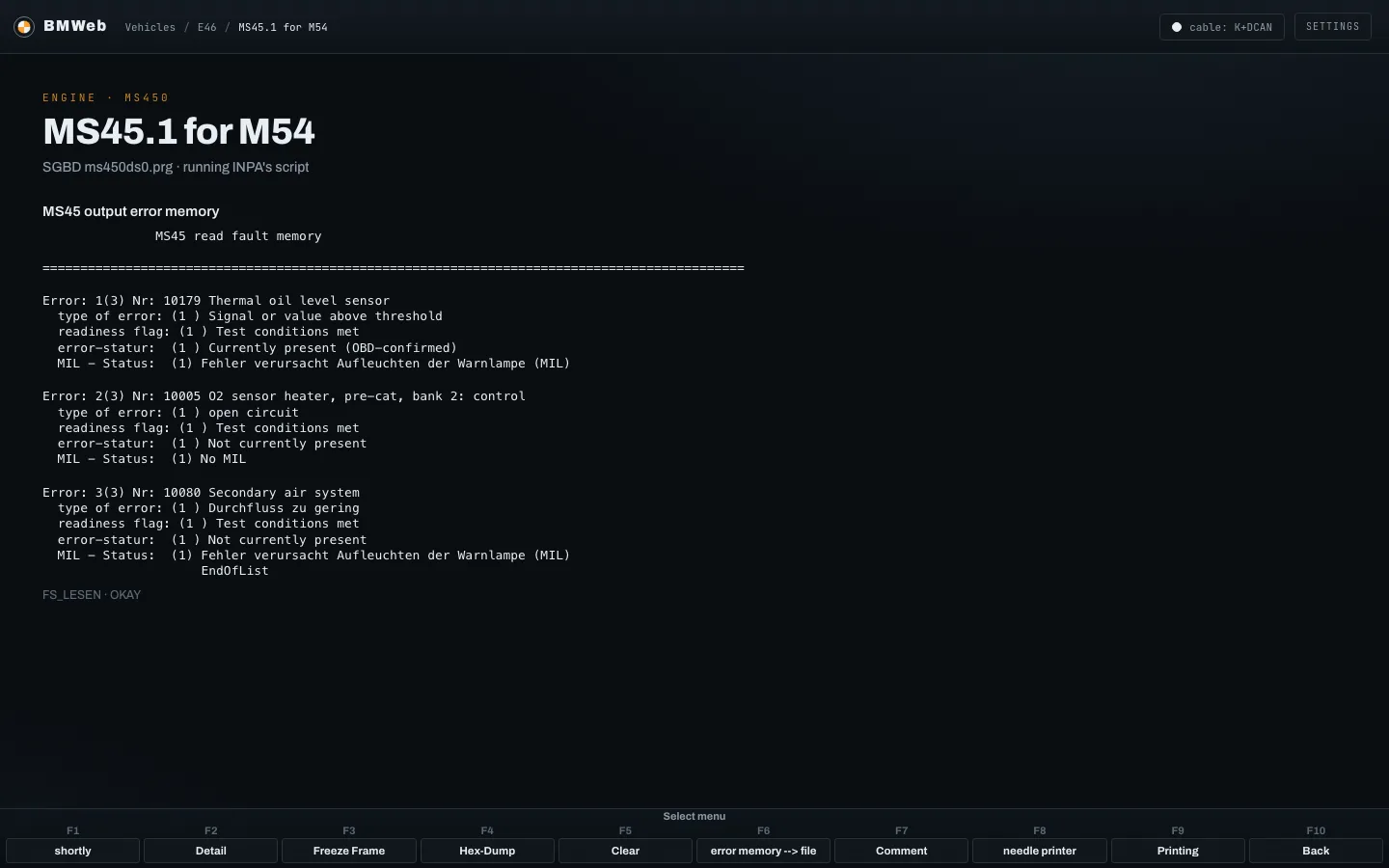
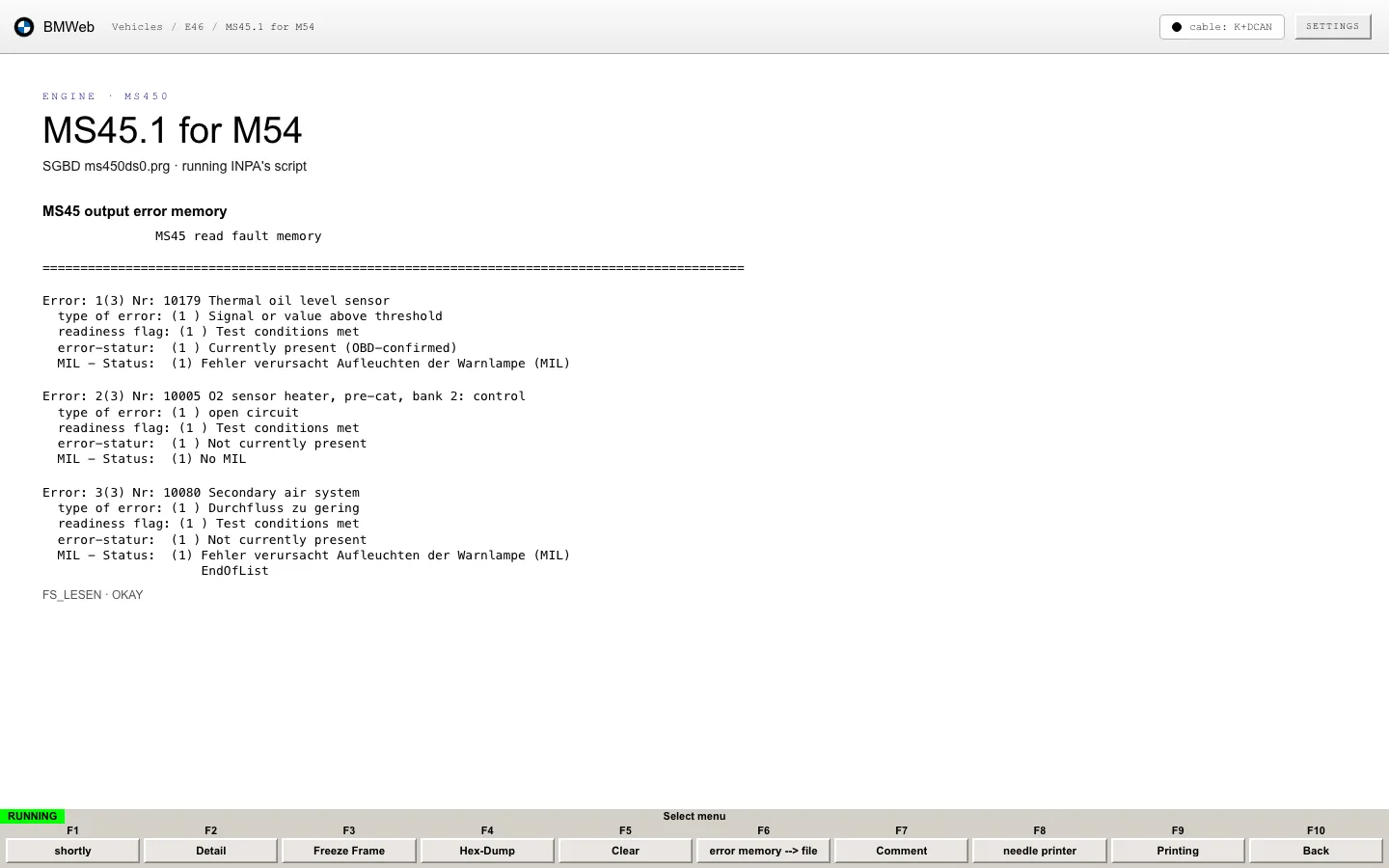
Fault list. Three stored faults on the engine module,
each with its type, readiness, whether it is present now, and
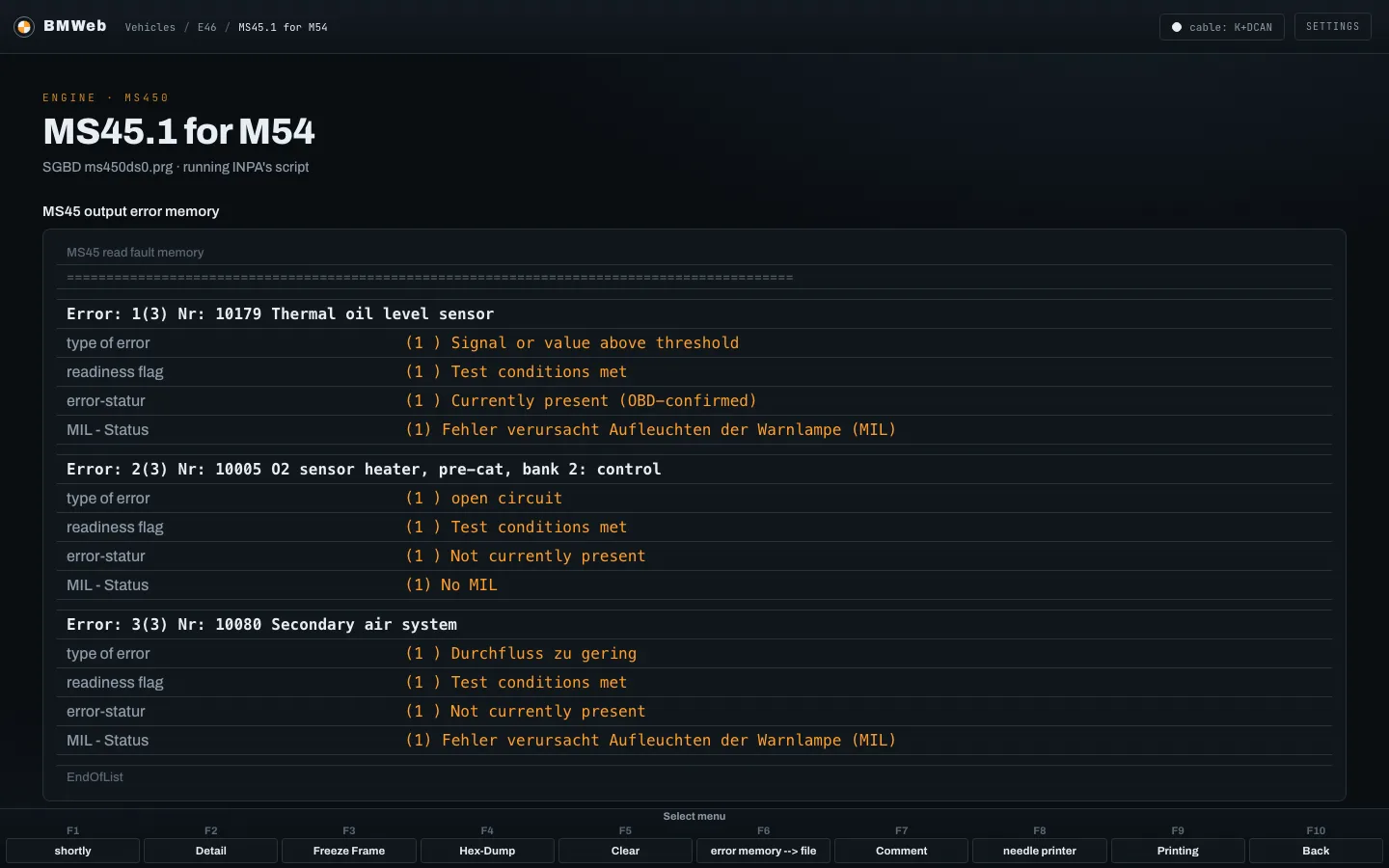
whether it lit the warning lamp.classicFault list. The same read, laid out as labelled
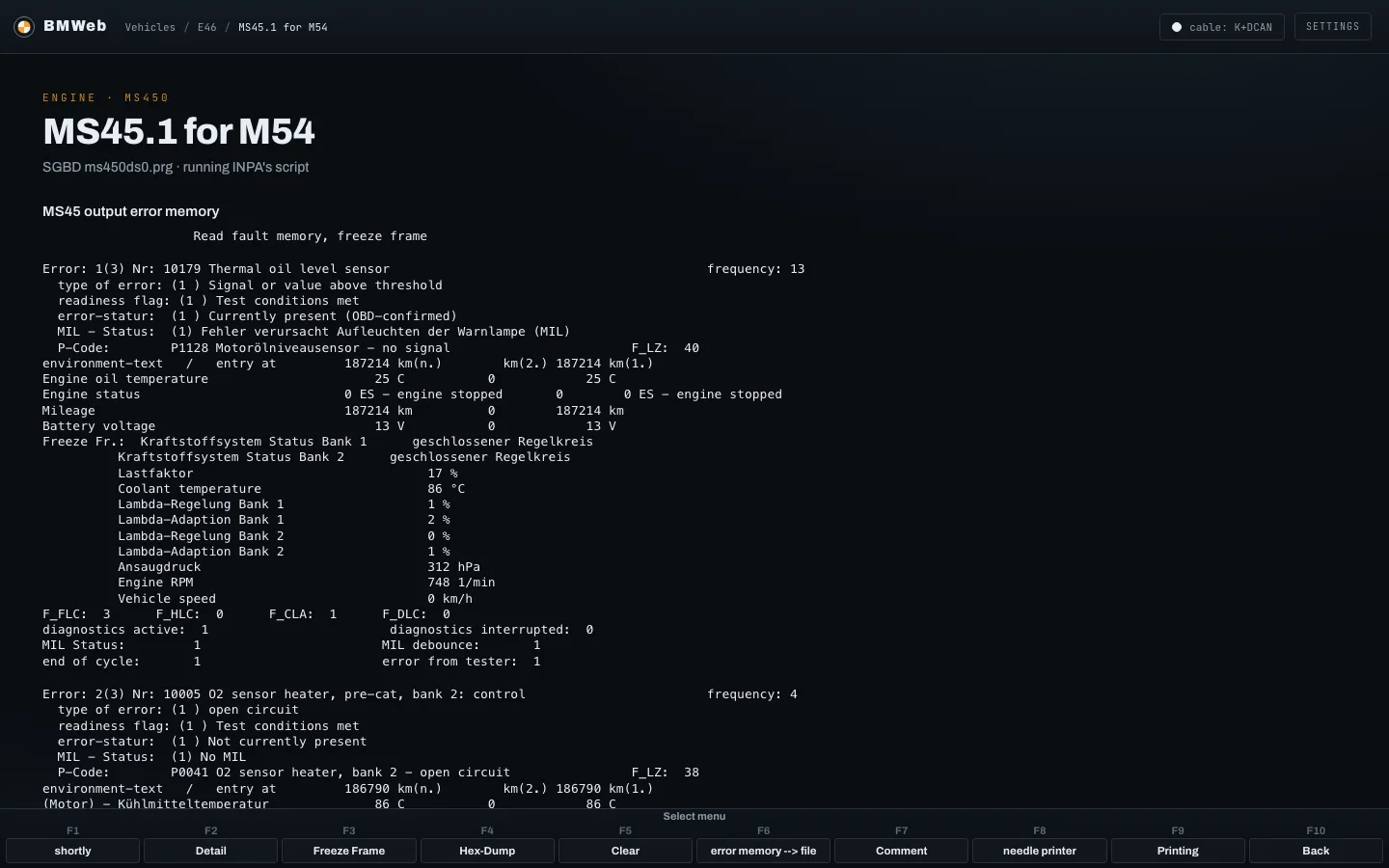
rows.modernFreeze frame. What the module recorded when the fault
was set: how often, at what mileage, and the coolant
temperature, load, lambda and engine speed at that
moment.classic
Live values
Switch positions, sensor readings and measurement blocks,
refreshed continuously while the screen is open. Bars carry the
module's own scale and its good and bad bands.
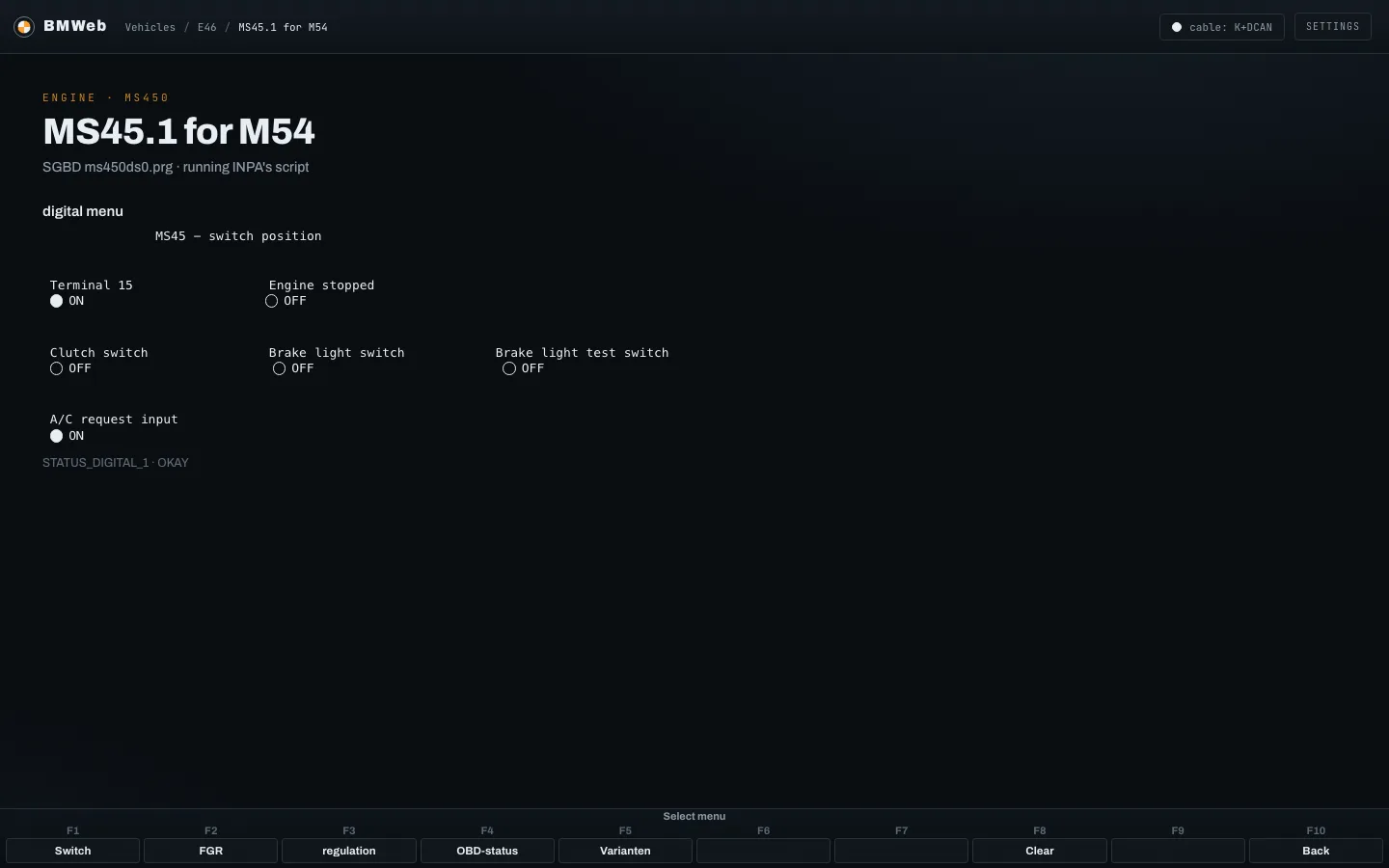
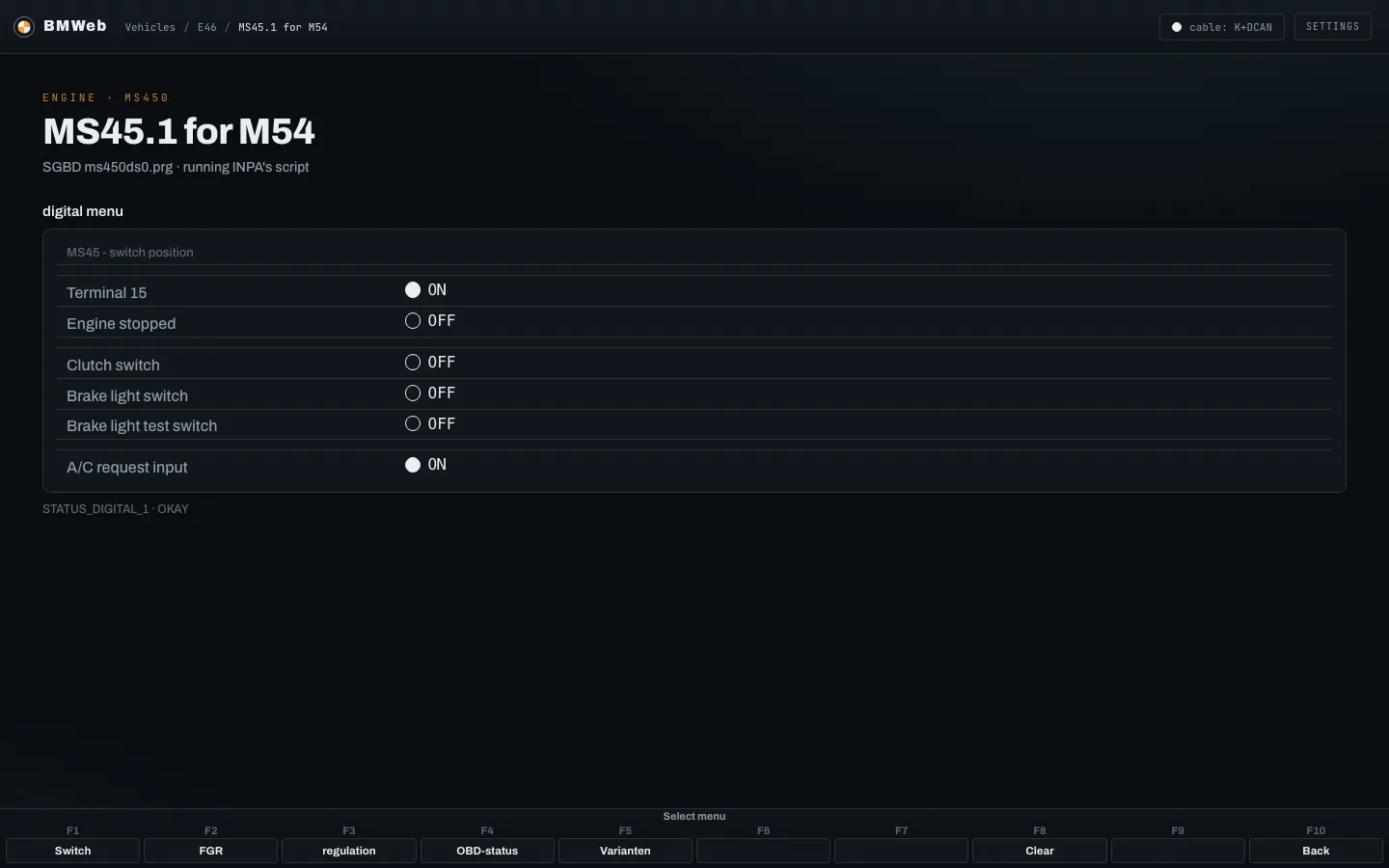
Switch positions. A lamp per input: ignition on, engine
running, clutch and brake switches, the air-conditioning
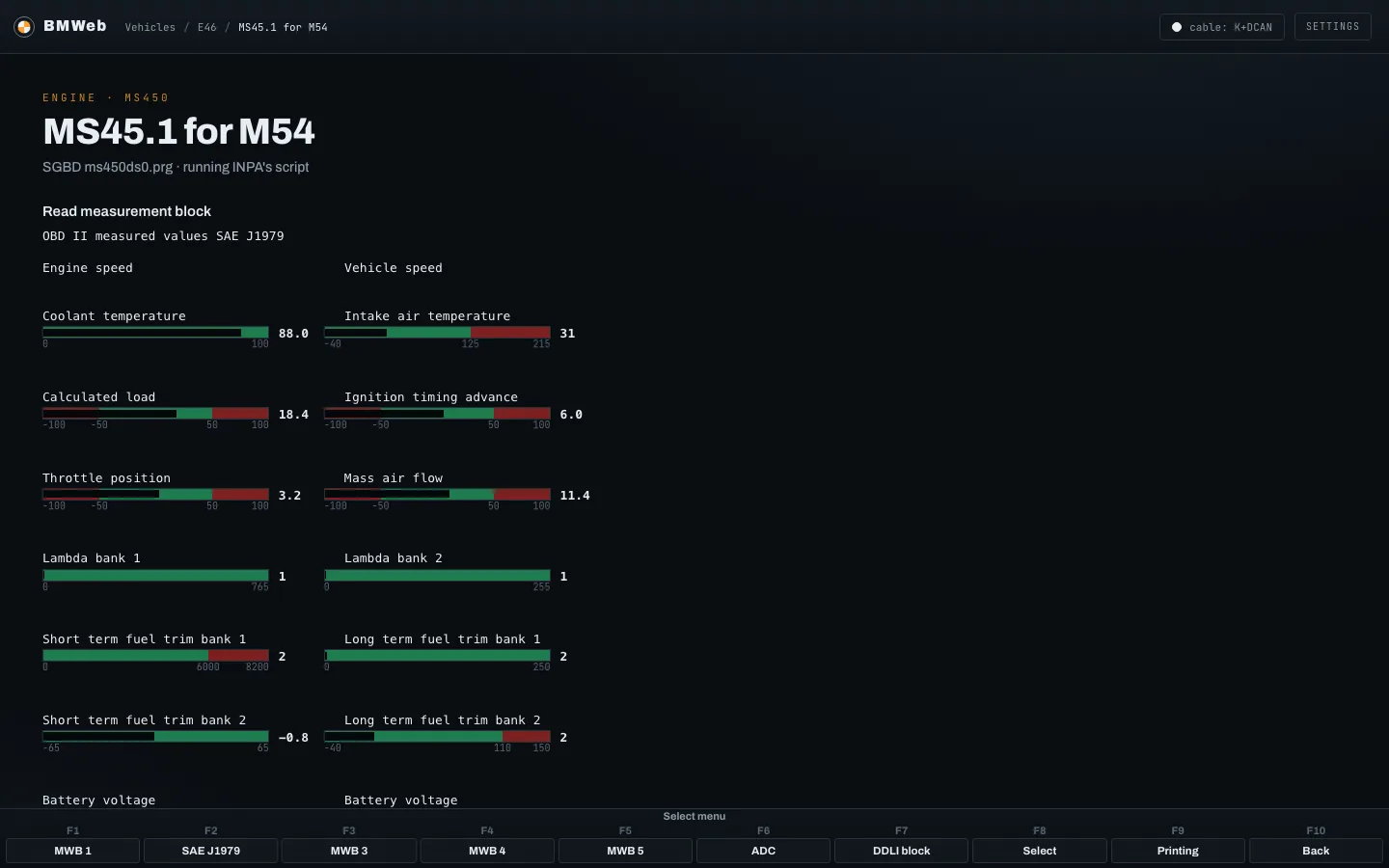
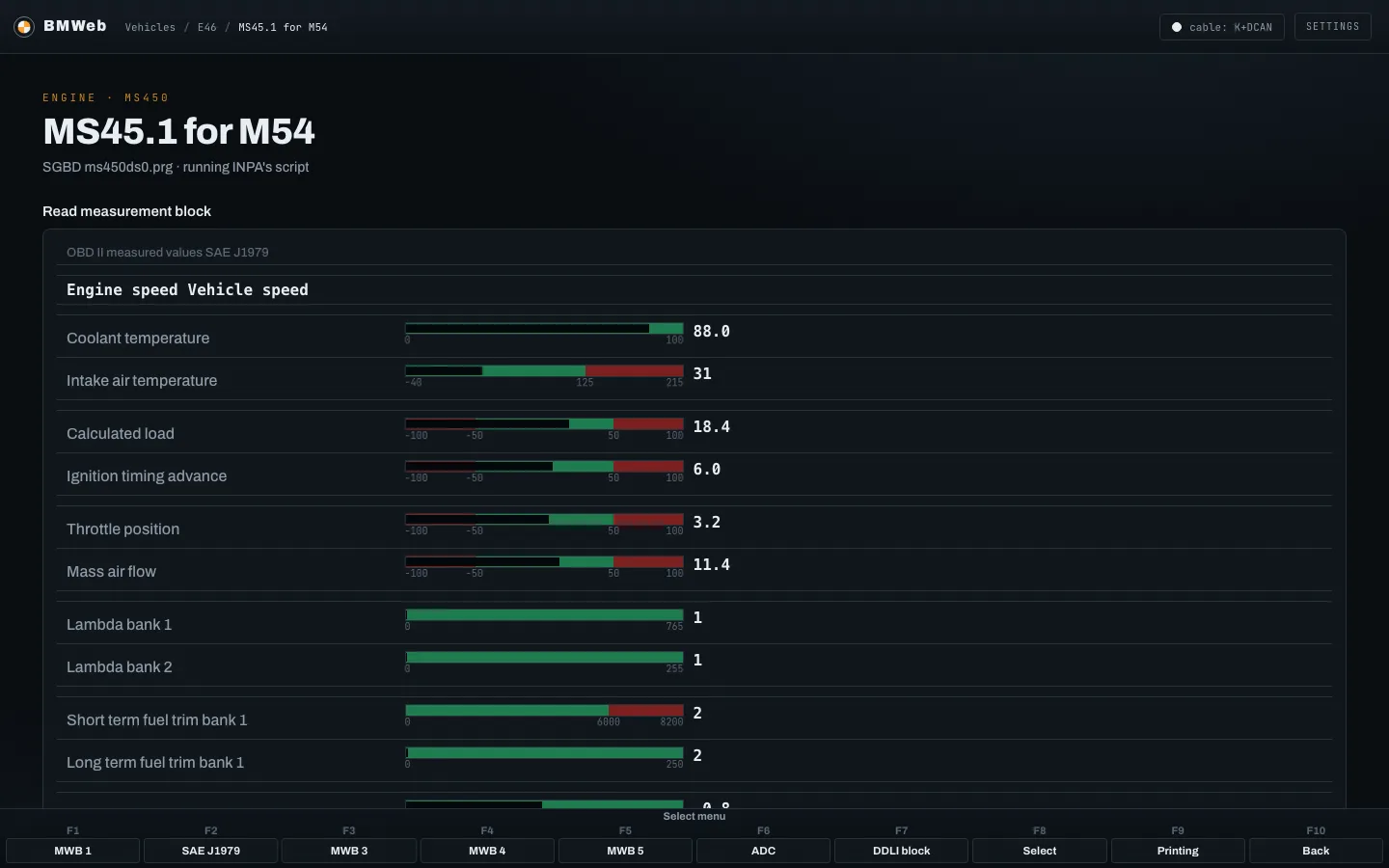
request.classicSwitch positions. The same inputs as rows.modernMeasurement block. The standard emissions values in one
screen: temperatures, load, timing, throttle, air mass, lambda
and fuel trims.classicMeasurement block. The same values, one row each: the
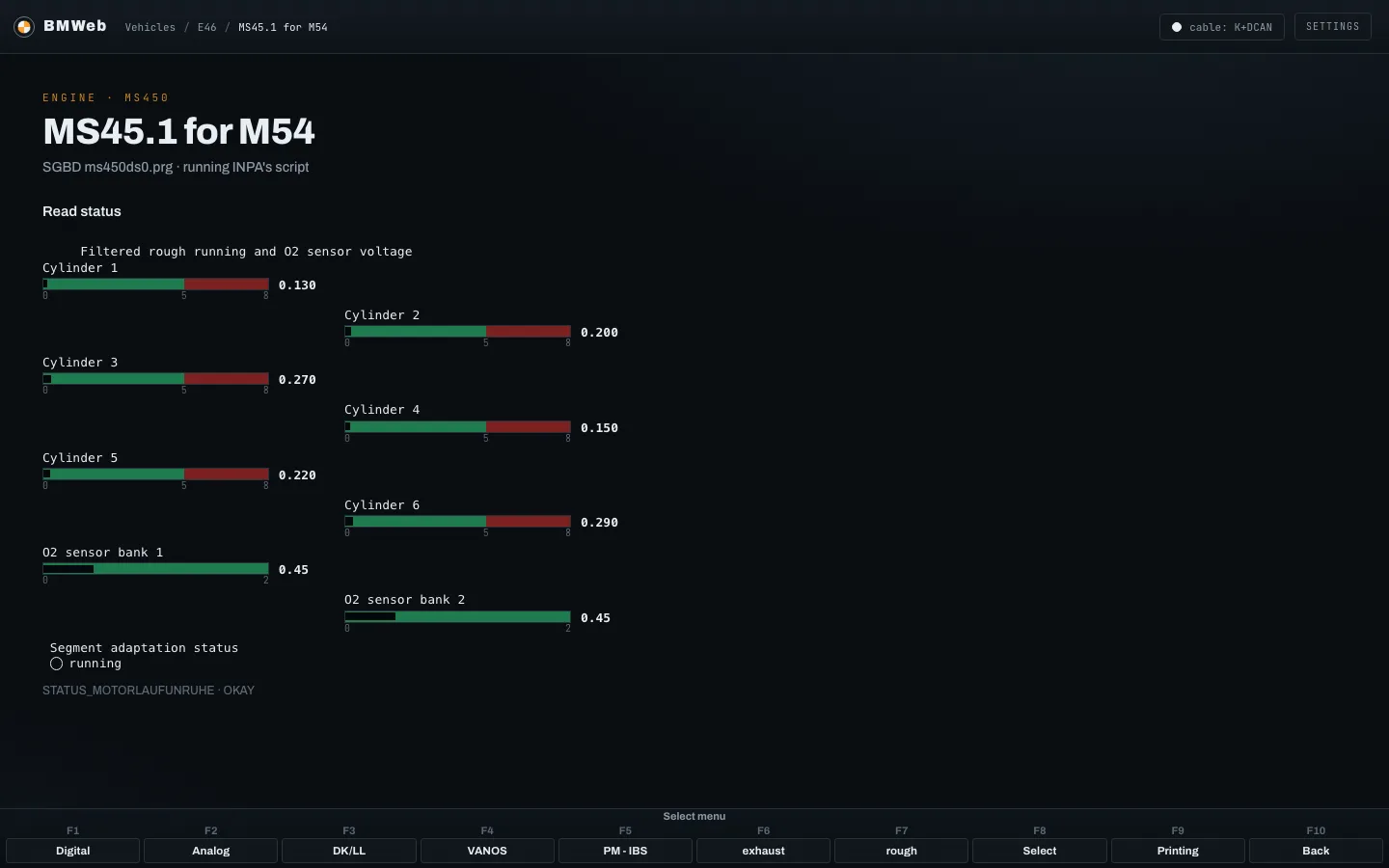
label on the left, its bar and reading beside it.modernRough running. One bar per cylinder for misfire
detection, the two oxygen sensor voltages, and whether the
crank sensor adaptation has finished. A weak cylinder stands
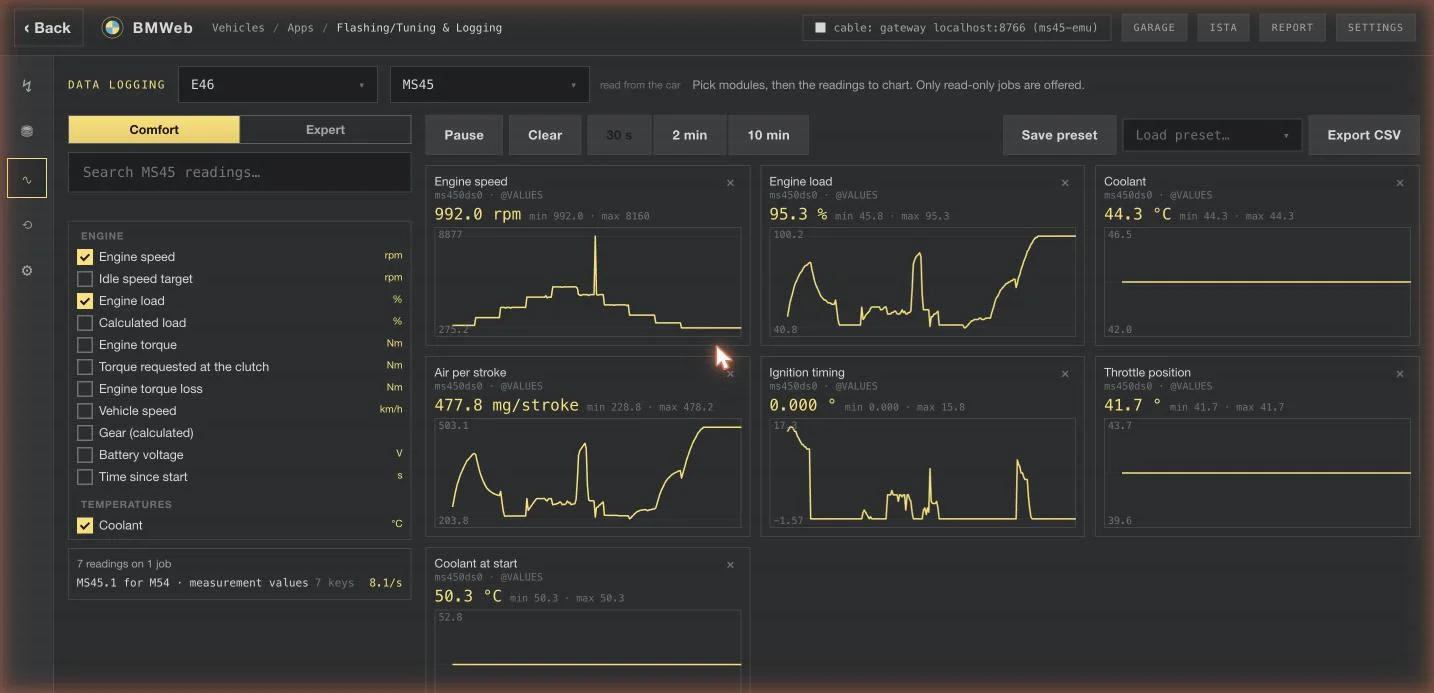
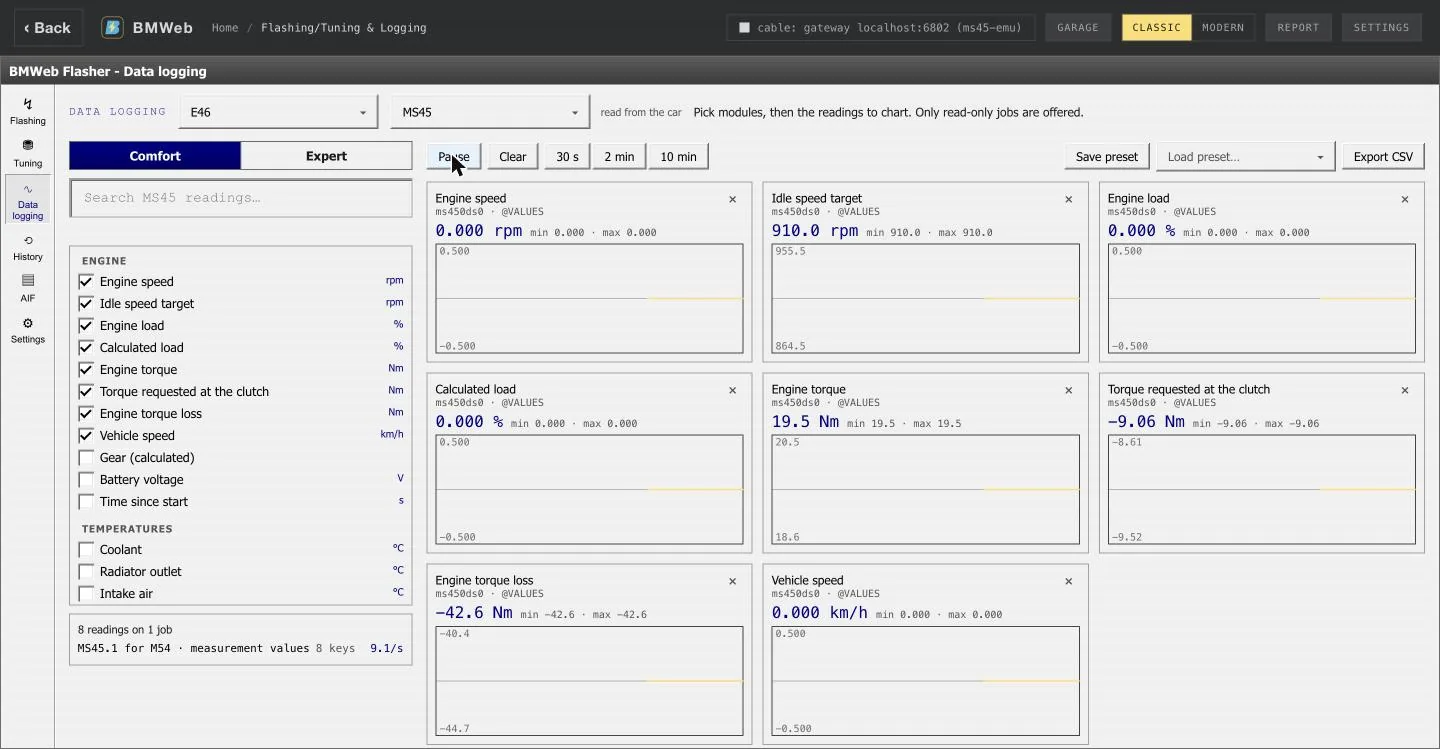
out at a glance.classicData logging. Comfort lists the readings that matter
under plain names; tick them and each gets a chart, sampled
while you drive, saved to History and exported as CSV. Expert
offers every read-only job of every module.
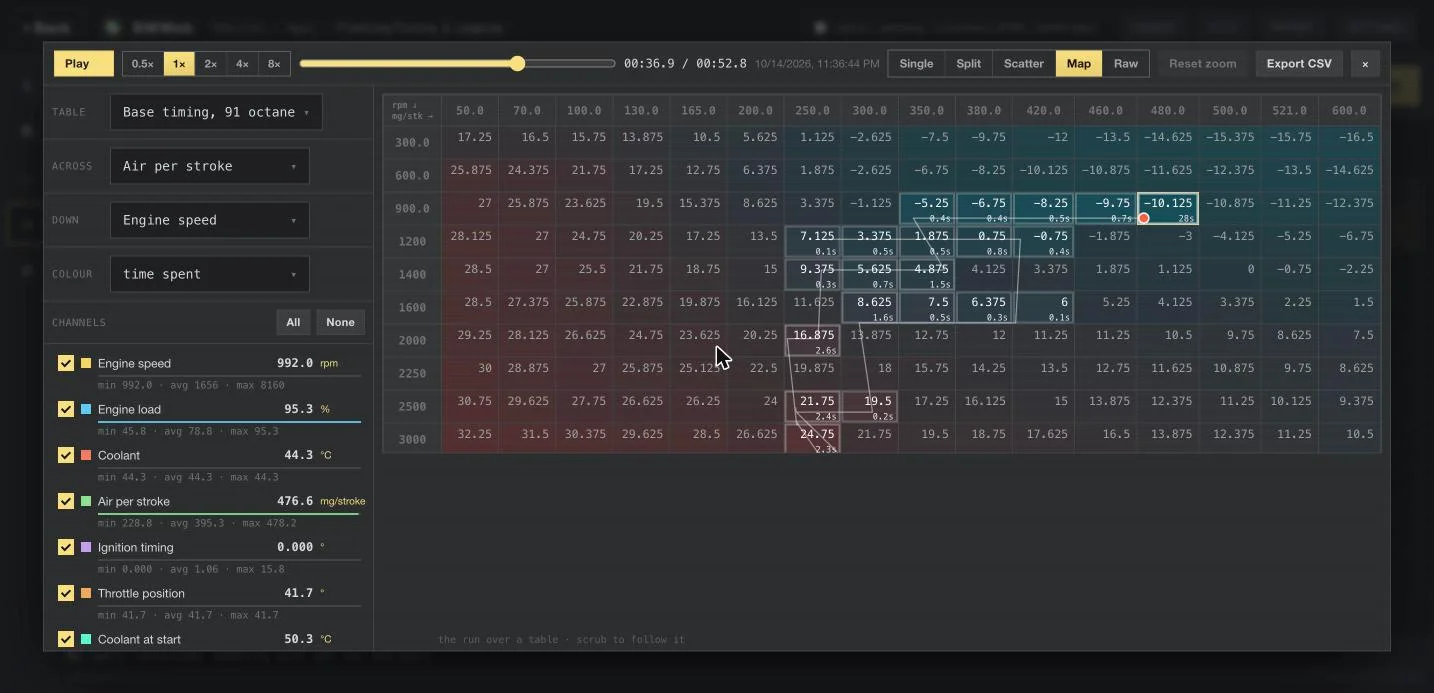
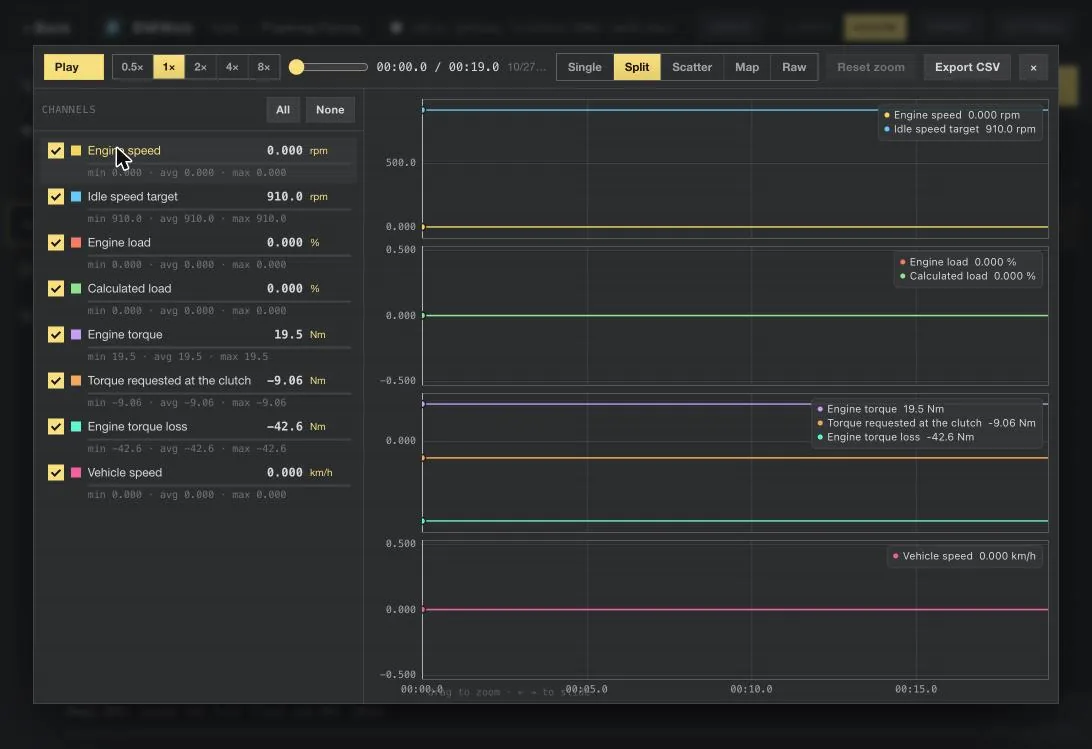
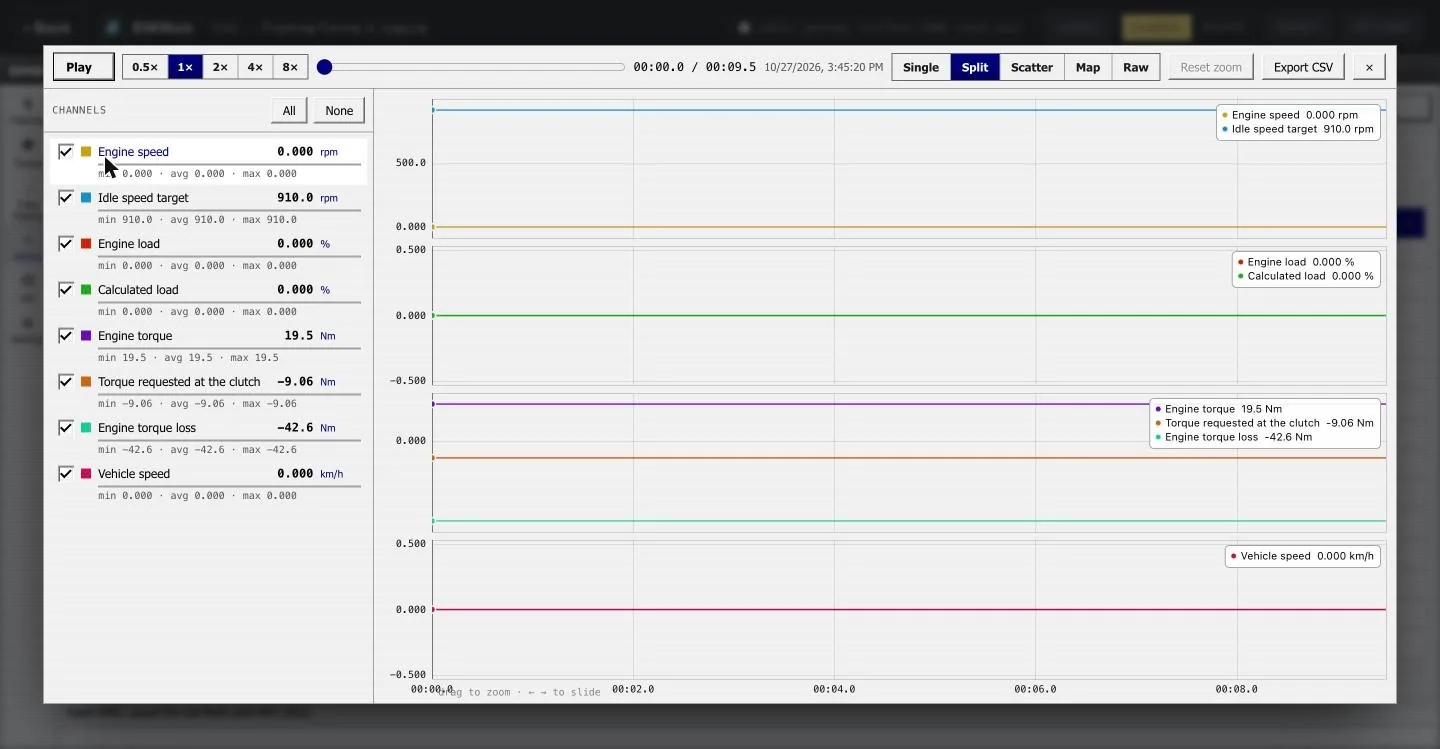
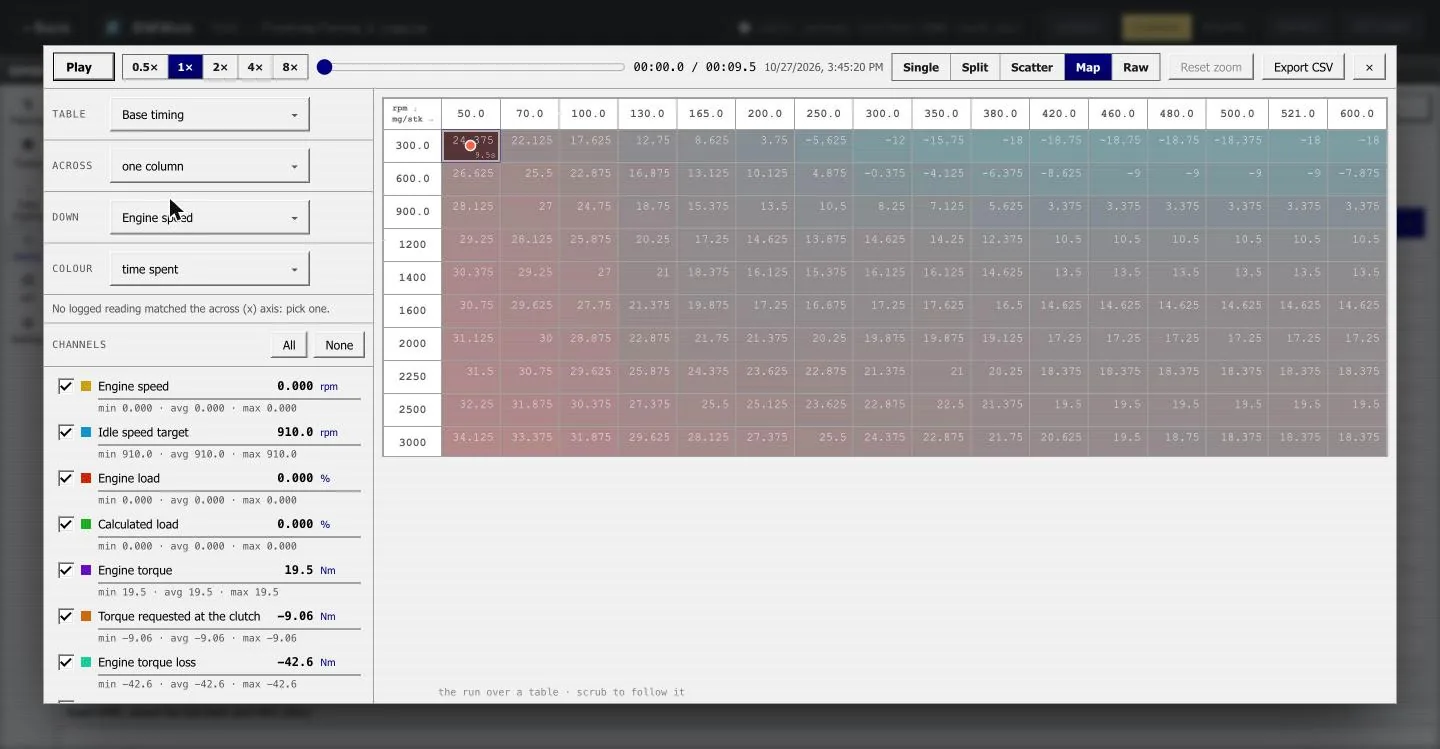
Replay and Map mode. Play any recorded run back, scrub
it, zoom; Map mode paints the path the engine took across a
table from your tune, cell by cell, with the time spent in
each. A DME reset during a run is kept on its own as a black
box.
Data logging. The same Comfort list and charts.classicReplay, Split. One chart per group of readings, the
channel list with min, average and max.modernReplay, Split. One chart per group of readings, the
channel list with min, average and max.classicReplay and Map mode. The run over a table from the
tune.classic
Activations
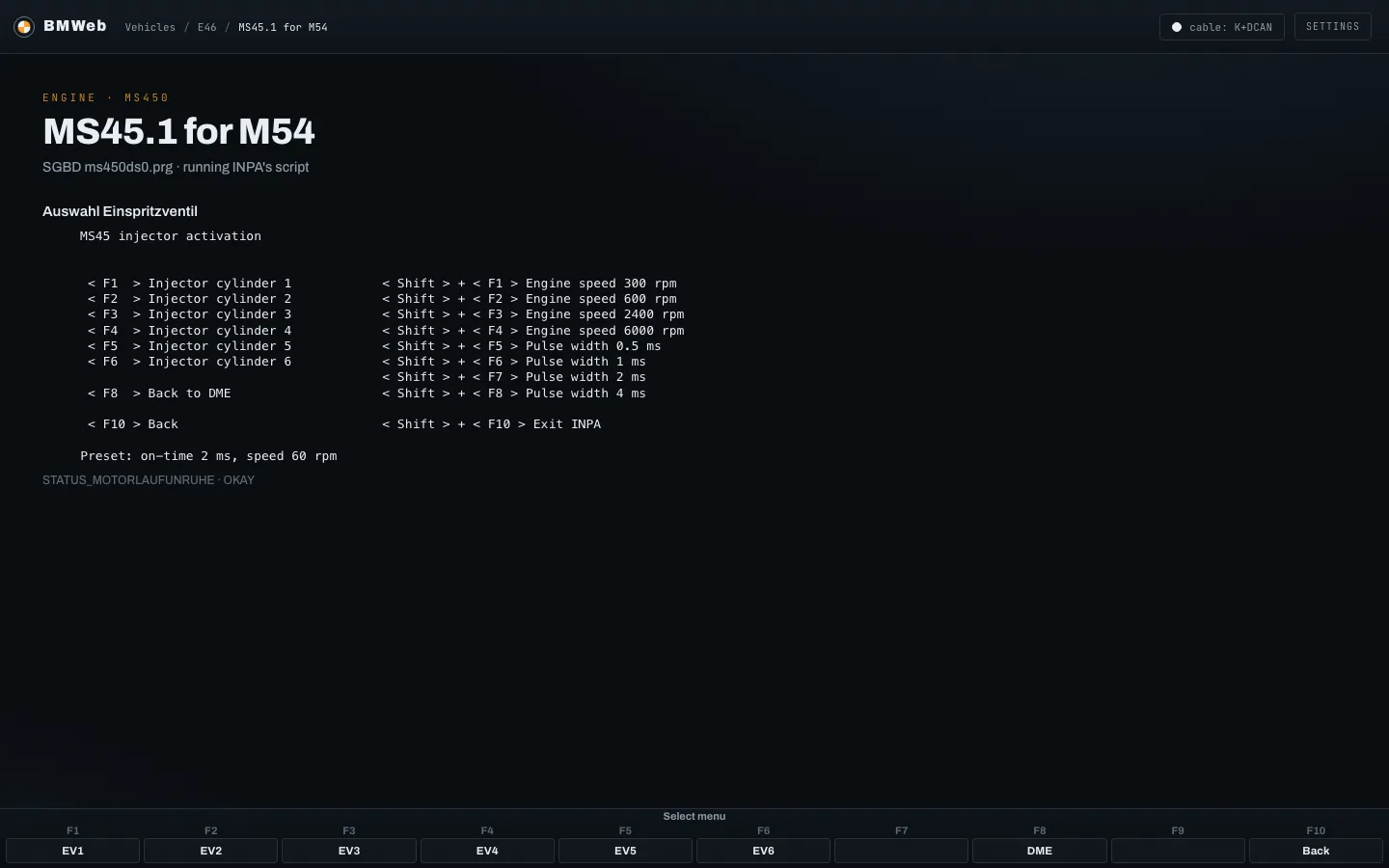
Drive a component from the keyboard: injectors, the fan, the fuel
pump, valves. Anything that changes the car asks first and names
exactly what it is about to send.
Injector test. F1 to F6 fire one injector each; the
shifted keys set the speed and pulse width the test runs
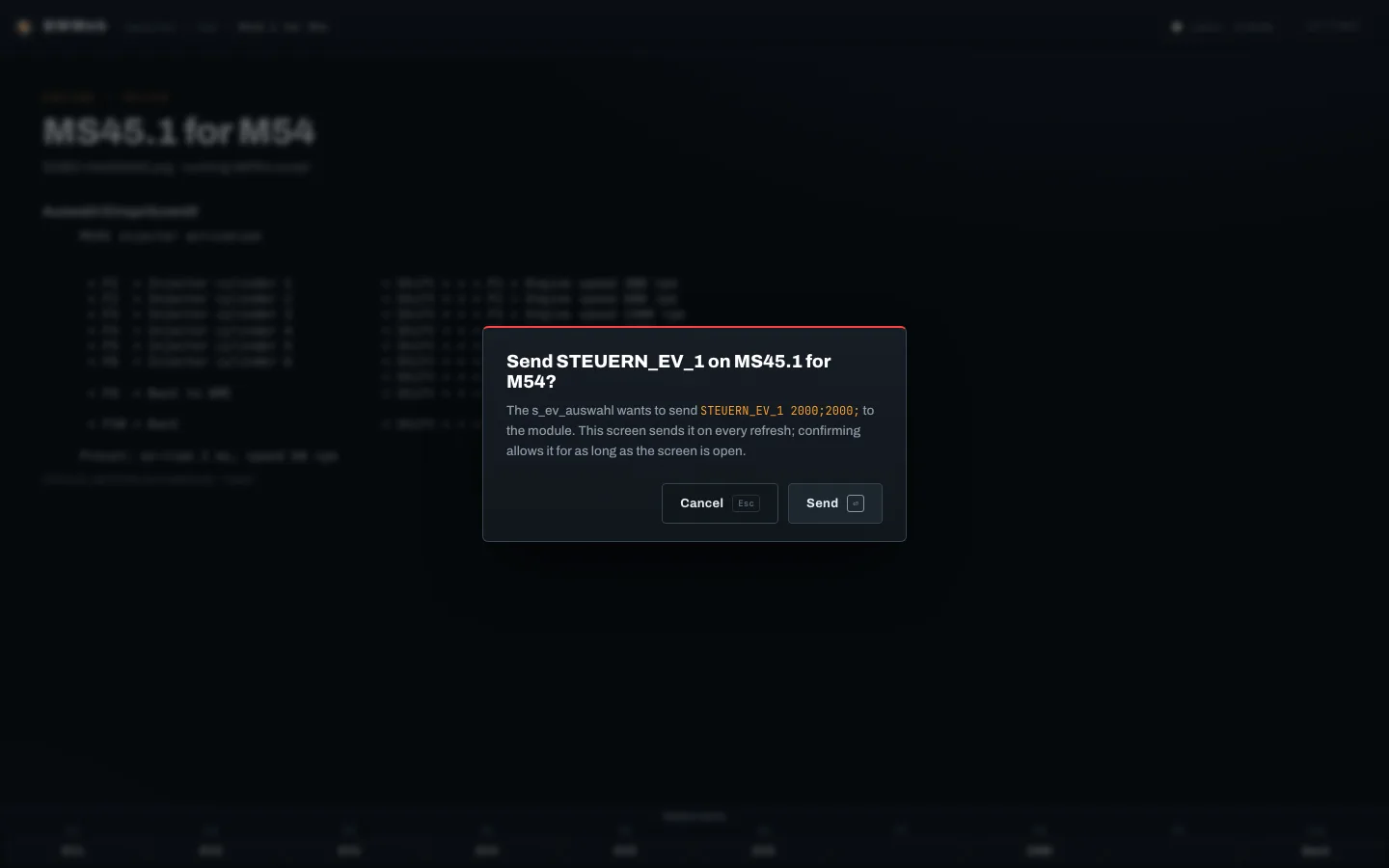
at.classicConfirm before sending. The exact job and argument the
screen wants to send, and a Cancel key. Reads never prompt;
writes and activations always do.
Identity and scans
Ask the car what it is, and ask every module at once whether it
has anything stored.
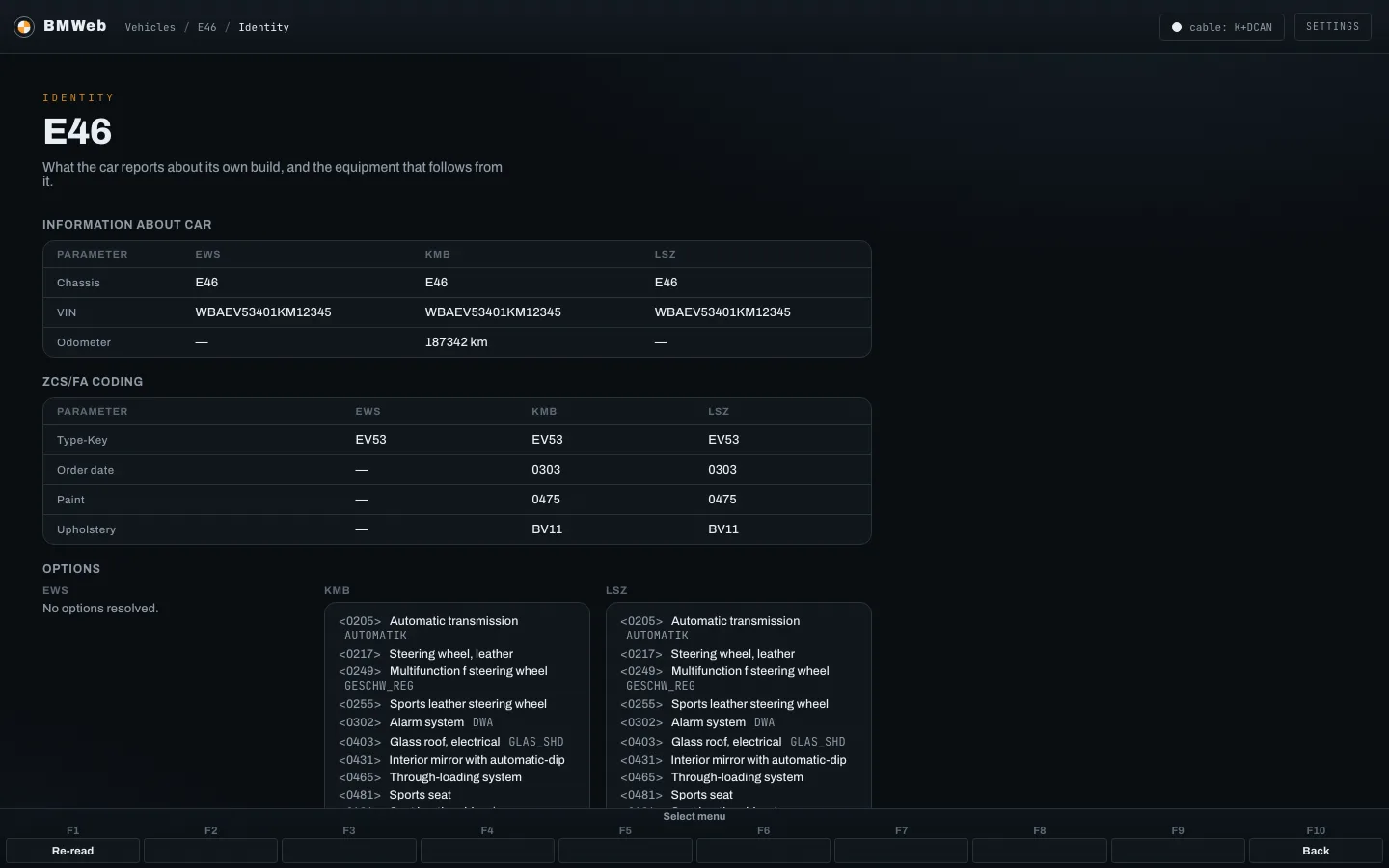
Vehicle identity. The build record as each module
stores it, side by side: VIN, stored odometer, order date,
paint, upholstery and the option codes decoded into words.
Copies that disagree are a finding.
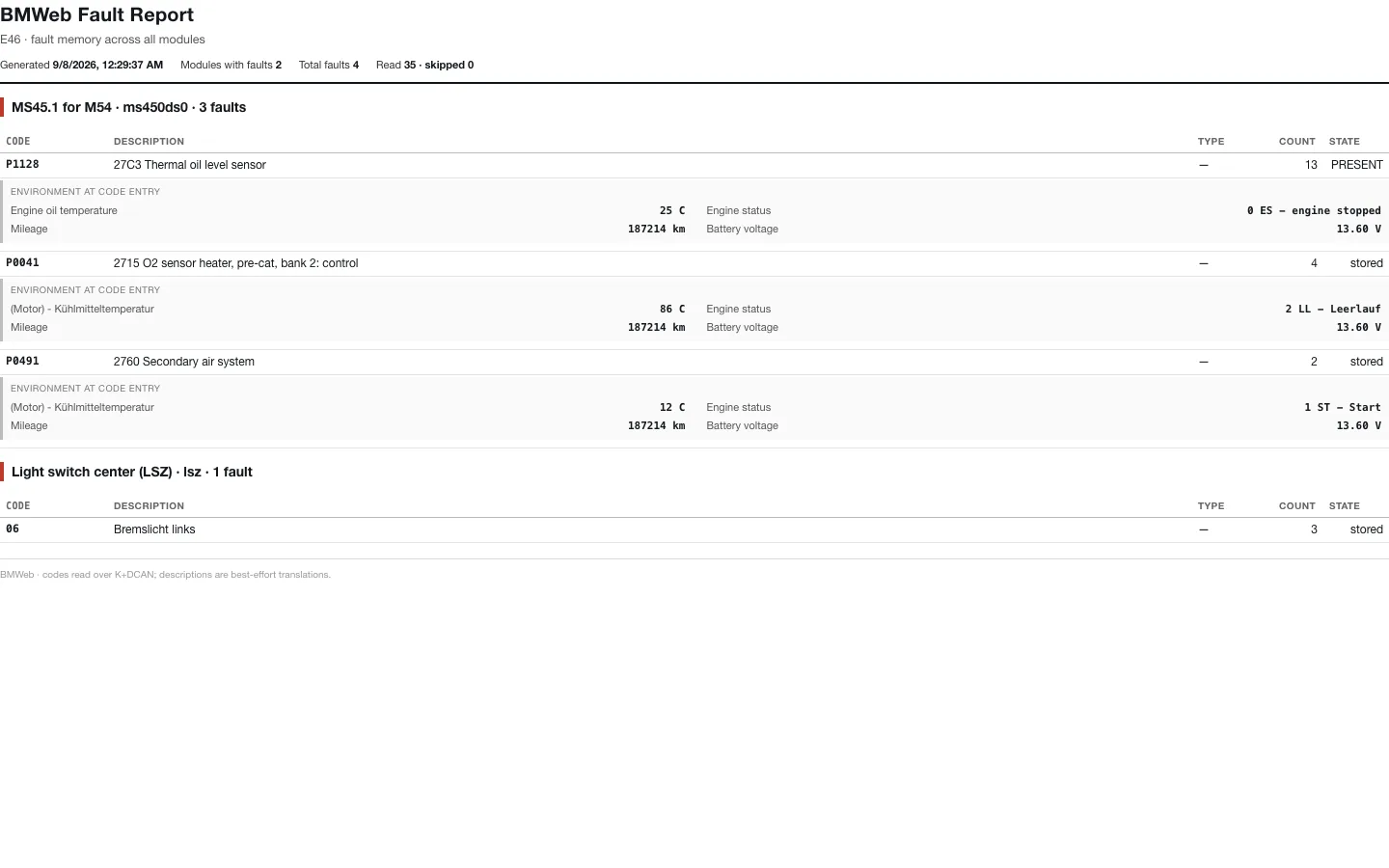
Fault report. The whole-car read as a clean sheet for
printing or saving as PDF: codes, how often, present or
stored, and the conditions when each was set.
Garage
Save a car once and every scan of it is kept beside it, so two
reads of the same car can be laid side by side.
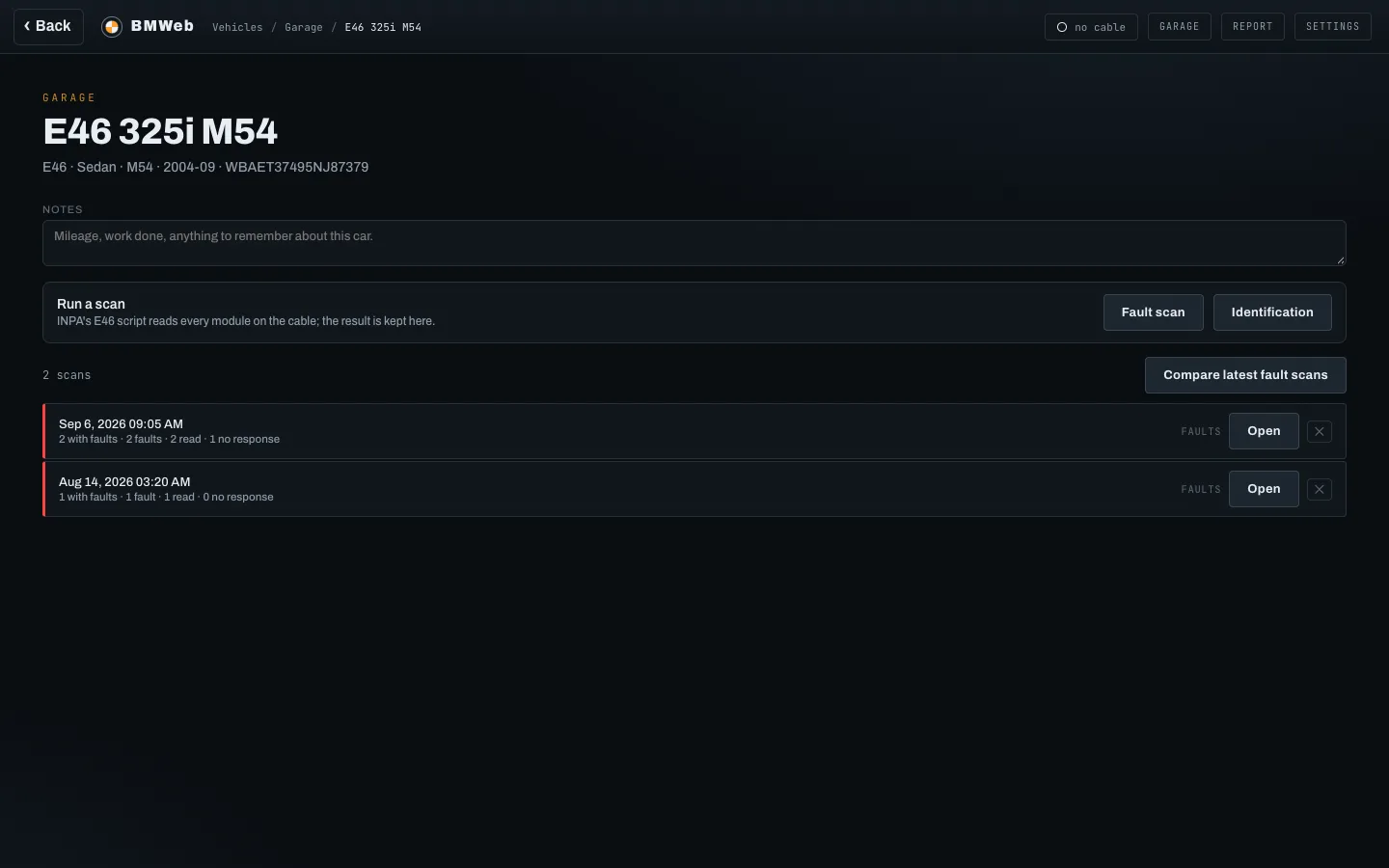
Garage. Save a car once and every scan of it is kept
beside it, with a notes box and a scan you can start right
from the row.
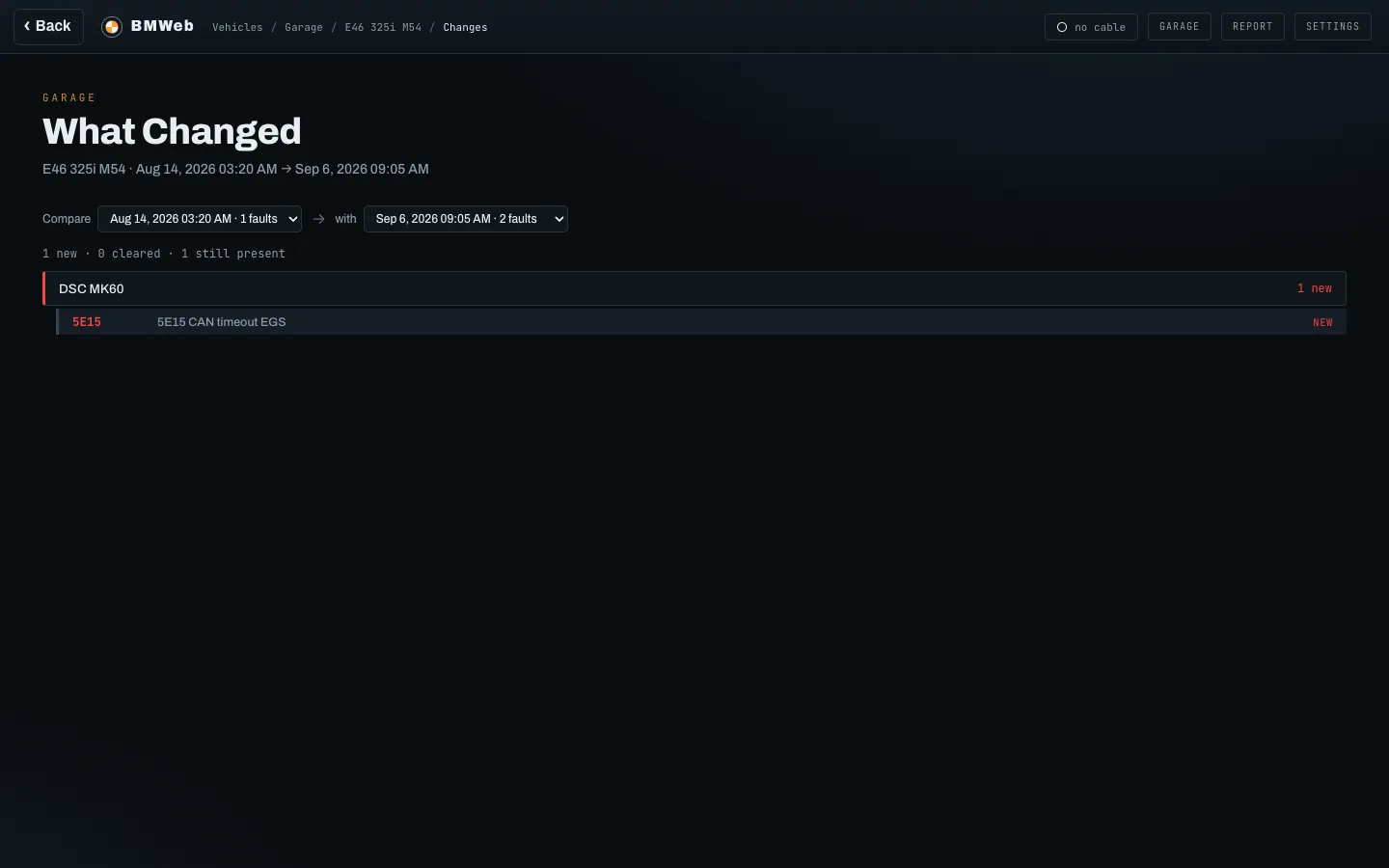
What changed. Two reads of the same car side by side:
what is new, what you cleared, and what is still there.
ISTA
The workshop tool's own layout, tab for tab: Operations, Vehicle
information, Vehicle management, Service plan and Workshop, drawn
over the app's own reads and BMW's own service data. It comes on
with the INPA layout setting; the modern layout keeps the app's
own look.
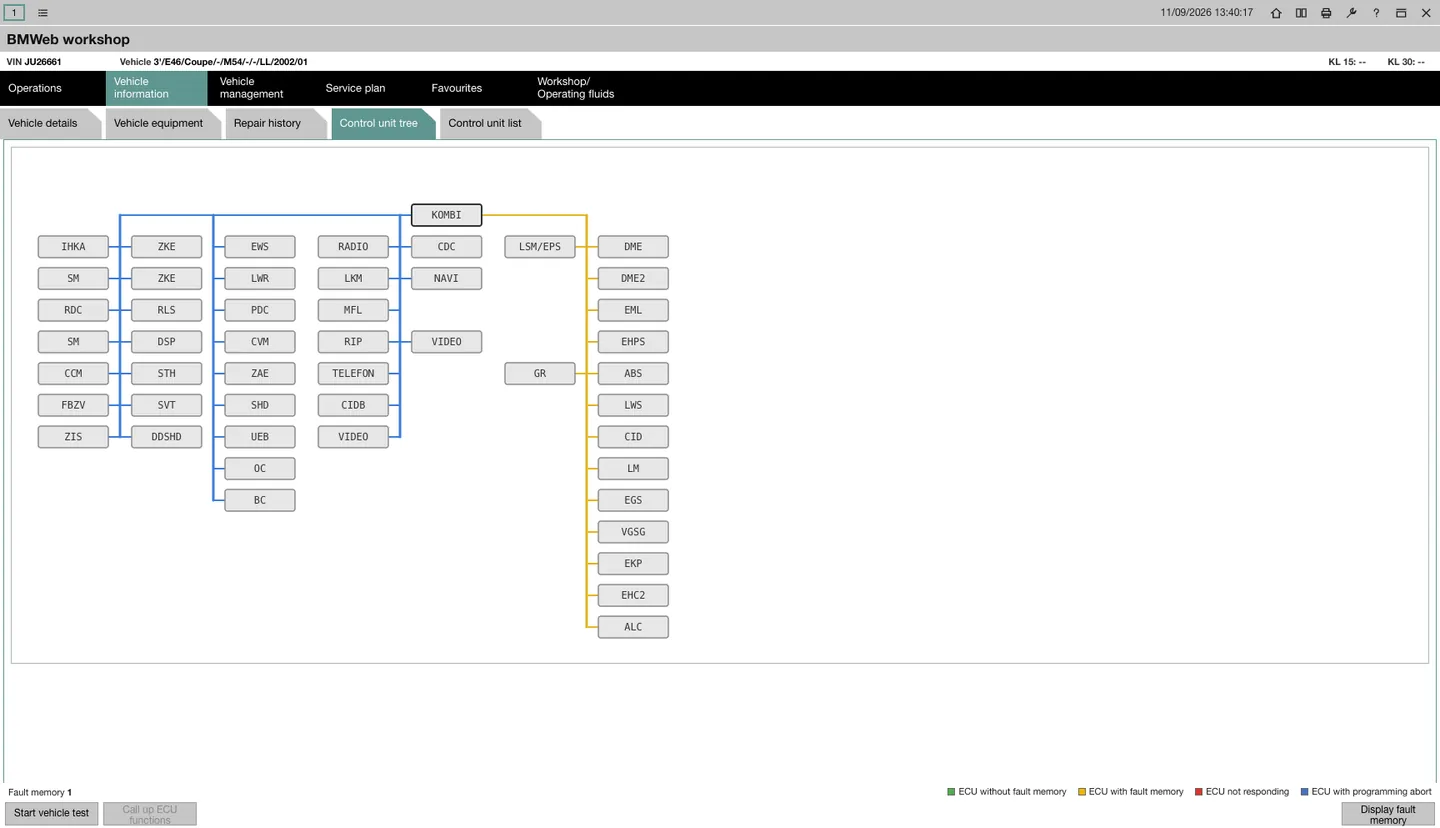
Control unit tree. Every module on its bus, coloured by
the newest scan. Hovering a box shows its address, group,
name, variant and part numbers; picking one enables Call up
ECU functions.
ECU functions. One window per module: its
identification from the scan, its read screens under Diagnosis
scan, its activations under Component triggering.
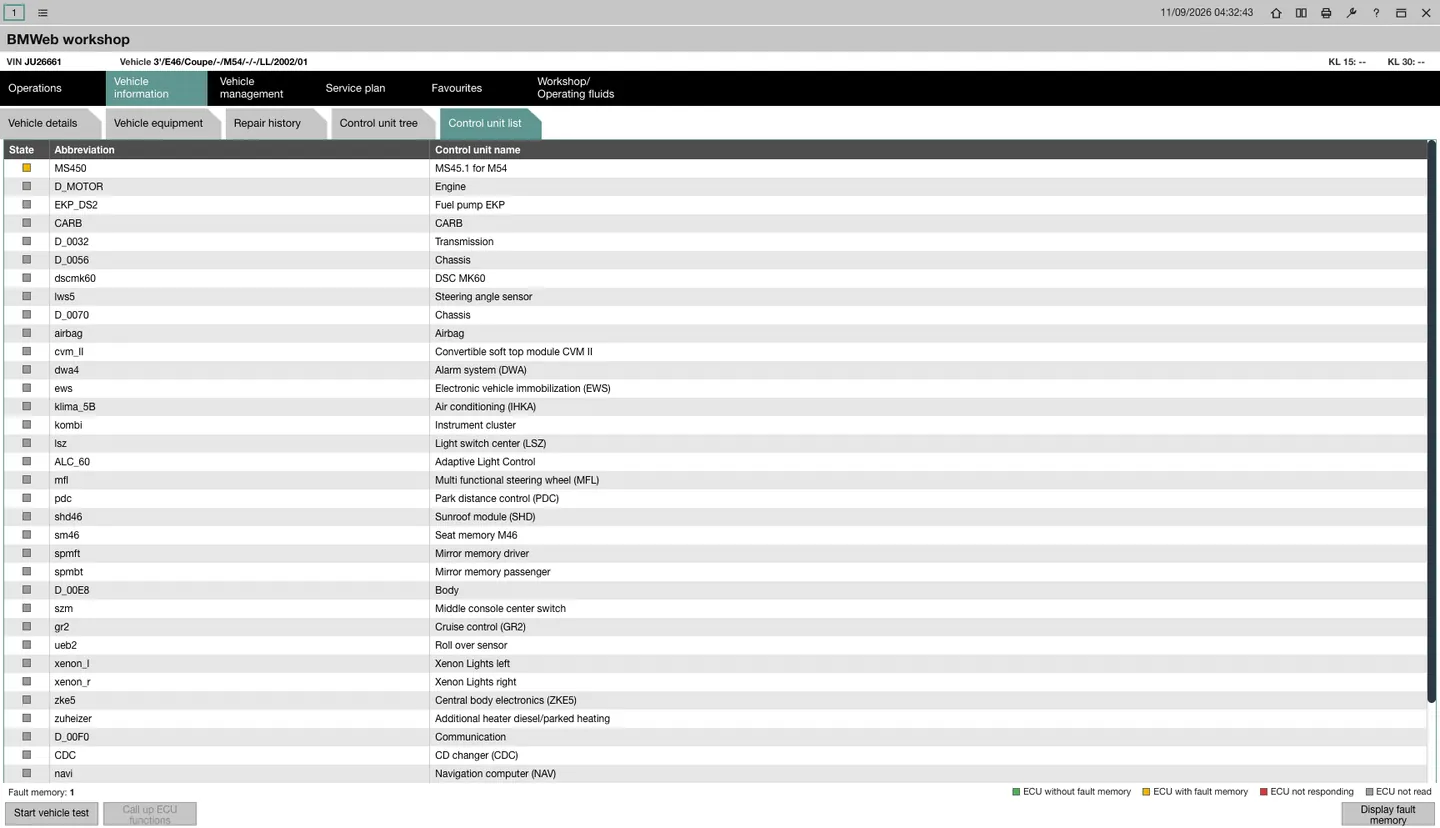
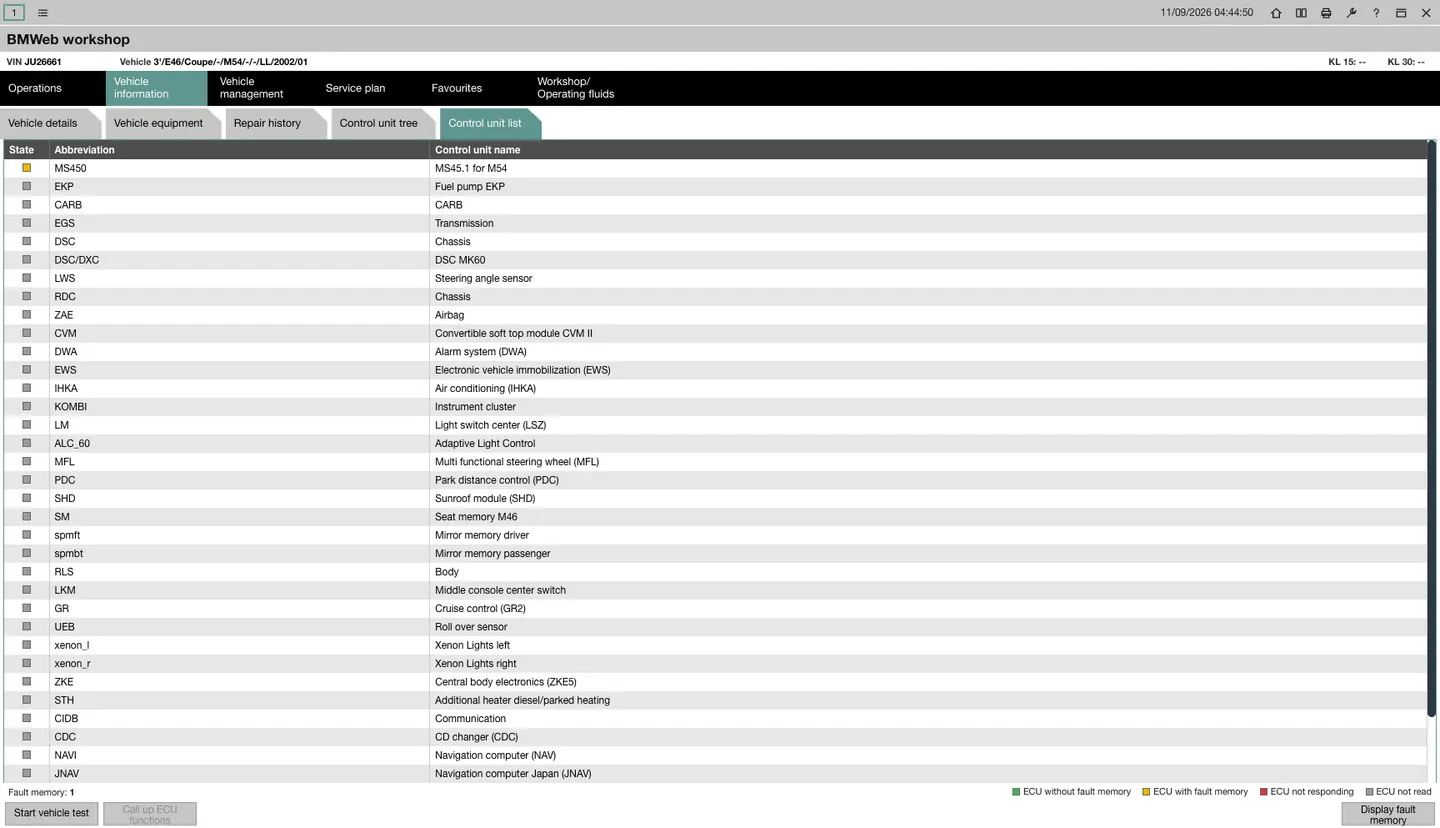
Control unit list. One row per control unit the car
carries, named by the variant the scan identified, with its
fault memory state.
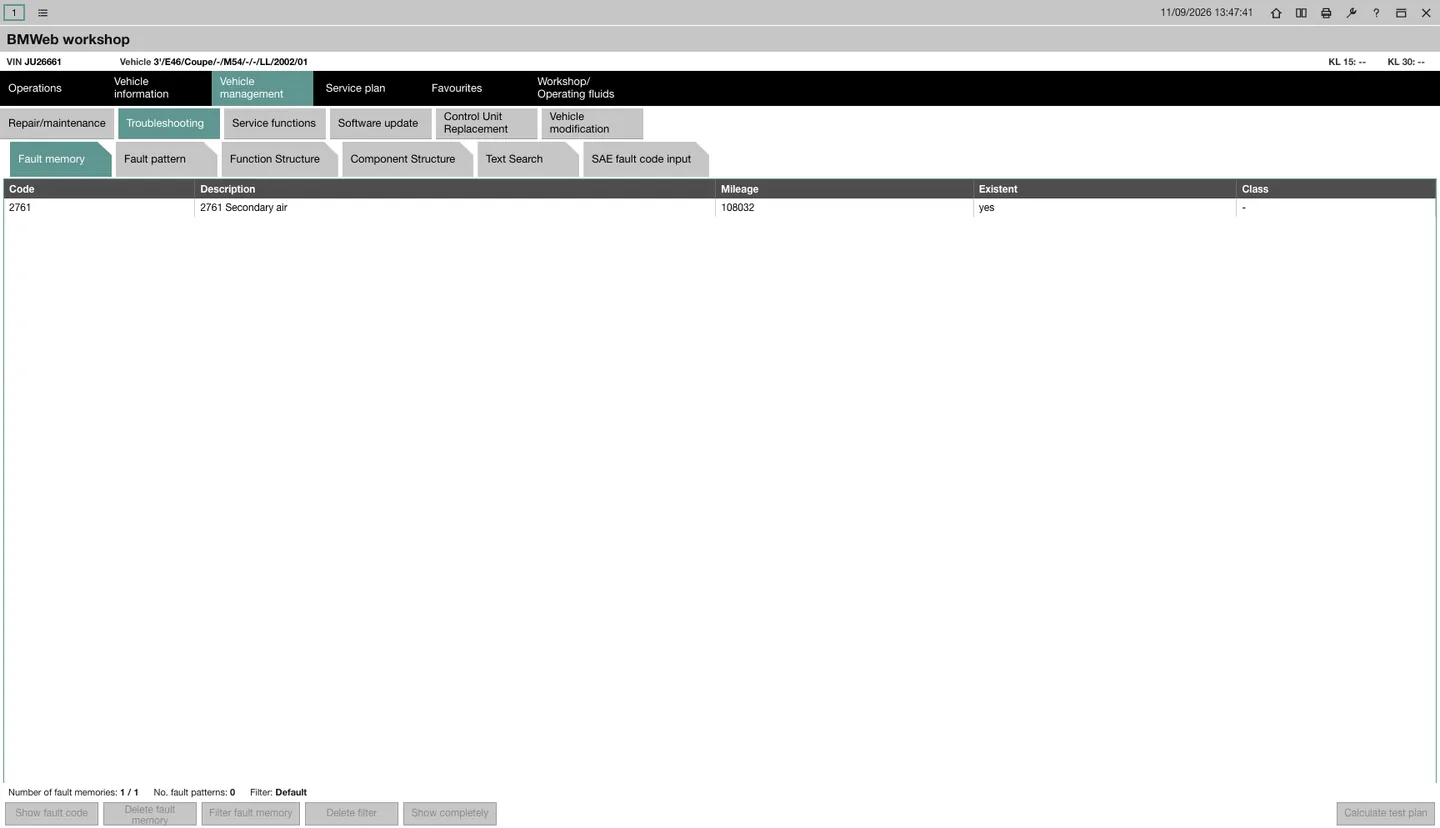
Fault detail. Description, Details and System context
for one stored fault, from the module's own read and BMW's
fault document where one exists.
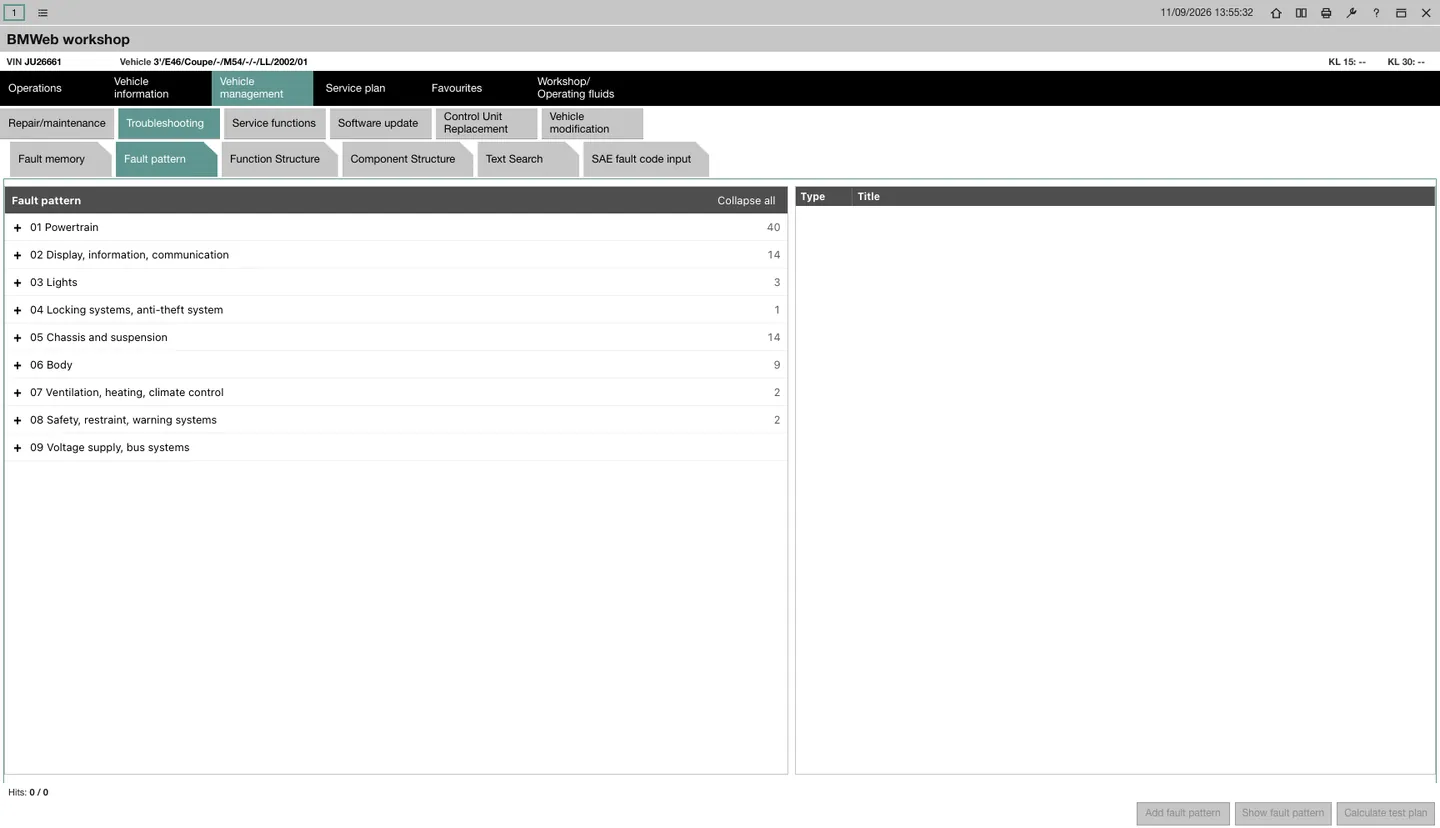
Fault pattern. BMW's symptom tree for the car, nine
groups deep, each leaf listing the functional descriptions and
repair documents that diagnose it.
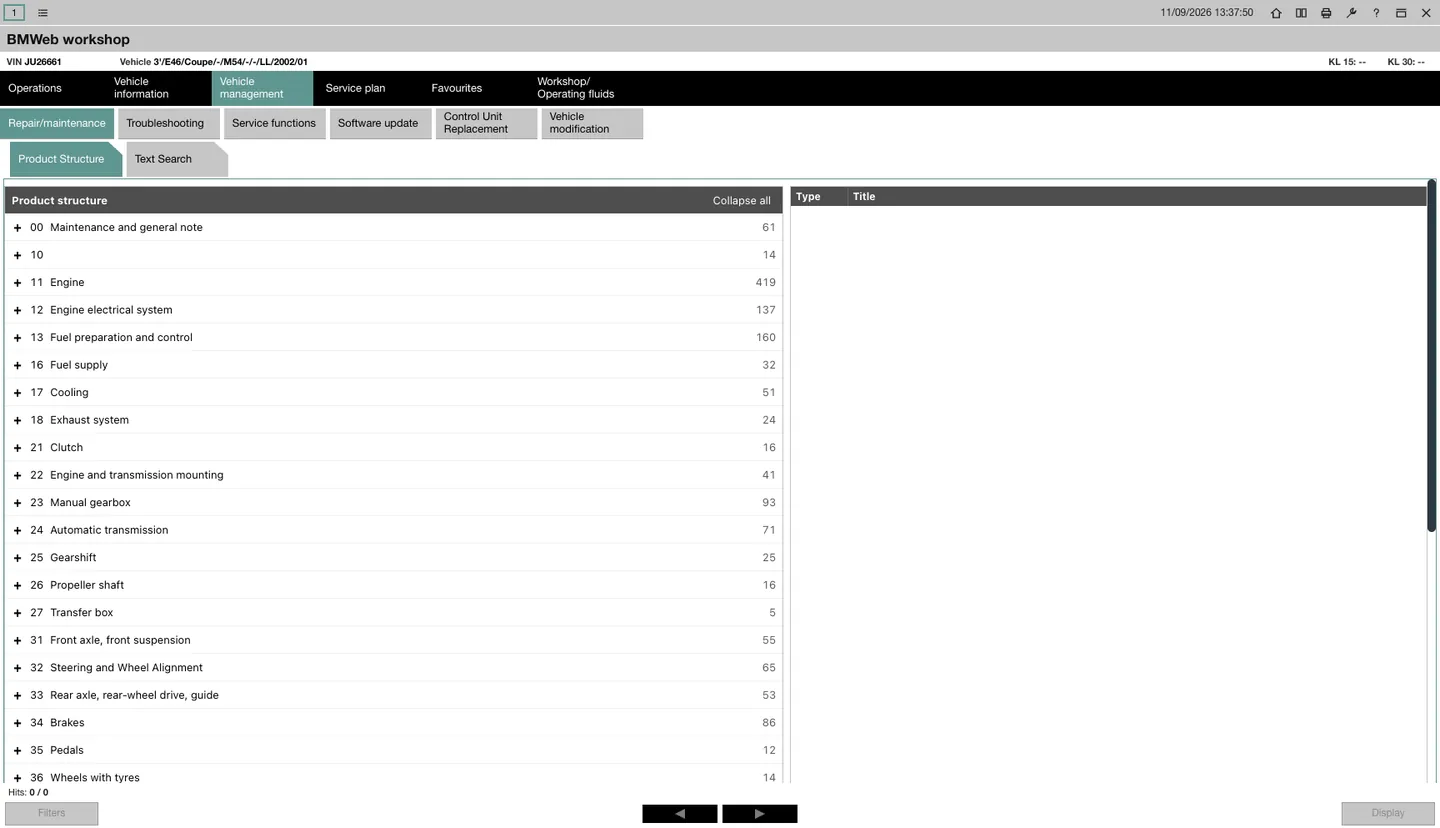
Repair/maintenance. The repair manual by product
structure: pick a group, open an instruction with its steps,
pictures and tightening torques.
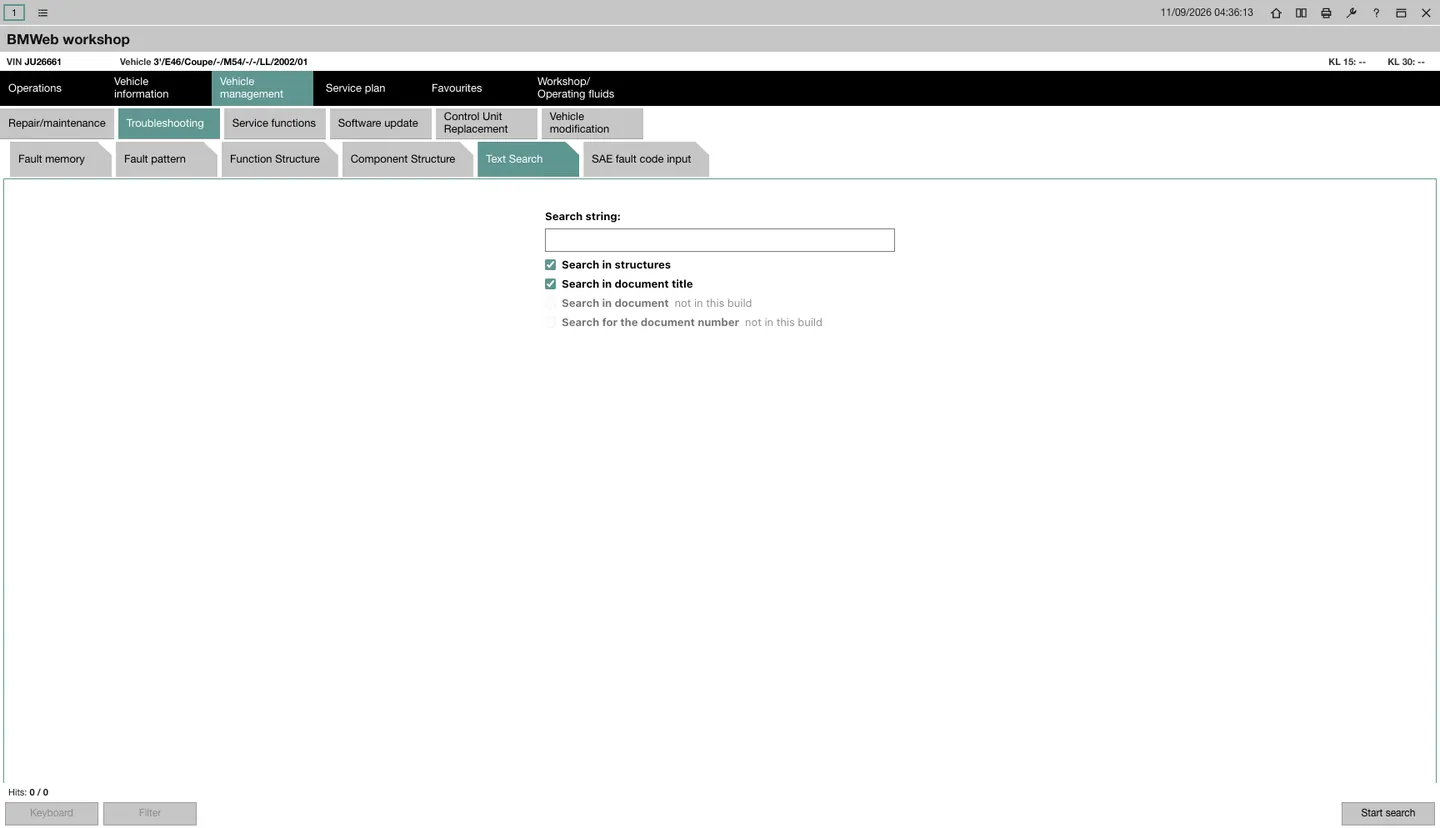
Text search. Search the structures, document titles,
document bodies and document numbers of the service data for
this car.
Reference apps
Everything past this point works without a cable and without a
car: the reference material from the dealer software, in the
browser.
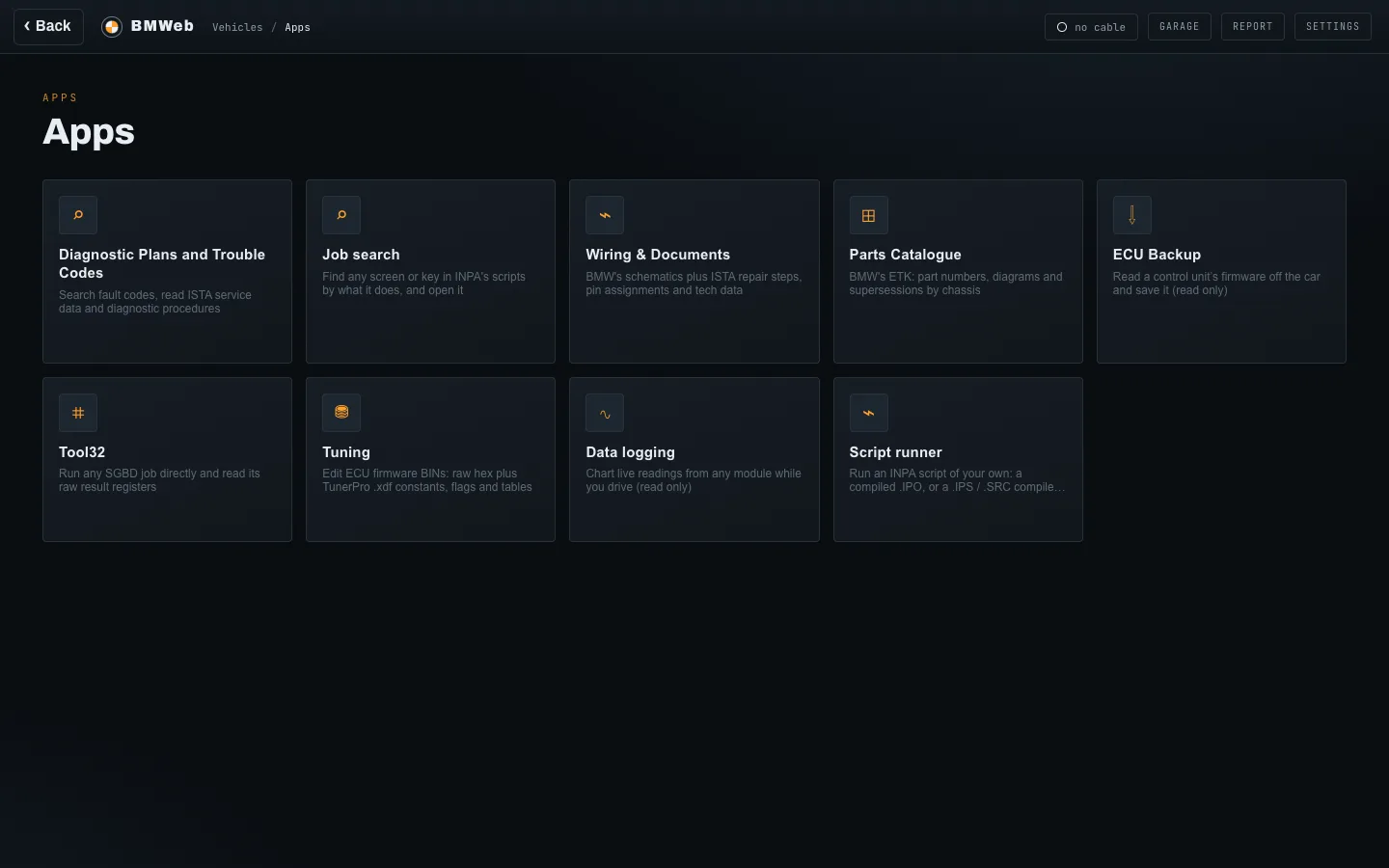
Apps hub. Every reference app as one tile: fault codes
and service data, job search, wiring and repair documents, the
parts catalogue, a read-only firmware backup, a raw job
runner, a firmware editor, data logging and the script runner.
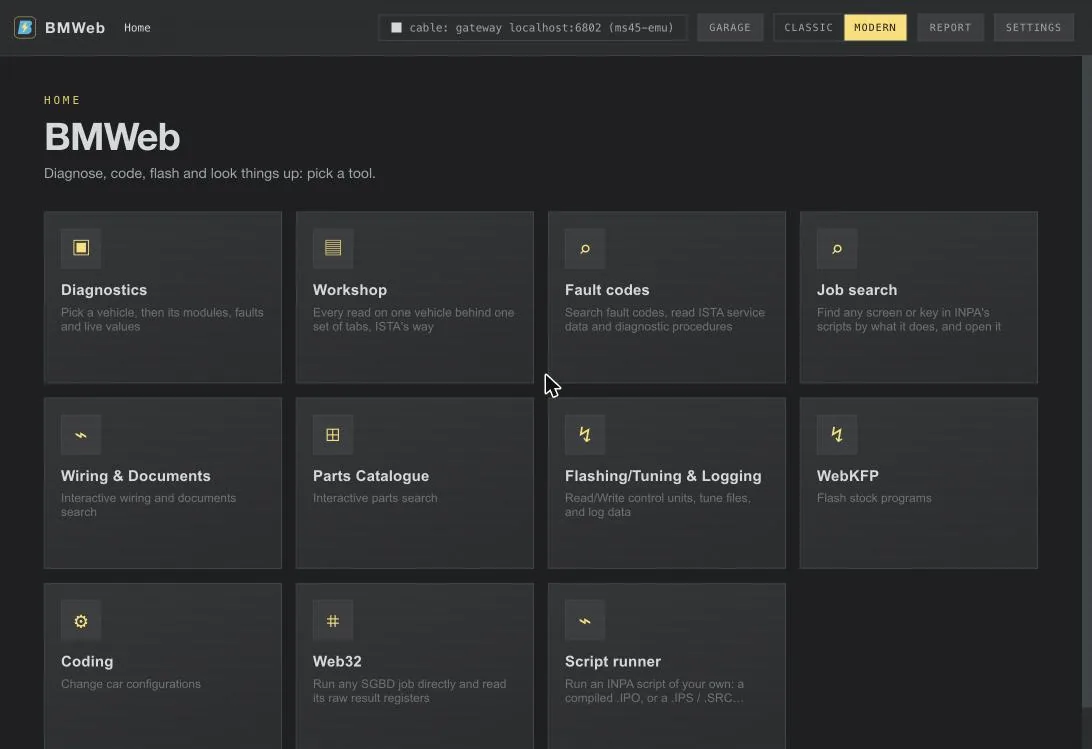
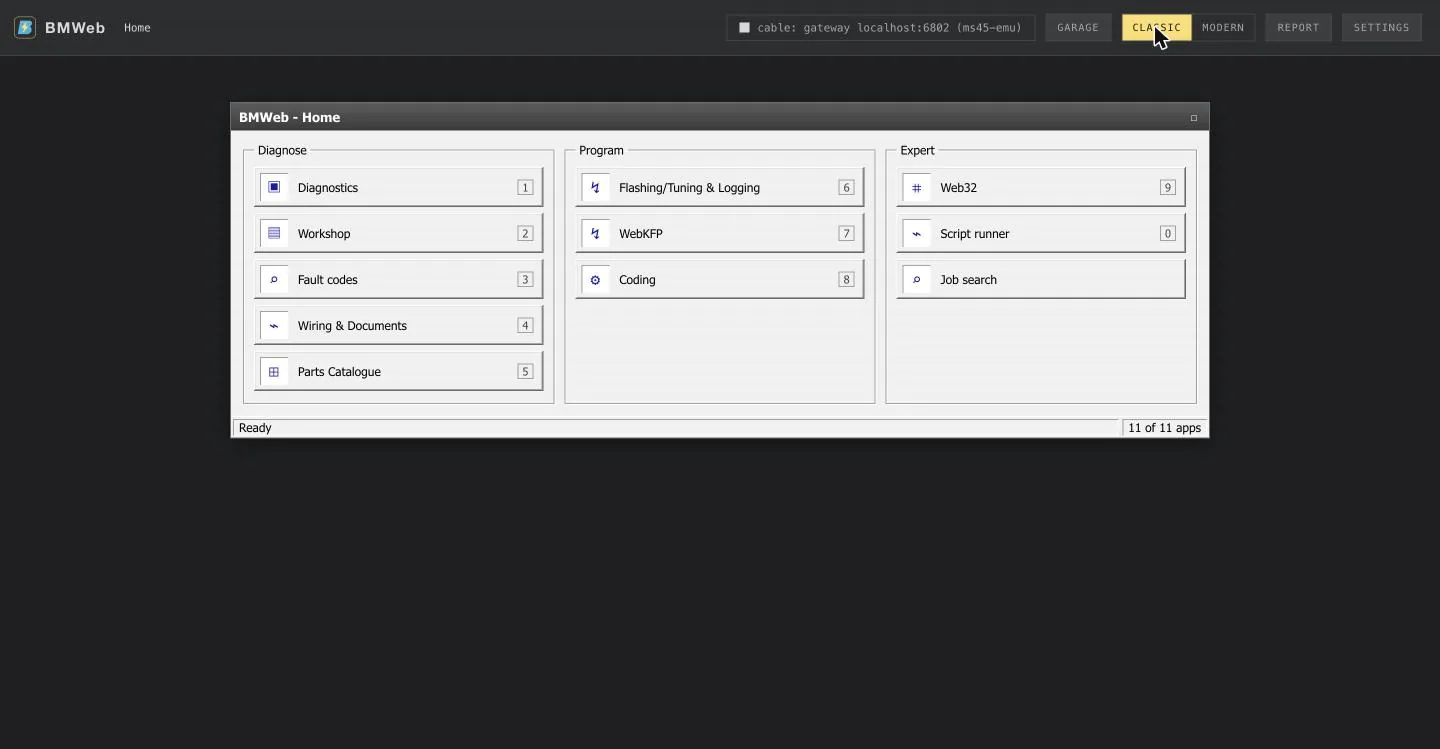
Home. Every tool on one screen, one tile each.modernHome. The same tools in three groups, Diagnose, Program
and Expert, each on a number key.classic
Fault lookup
Search fault codes and descriptions across every chassis and
module, then open one for its service data and, where the dealer
software has one, the step-by-step diagnostic procedure.
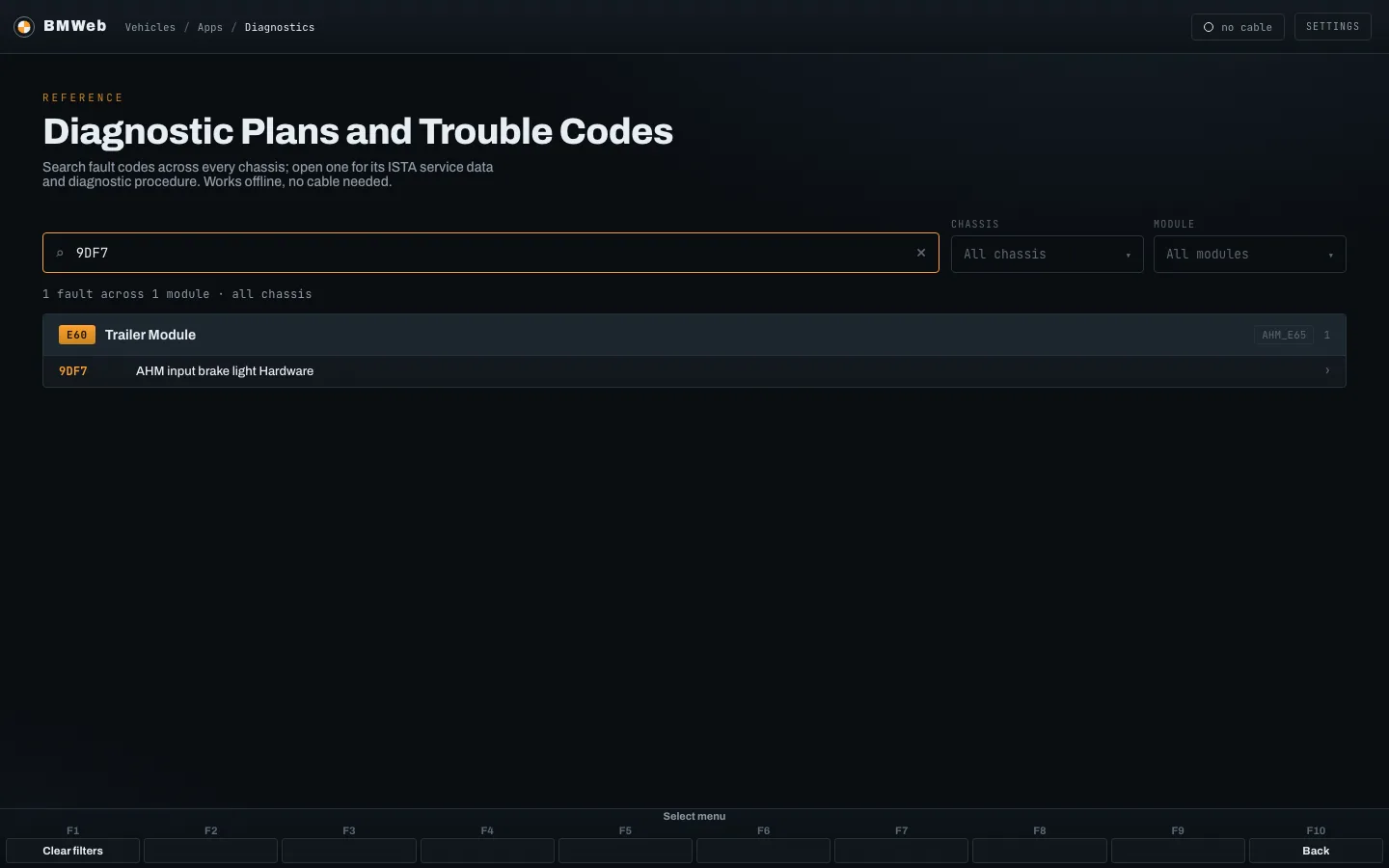
Search. Type a code or a few words; results are grouped
by chassis and module, with the original wording beside the
English. Rows with a chevron have more behind them.
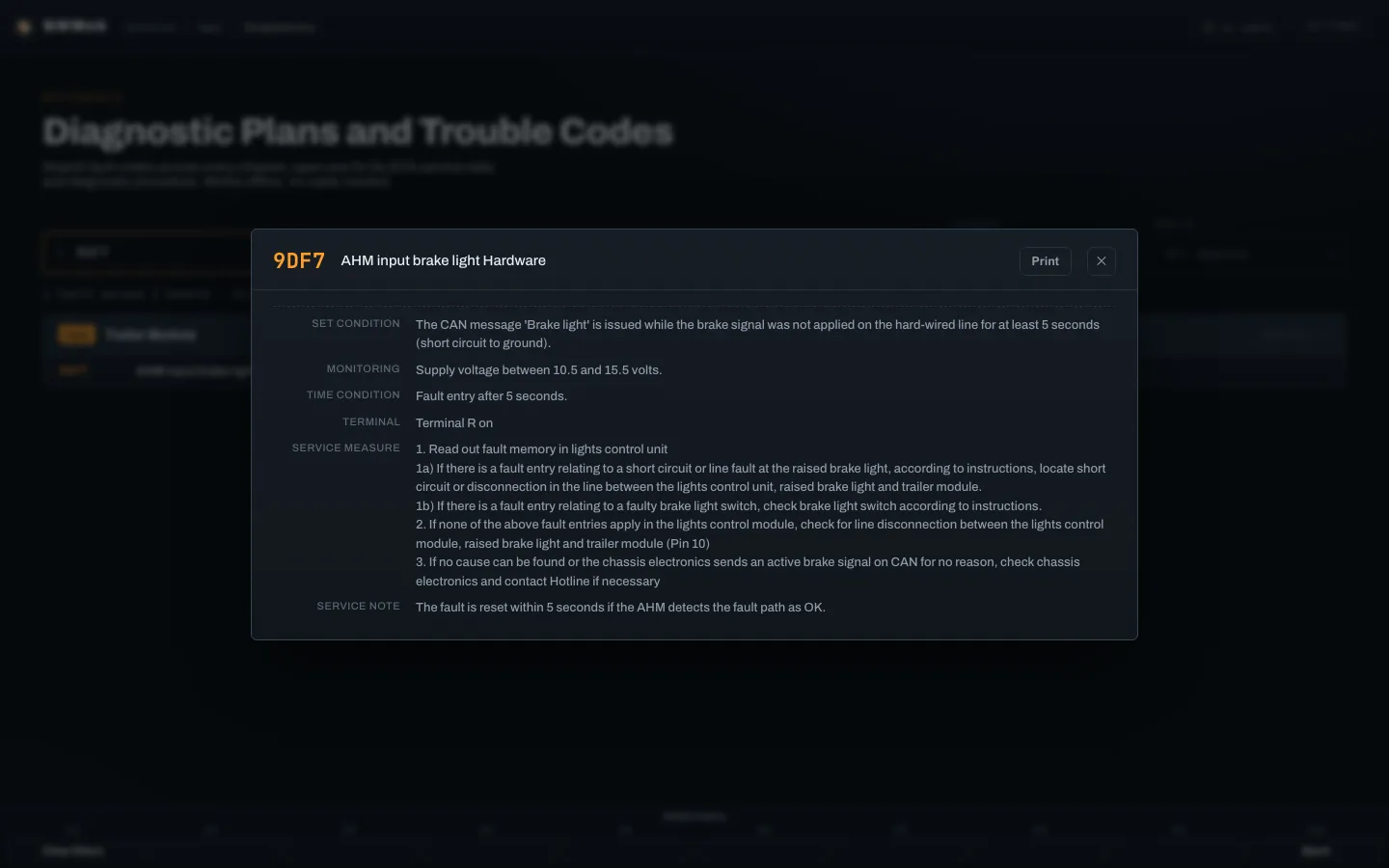
Service document. What sets the fault, how it is
monitored, and the service measures to take, followed by the
diagnostic procedure where the dealer software has one.
Printable.
Job search
Every screen and key in every module script, searchable by what it
does, in English or German, by the jobs it sends or the result
keys it reads.
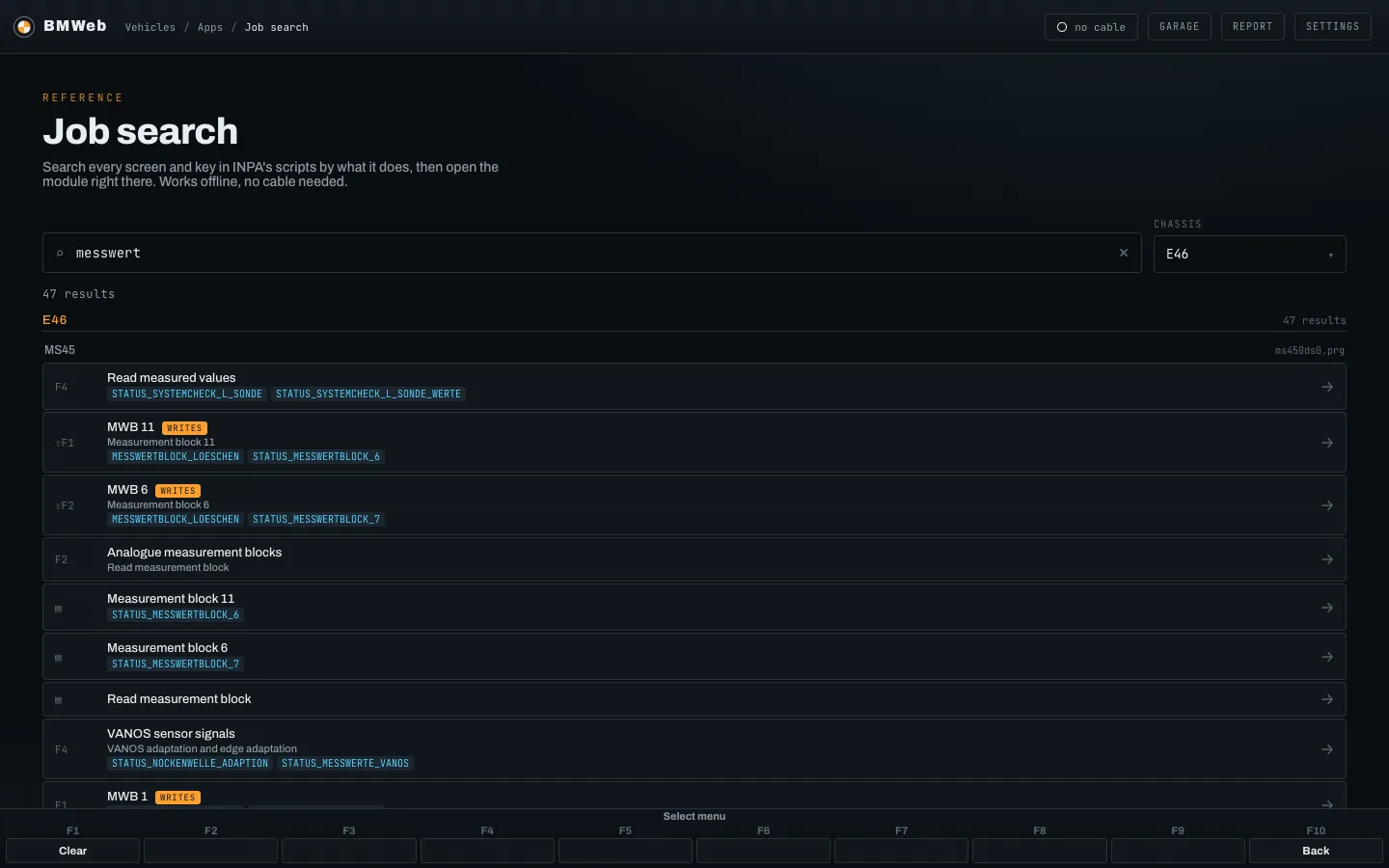
Job search. Search every screen and key in the scripts
by what it does, narrow it to one chassis, and open the module
right there. Screens that write are marked.
Wiring
The factory wiring diagrams, component locations, pin assignments
and repair documents for each chassis. Diagrams are vector: scroll
to zoom, drag to pan, and open several as tabs.
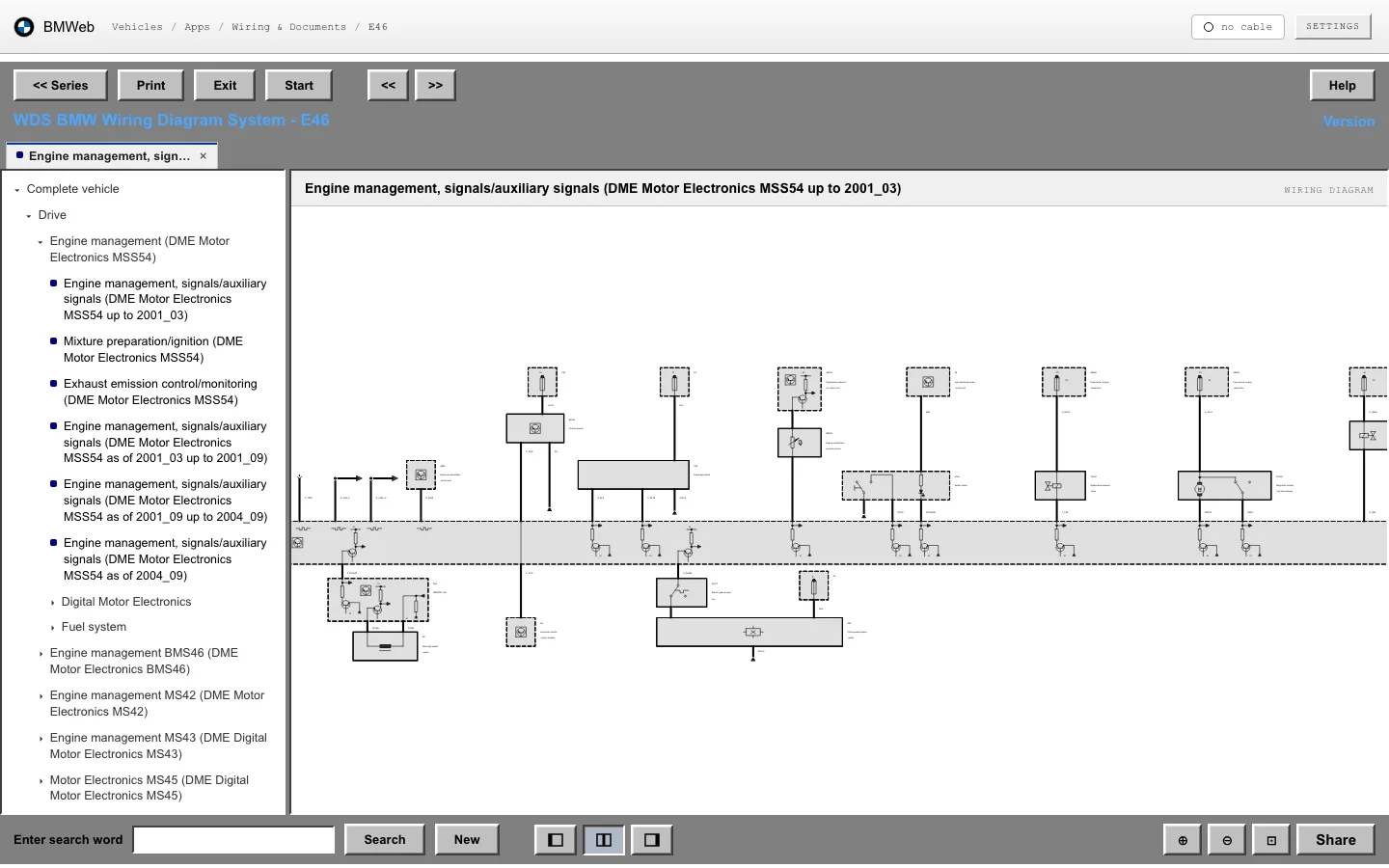
Wiring diagram. With the classic skin on, the diagram
viewer takes on the grey frame of the original: series, print,
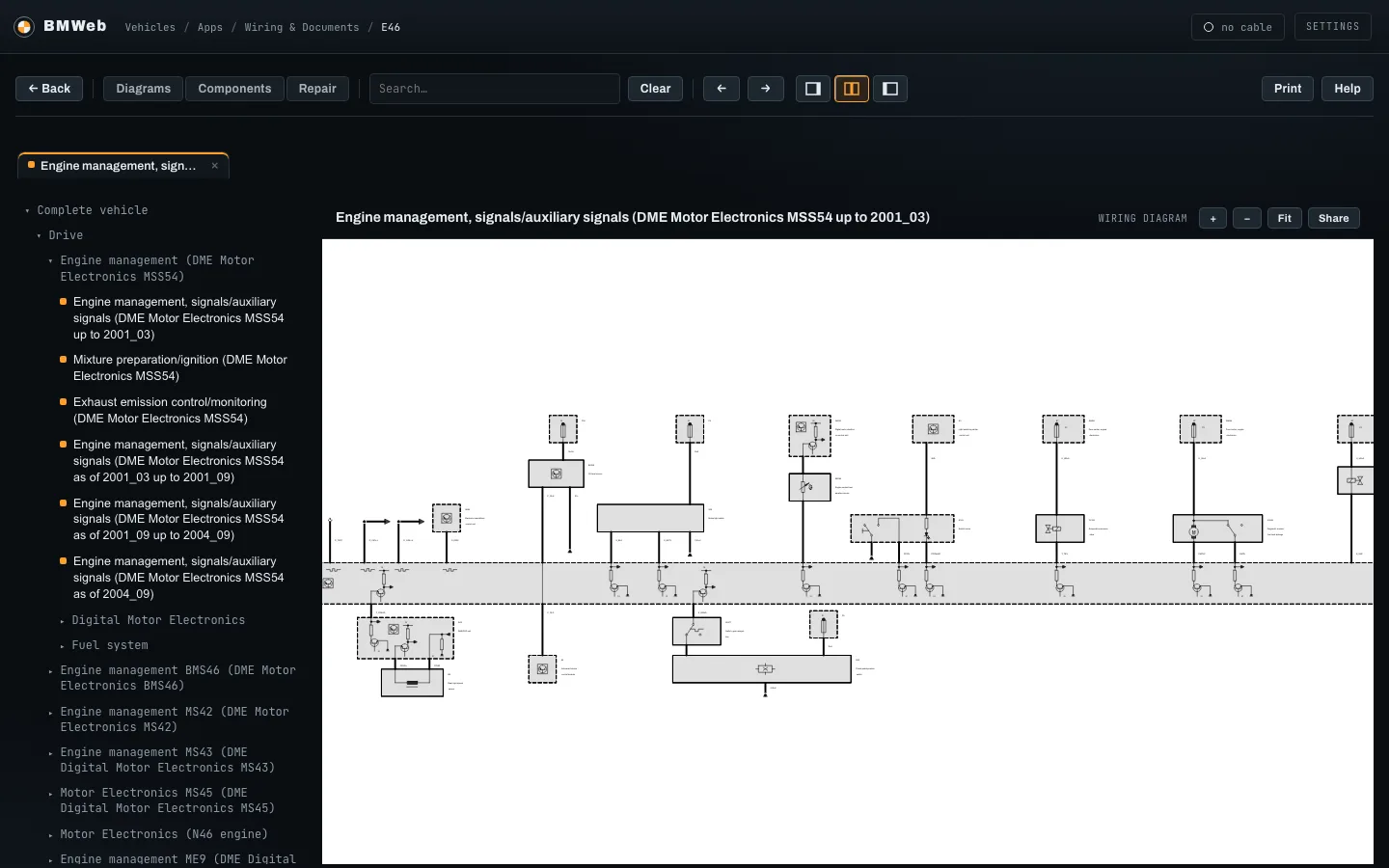
search and pane buttons where they always were.classic skinWiring diagram. The same schematic in the default skin.
The toolbar switches between diagrams, component information
and repair instructions.default skin
Parts
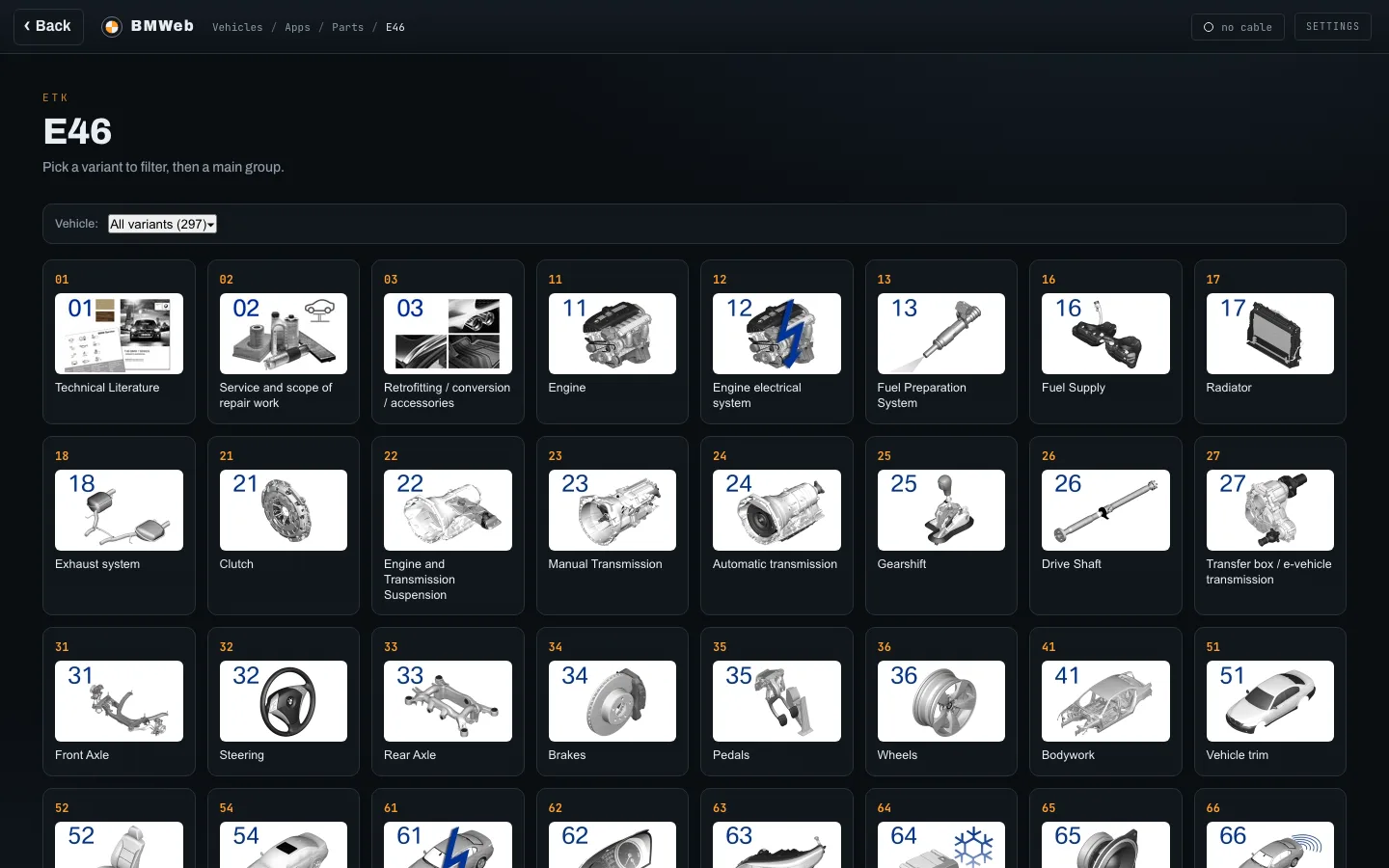
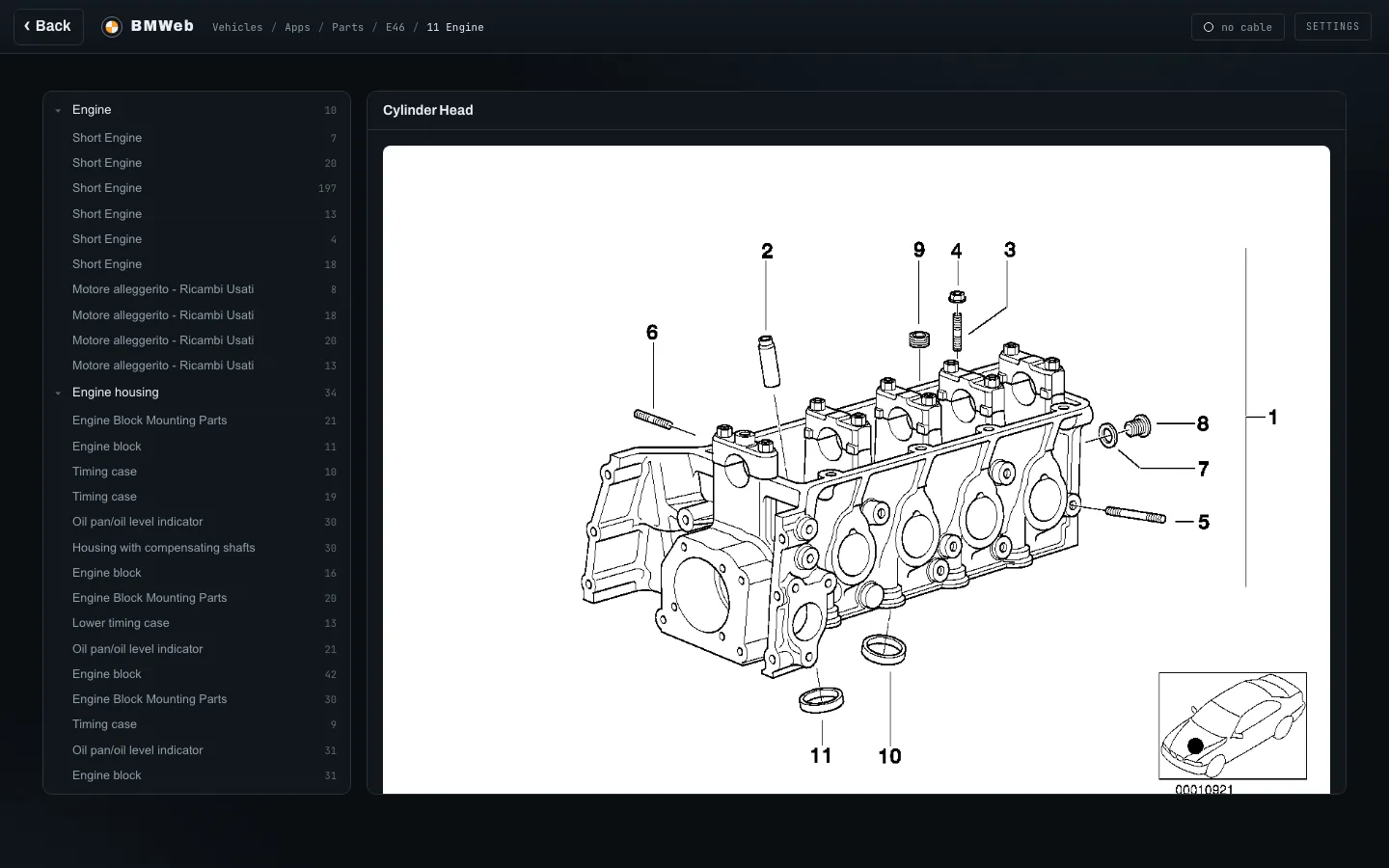
The parts catalogue by chassis: main groups, exploded diagrams,
and the part numbers behind each callout.
Main groups. Pick a variant to filter, then a group.
Diagram. Numbered callouts with the part table
underneath; the tree on the left walks the rest of the group.
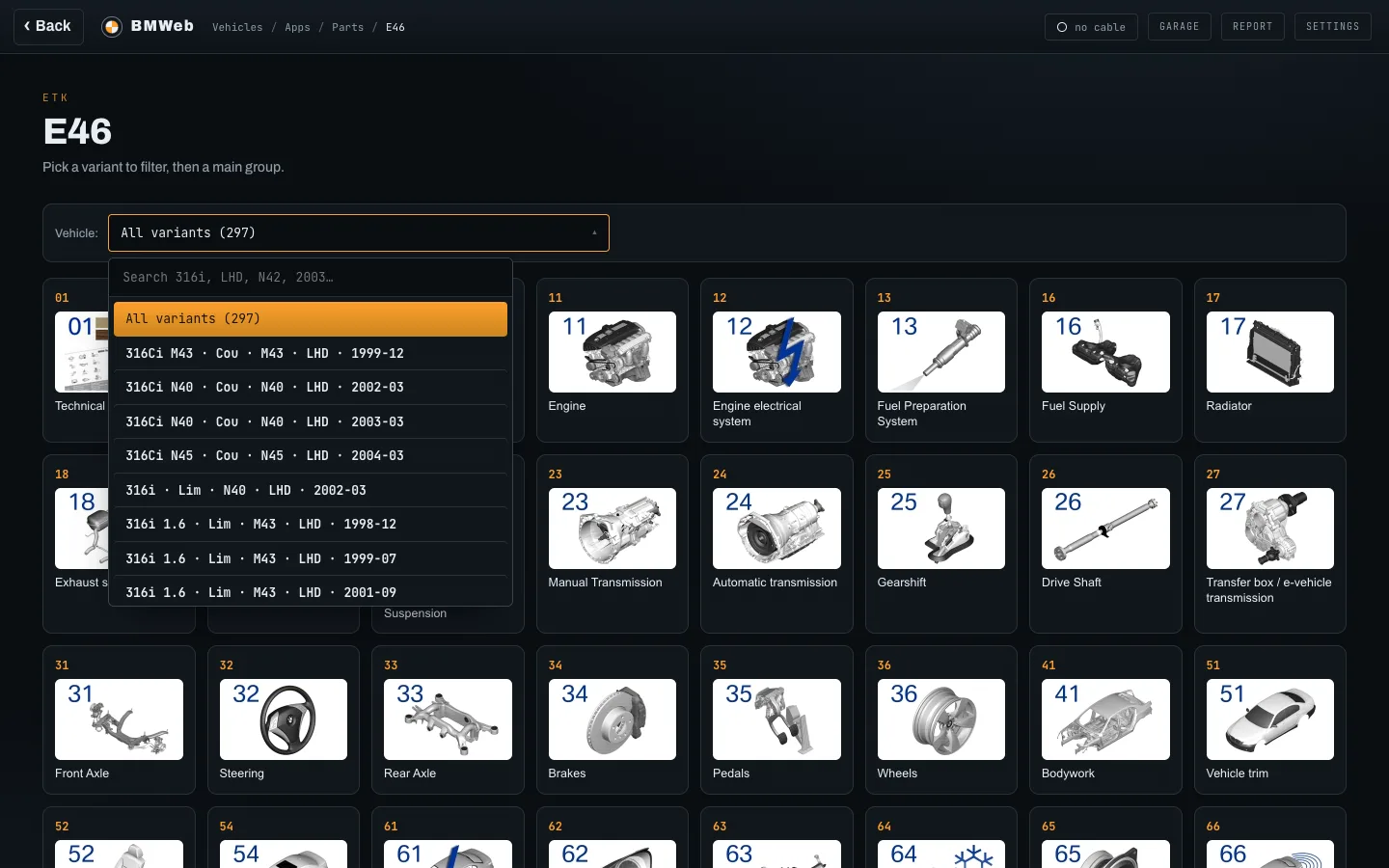
Pick your variant. All 297 E46 builds in one searchable
list, so the groups and part numbers are the ones for your
car.
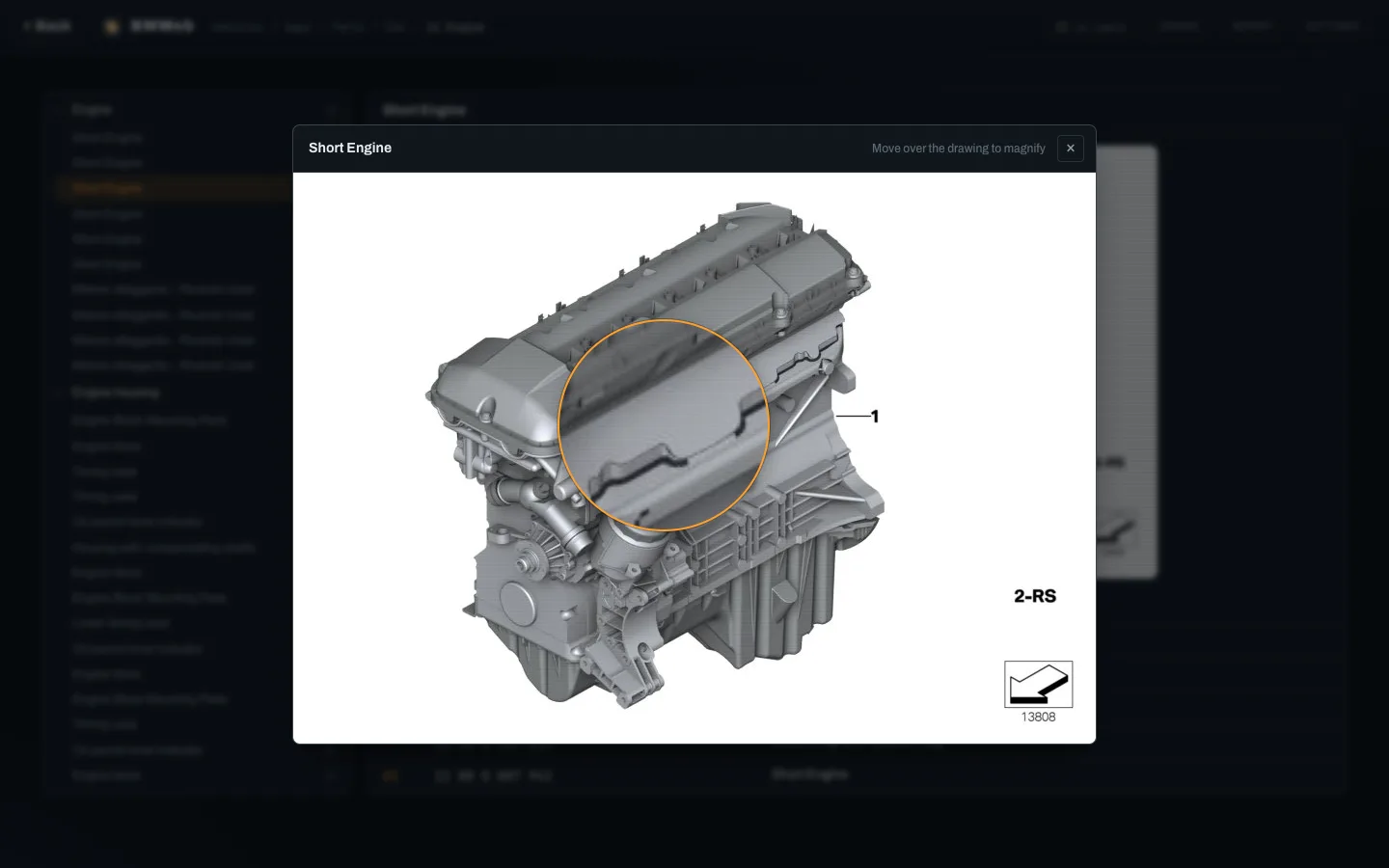
Drawing up close. Click a diagram for the full-size
scan, then move over it and a loupe magnifies whatever is
under the pointer.
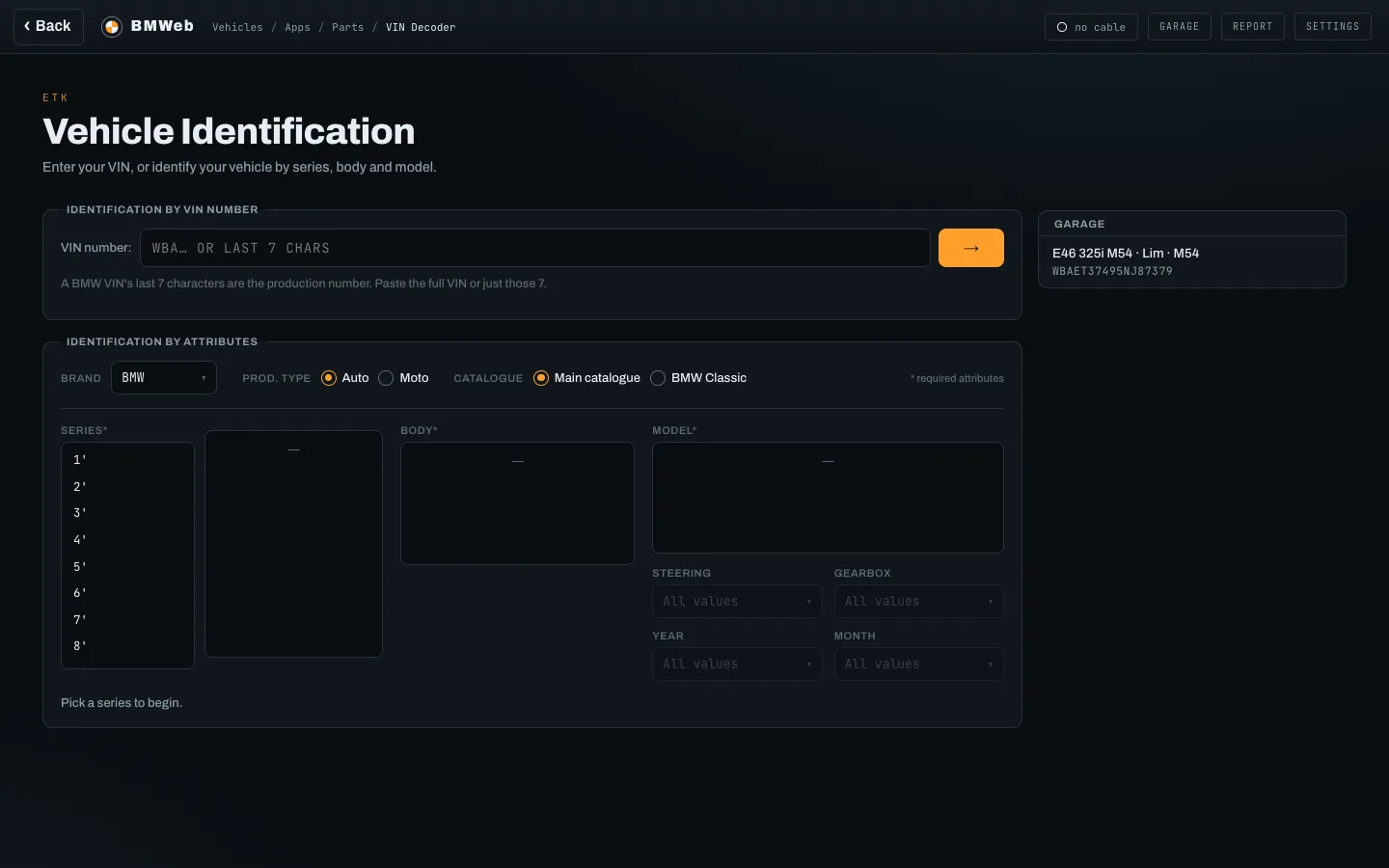
VIN decoder. Decode a VIN, or work down from series,
body and model. Cars already in the Garage sit beside it, one
click from their parts.
Flashing
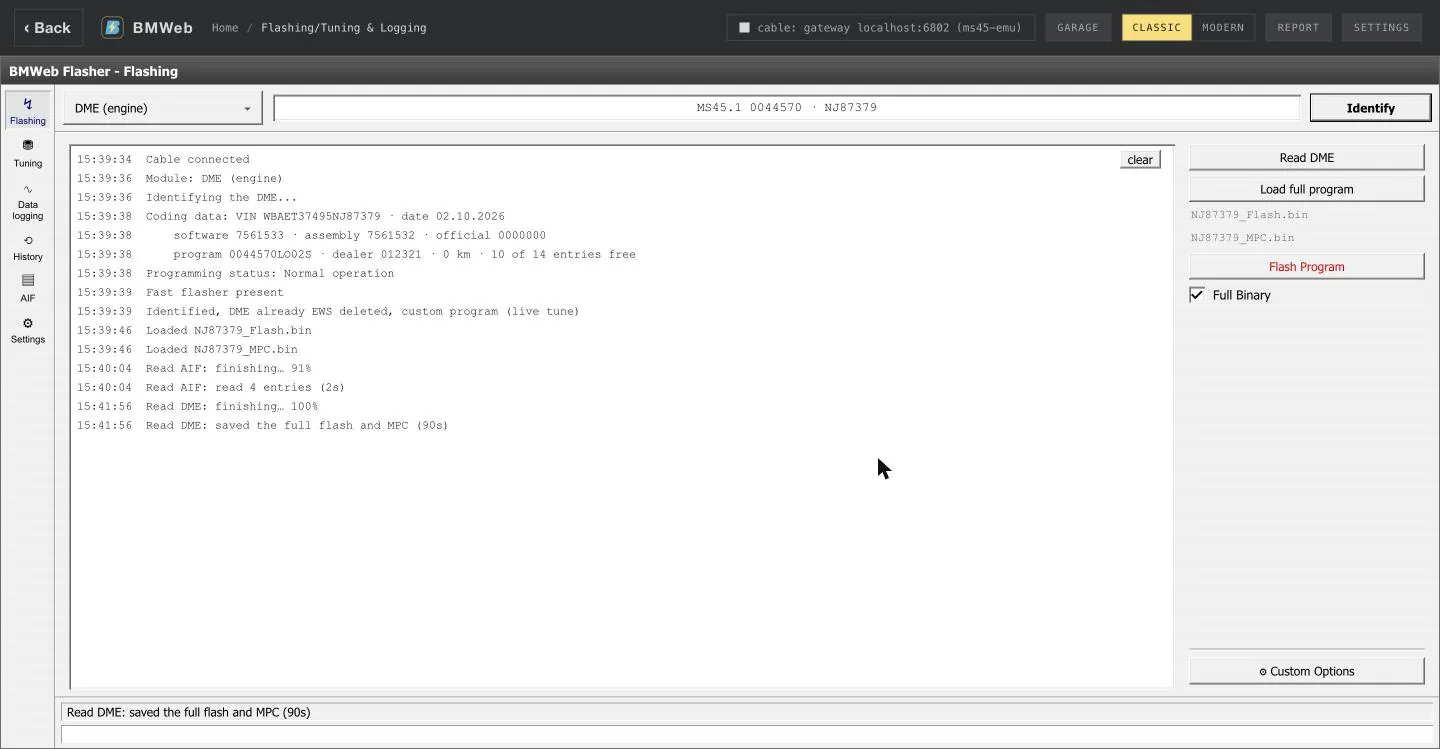
Identify the engine computer, read it, and write a program or a
tune back. On an MS45 carrying the fast flash bootloader the same
buttons go through it. The bootloader, live tune install and the
AIF editor are bench features of the local build.
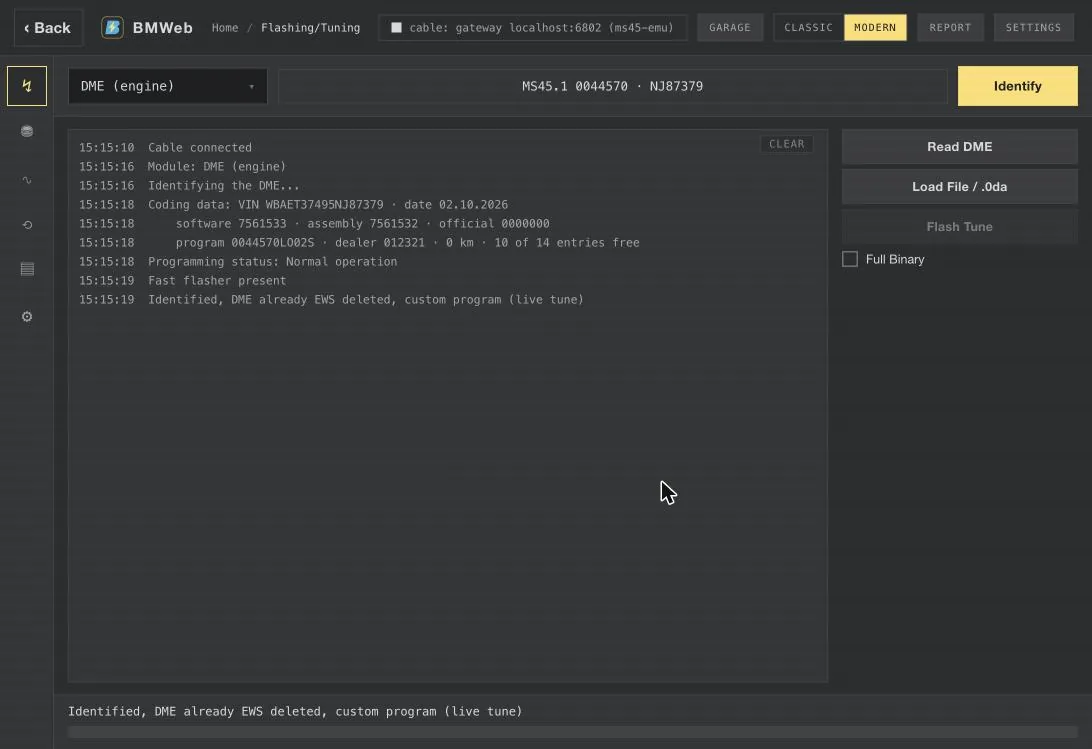
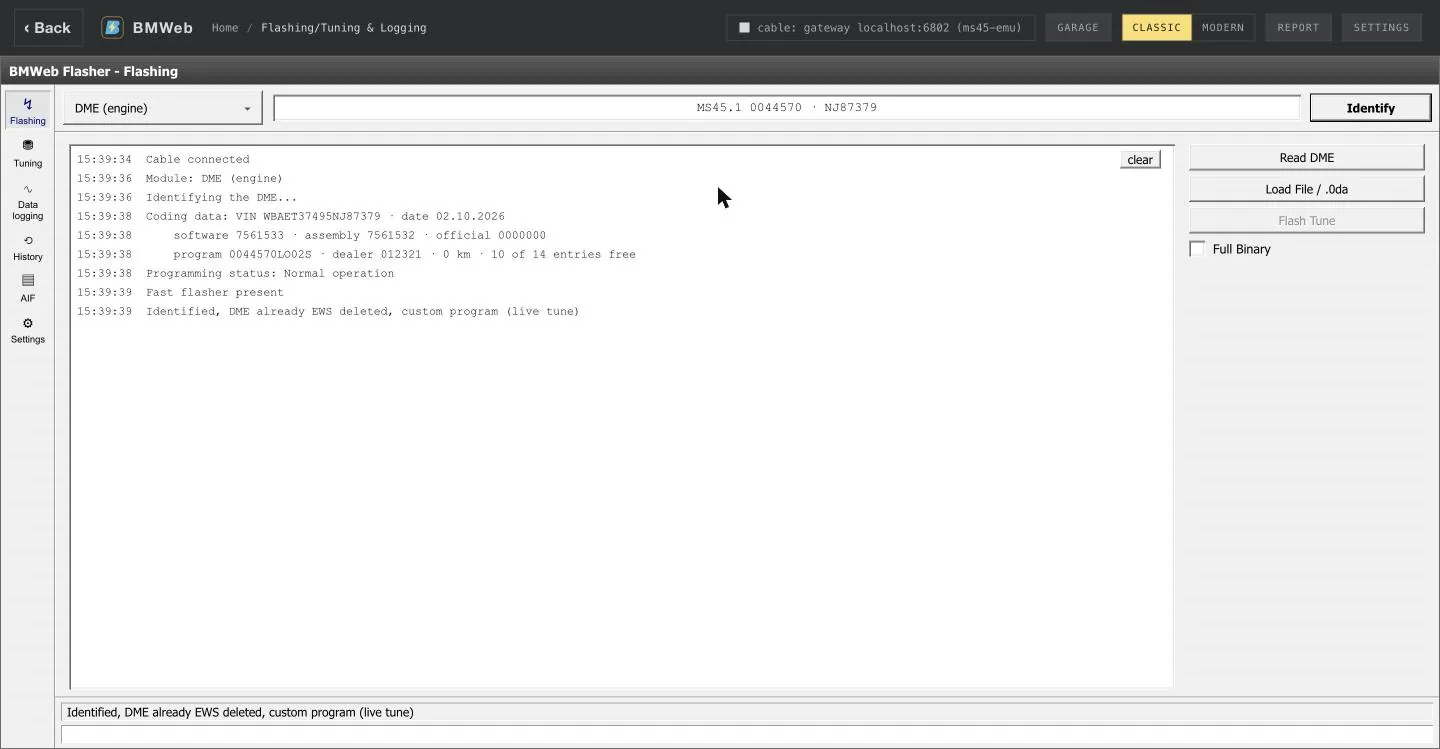
Identify. The DME's coding data, its programming
status, and what it carries: here the fast flasher and a
live-tune program.modernIdentify. The DME's coding data, its programming
status, and what it carries: here the fast flasher and a
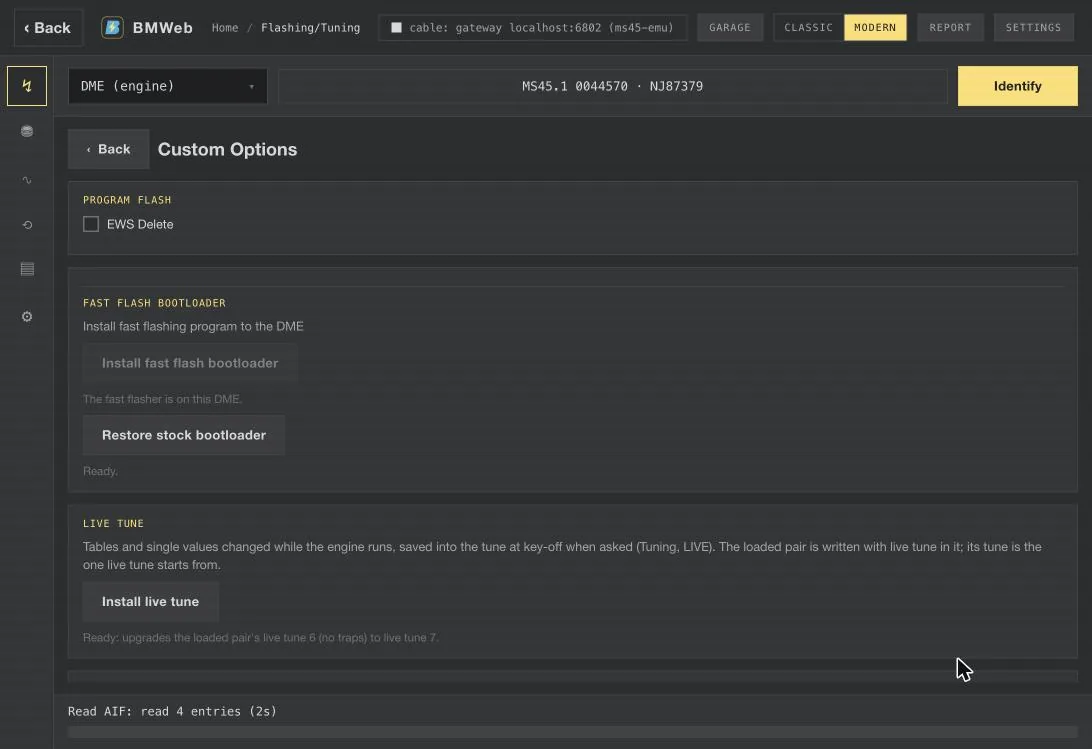
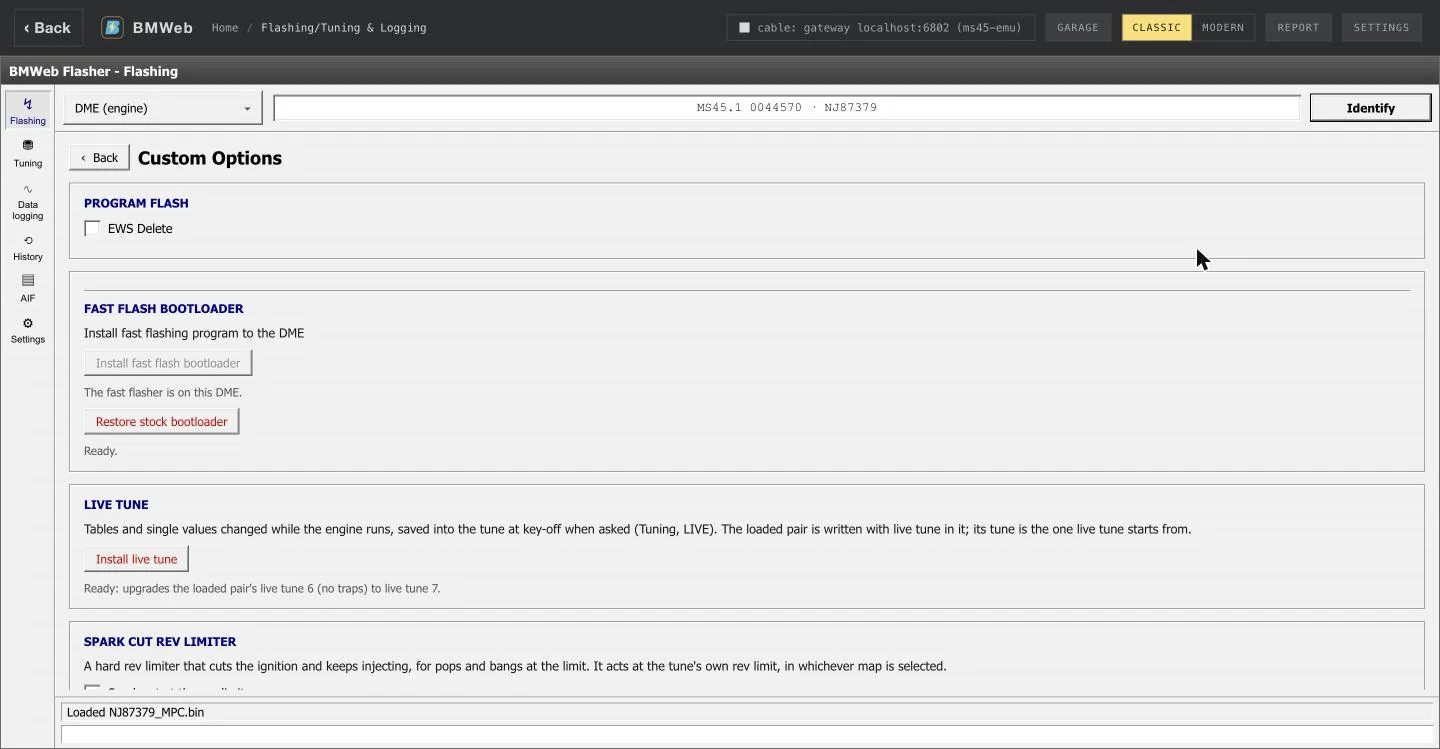
live-tune program.classicCustom Options. Install the fast flash bootloader or
put the stock one back, and install live tune on the loaded
program, each with one confirmation and a line saying whether
it can run and why.modernCustom Options. Install the fast flash bootloader or
put the stock one back, and install live tune on the loaded
program, each with one confirmation and a line saying whether
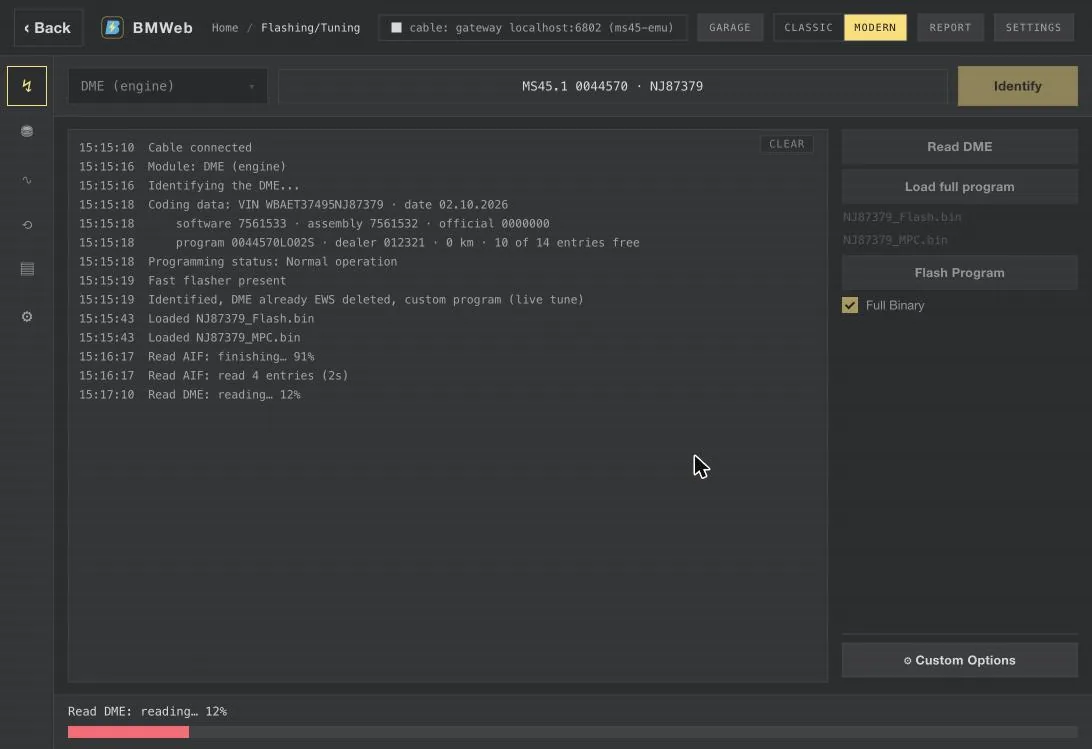
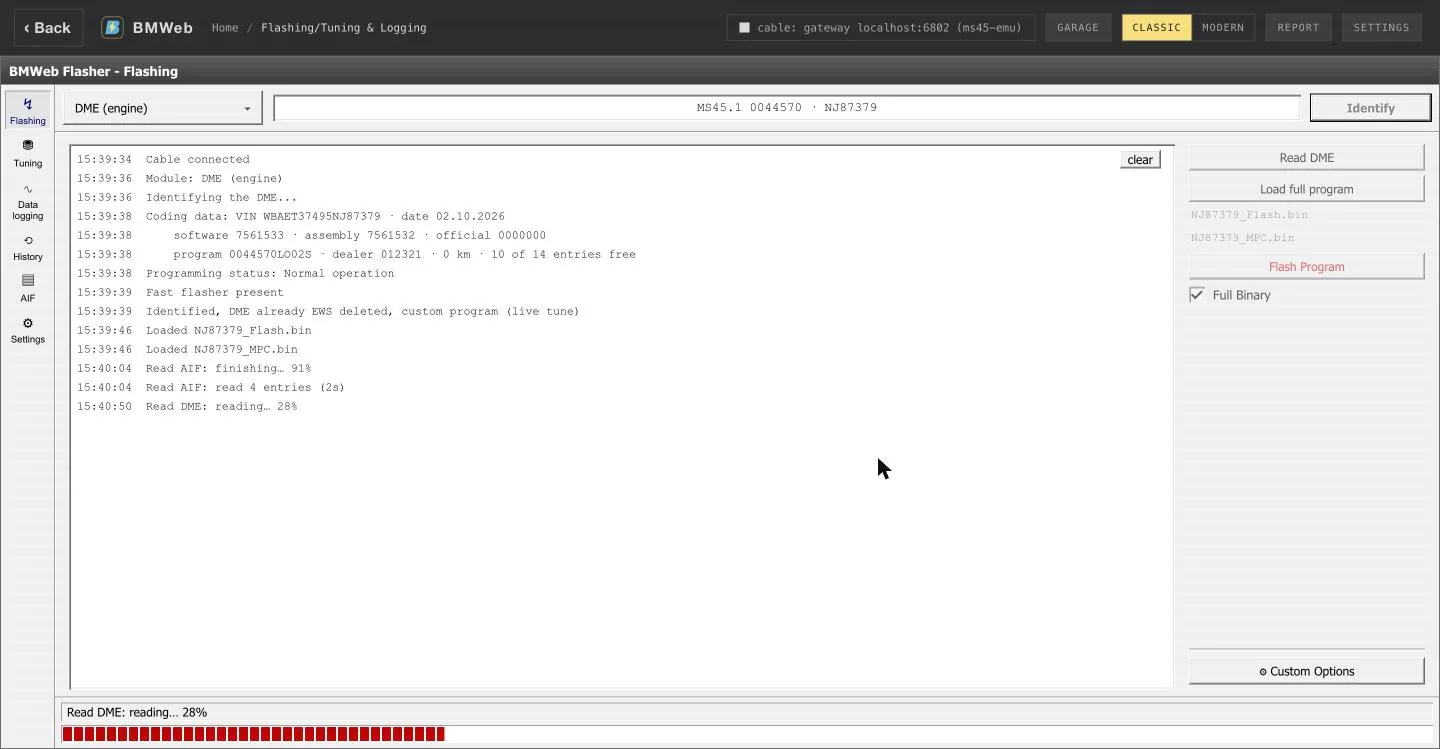
it can run and why.classicRead DME. Through the fast flasher: the whole external
flash and the MPC in one pass, with progress in the log and
the bar.modernRead DME. Through the fast flasher: the whole external
flash and the MPC in one pass, with progress in the log and
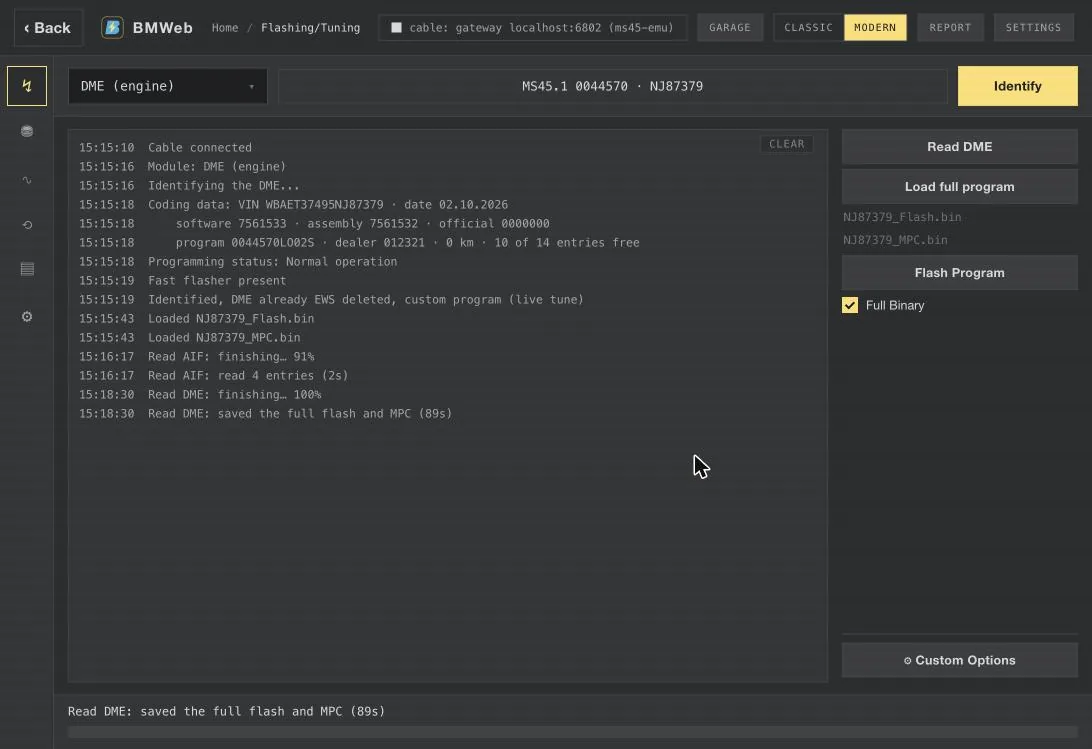
the bar.classicRead finished. Both images saved together, the time it
took in the log.modernRead finished. Both images saved together, the time it
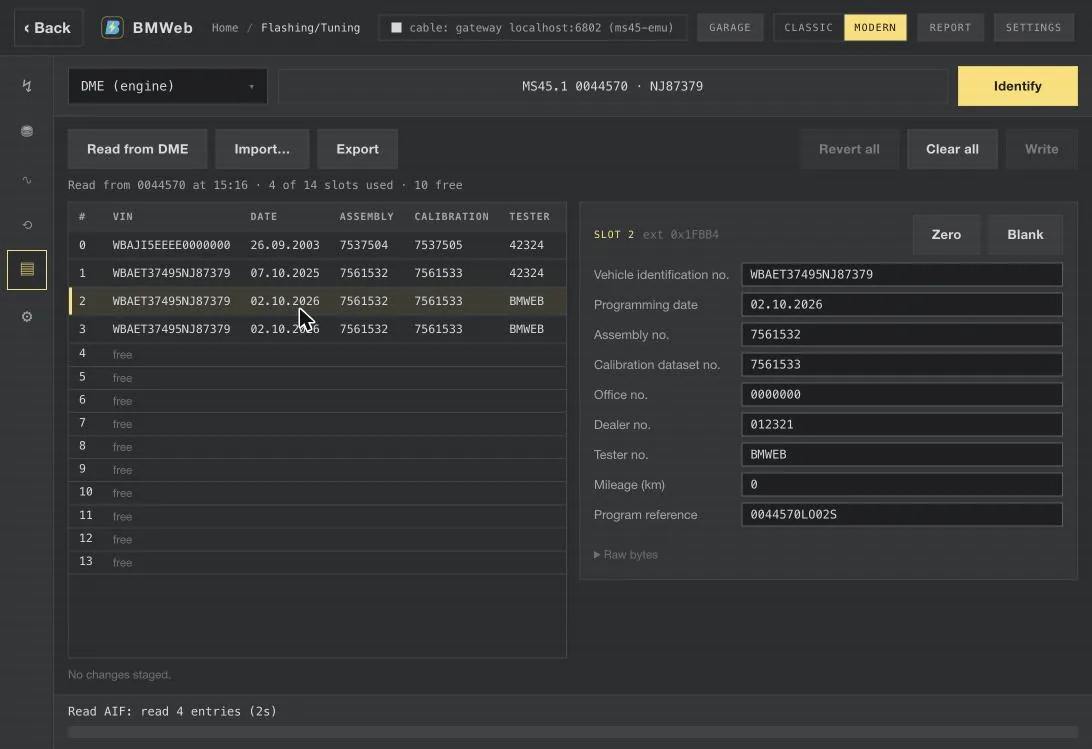
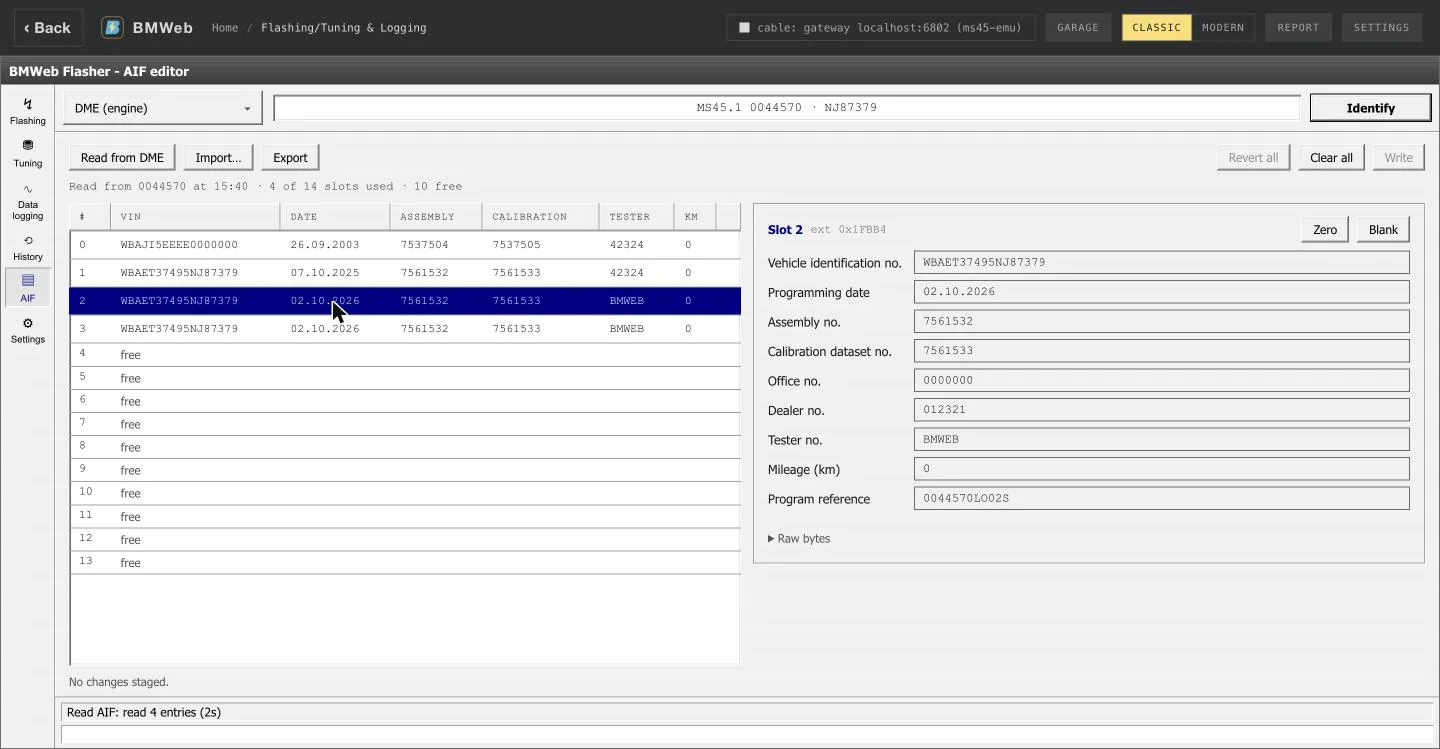
took in the log.classicAIF editor. The DME's programming log, read in seconds
through the bootloader: each entry's VIN, date, numbers,
tester and mileage, field by field.modernAIF editor. The DME's programming log, read in seconds
through the bootloader: each entry's VIN, date, numbers,
tester and mileage, field by field.classic
Tuning
Open a firmware image, add a definition file, and edit named
constants and tables in engineering units, with the raw hex beside
them. Saving writes a file on your computer, never the car. On an
MS45 running the live-tune program, edits go to the running engine
as you make them.
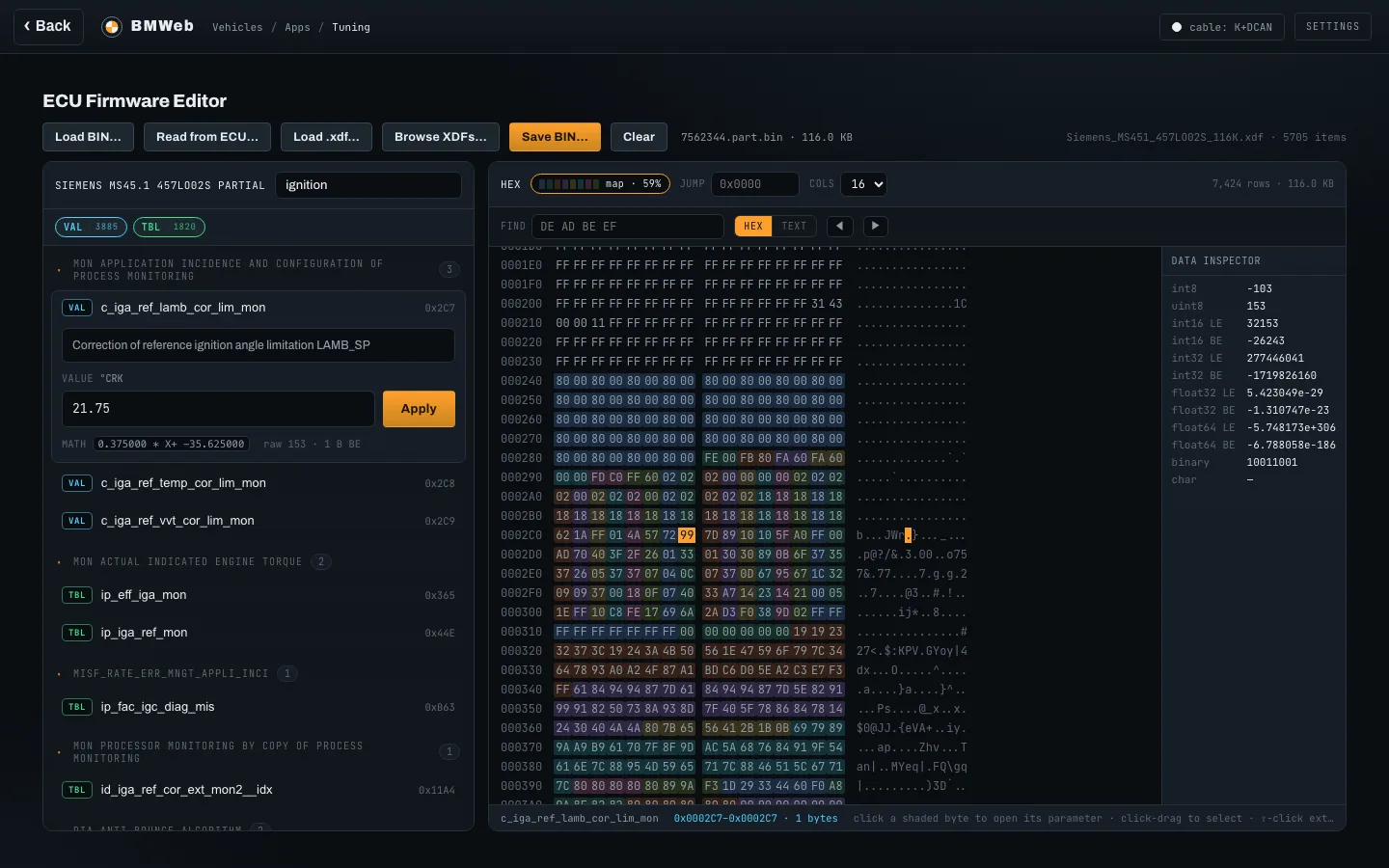
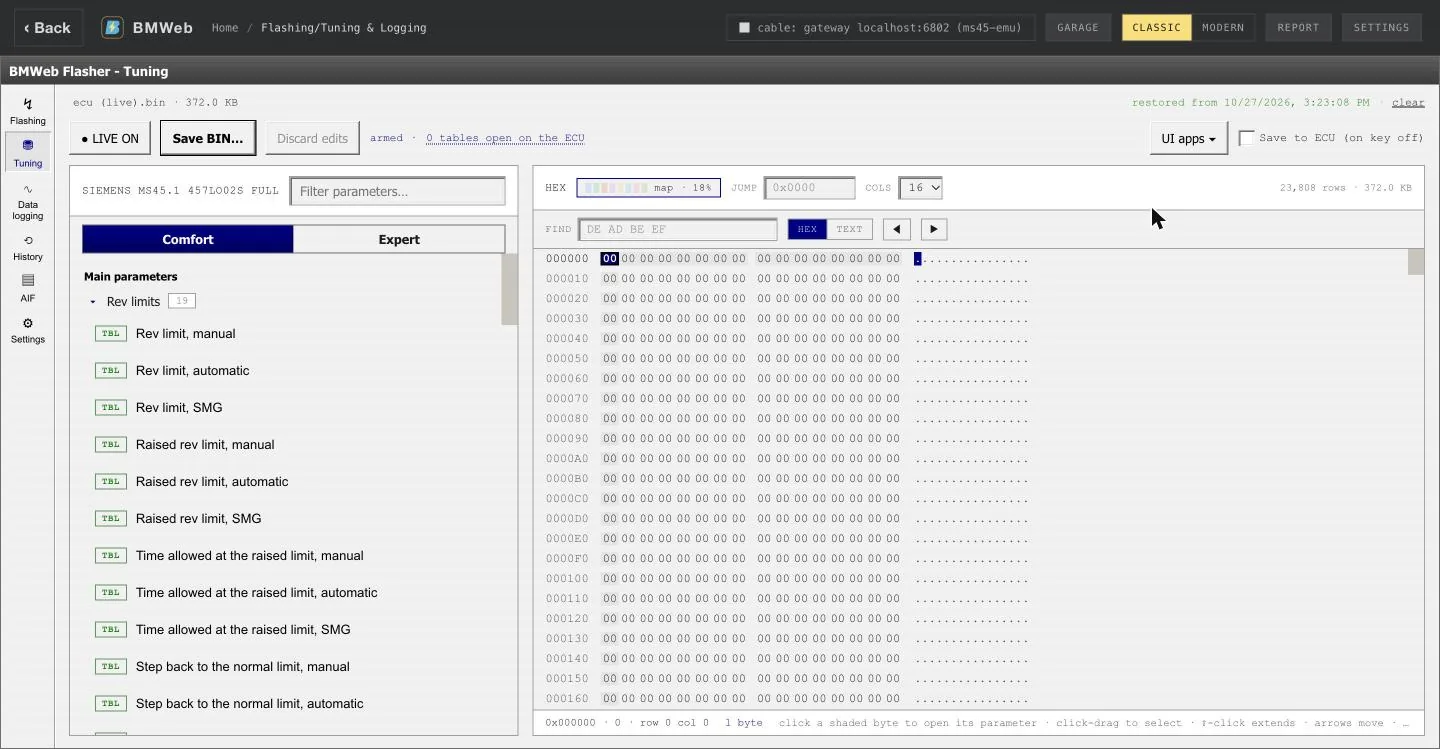
Constants and hex. Filter the definition tree, open a
value, and the bytes it lives in light up in the hex view with
a data inspector.
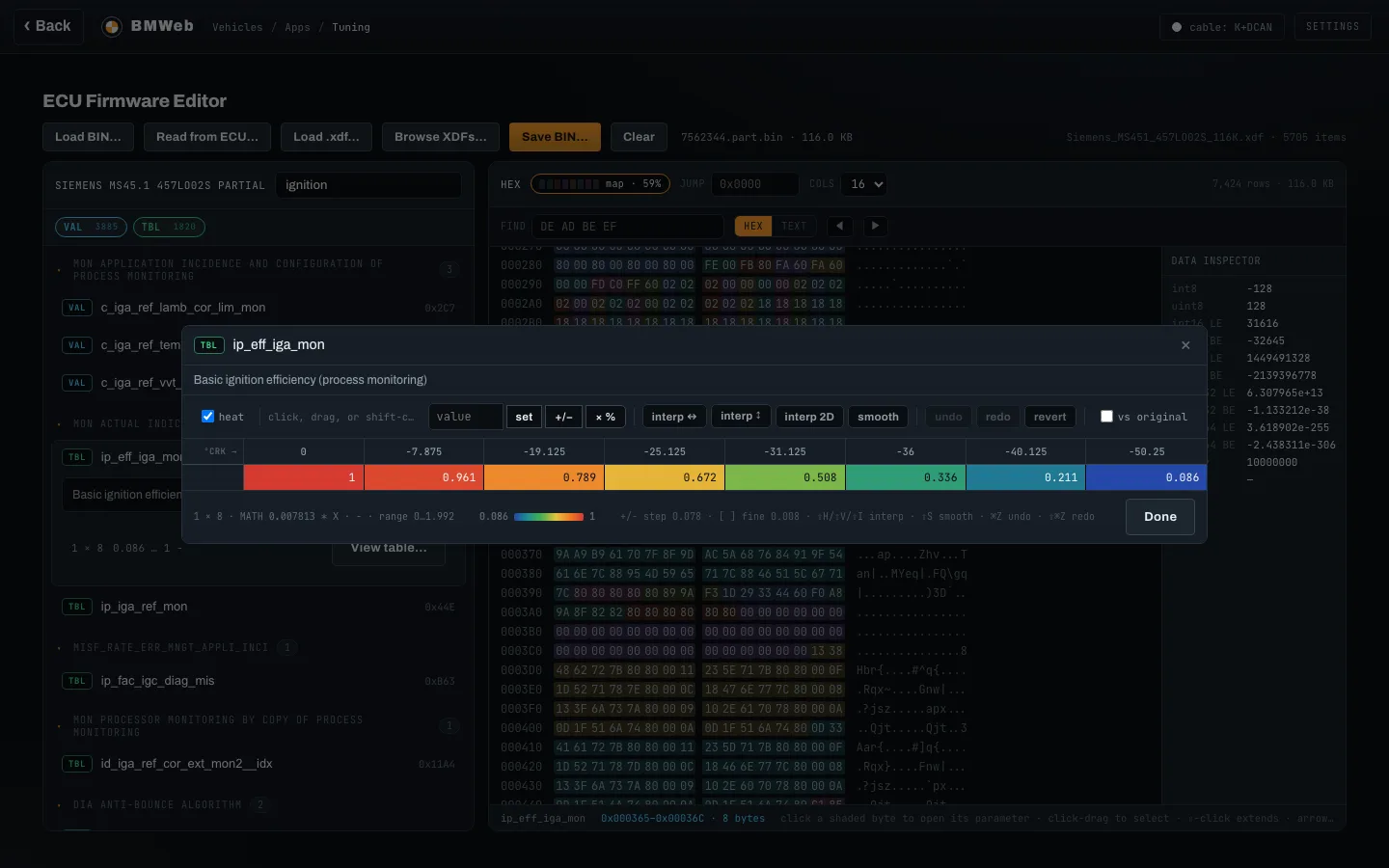
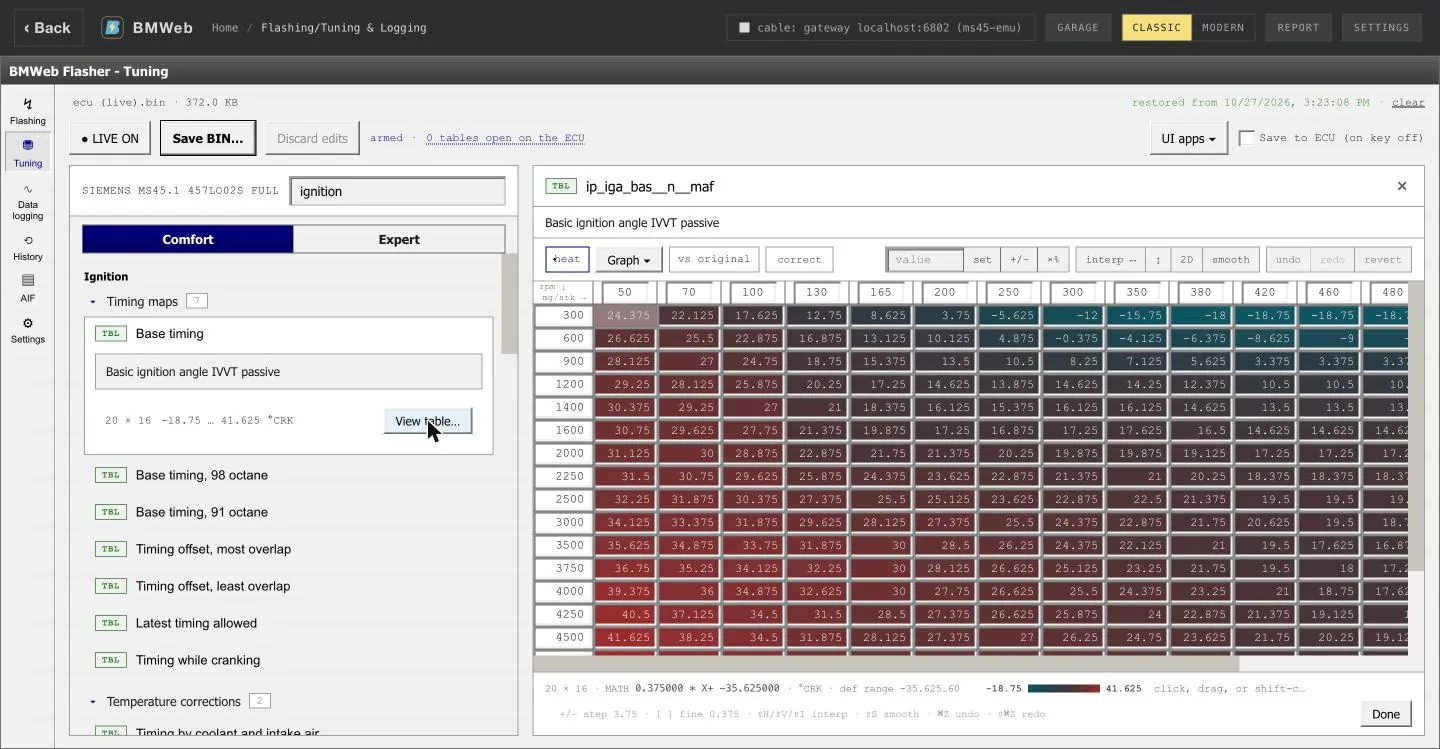
Table editor. Heat-coloured cells with the axis in real
units; set, scale, interpolate and smooth, with undo and a
diff against the original.
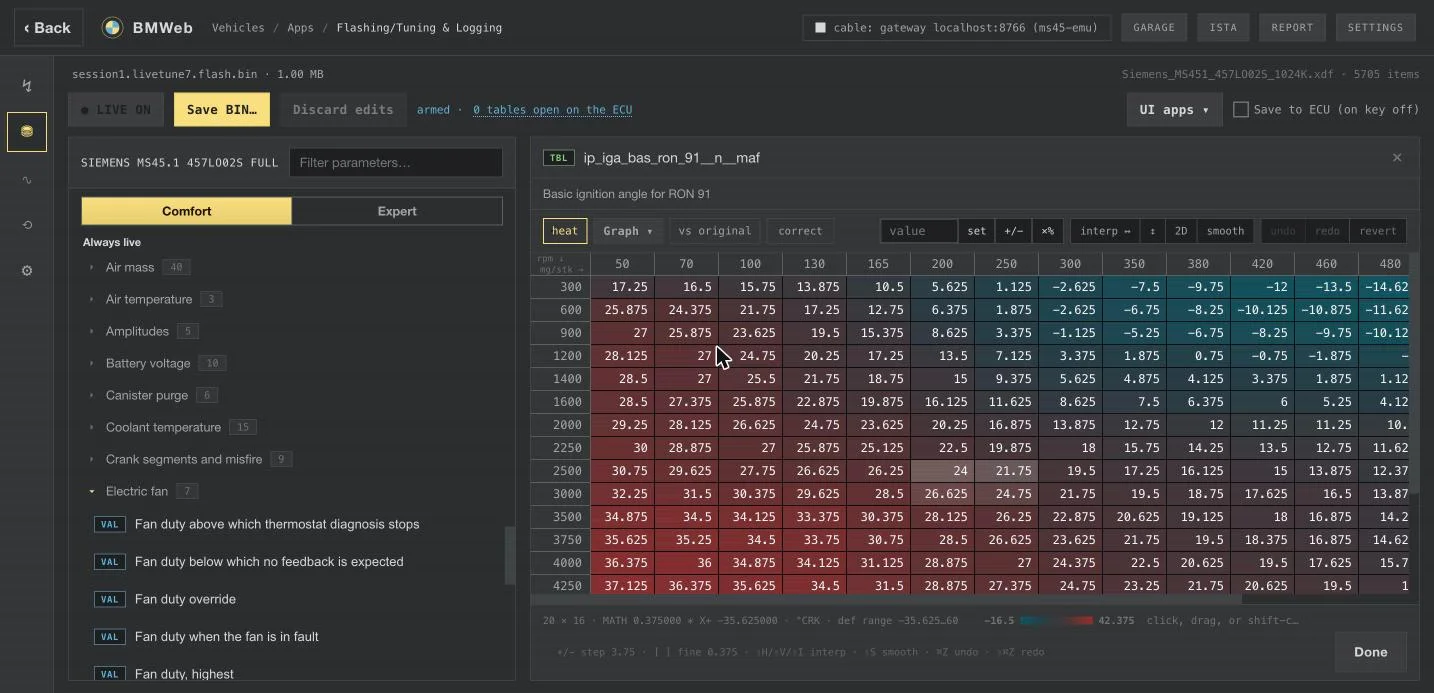
Live tuning. With the live-tune program on the DME,
LIVE ON mirrors every edit onto the running engine the moment
you make it. The live cursor marks the cells being read; the
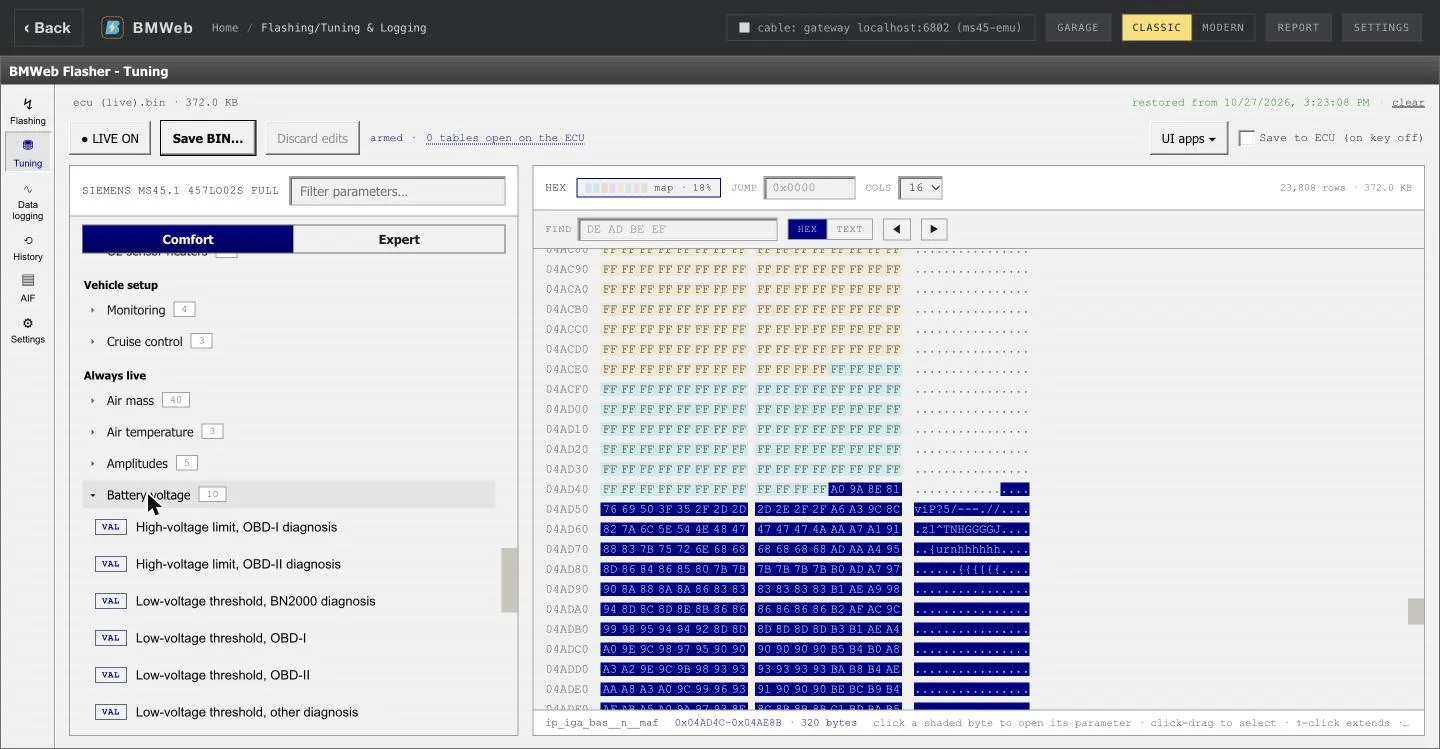
Comfort tree's Always live group lists the single
values that are live together, the fan, the limits and the
switches among them. Tick Save to ECU and the DME keeps
the tune at key-off.
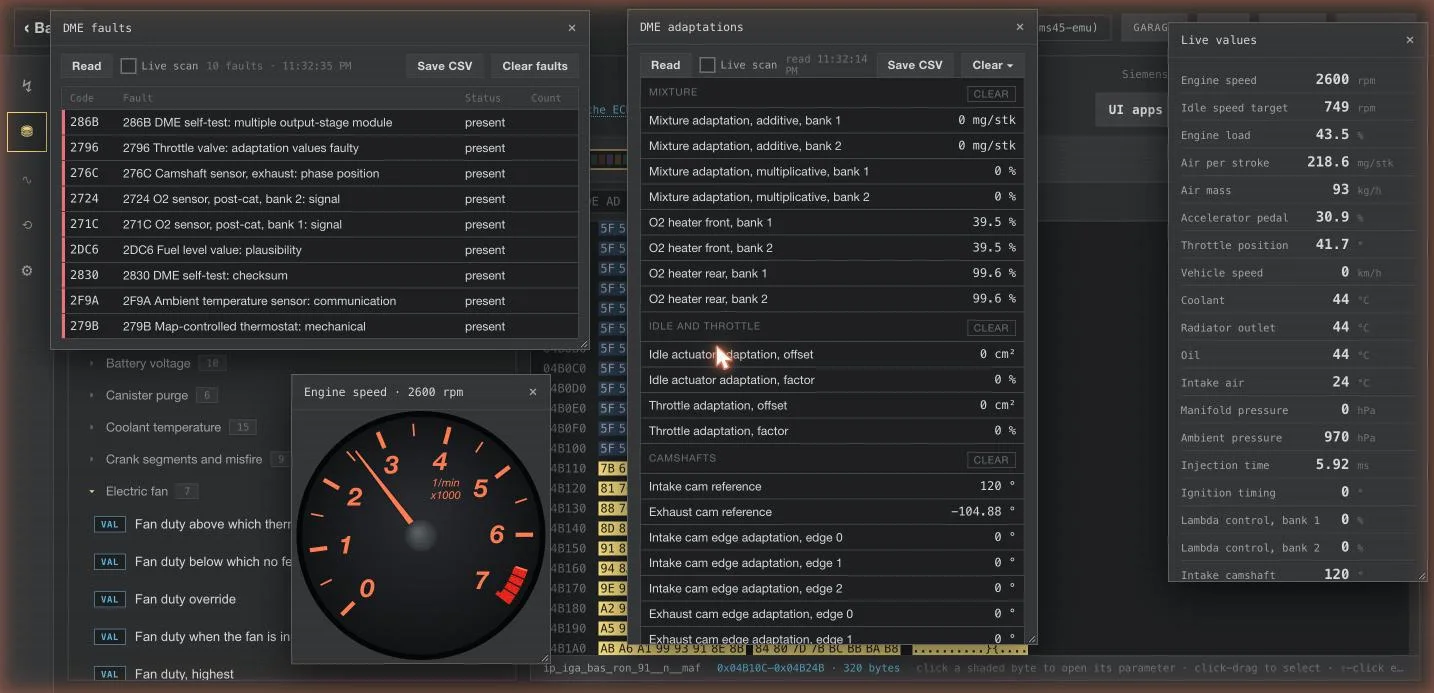
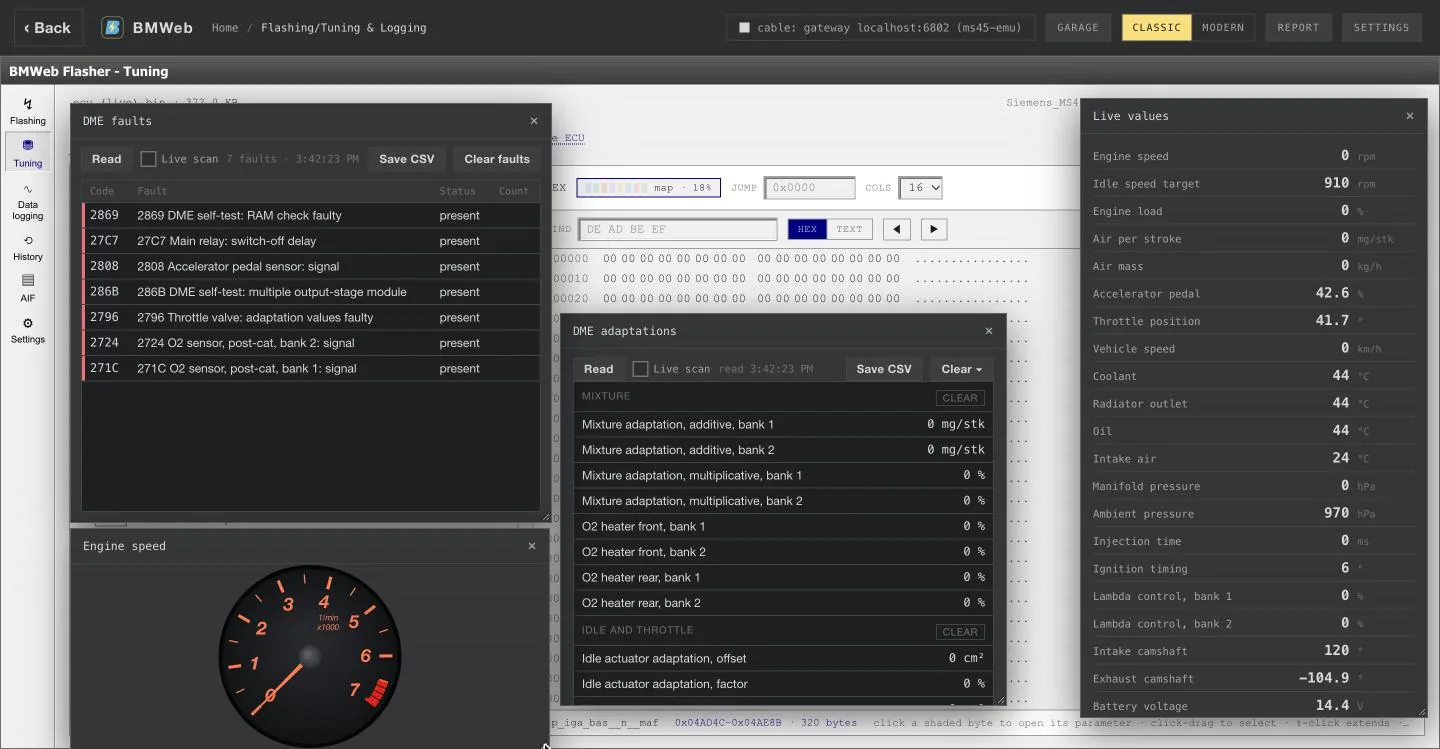
Live windows. UI apps opens what you want beside the
editor: the fault memory with read, live scan and clear, the
adaptations the DME has learned (mixture, idle and throttle,
camshafts), each clearable on its own, a rev gauge, and the
live values.
Live tuning. LIVE ON, armed, with the key-off save
switch.classicLive cursor. The base ignition map with the cell the
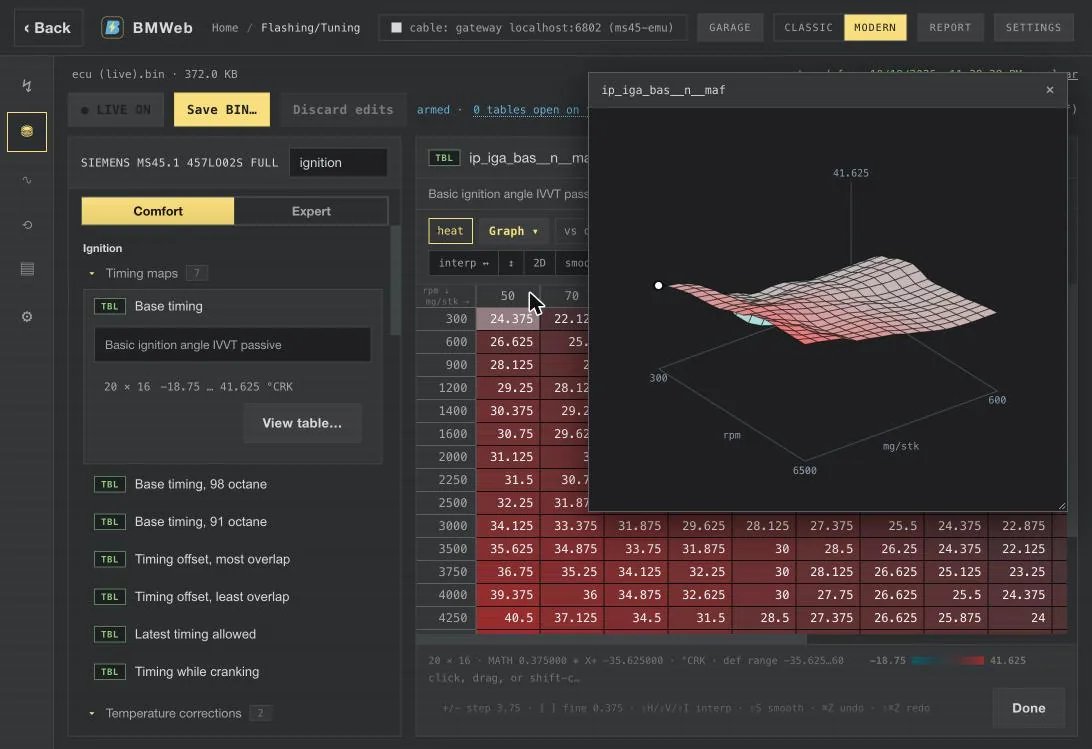
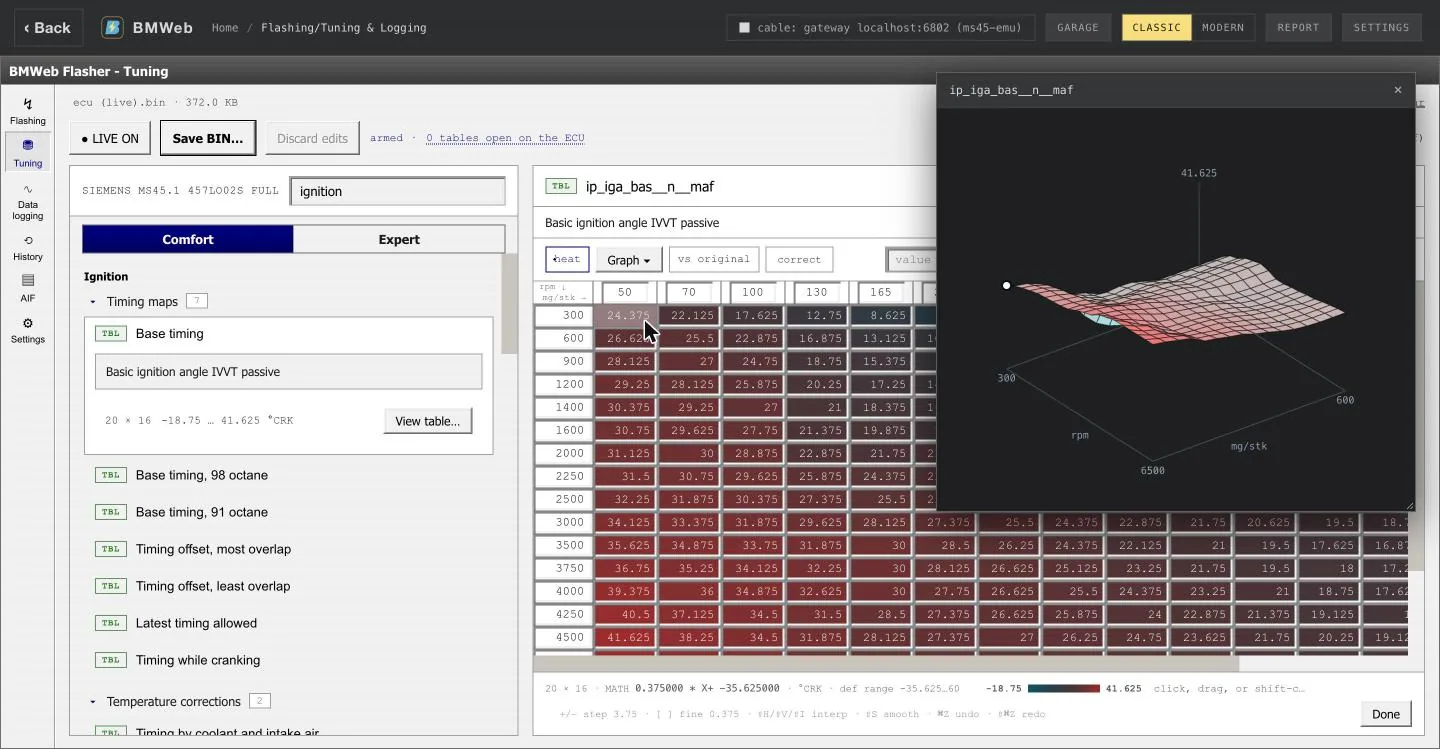
engine is reading shaded.classic3D surface. Graph opens the table as a surface in its
own window, the live cursor on it.modern3D surface. Graph opens the table as a surface in its
own window, the live cursor on it.classicAlways live. The single values that are live together,
under plain names.classicLive windows. Fault memory, adaptations, a rev gauge
and the live values beside the editor.classic
Coding
Coding laid out the way the factory tool does it: the vehicle,
then the module, then the job.
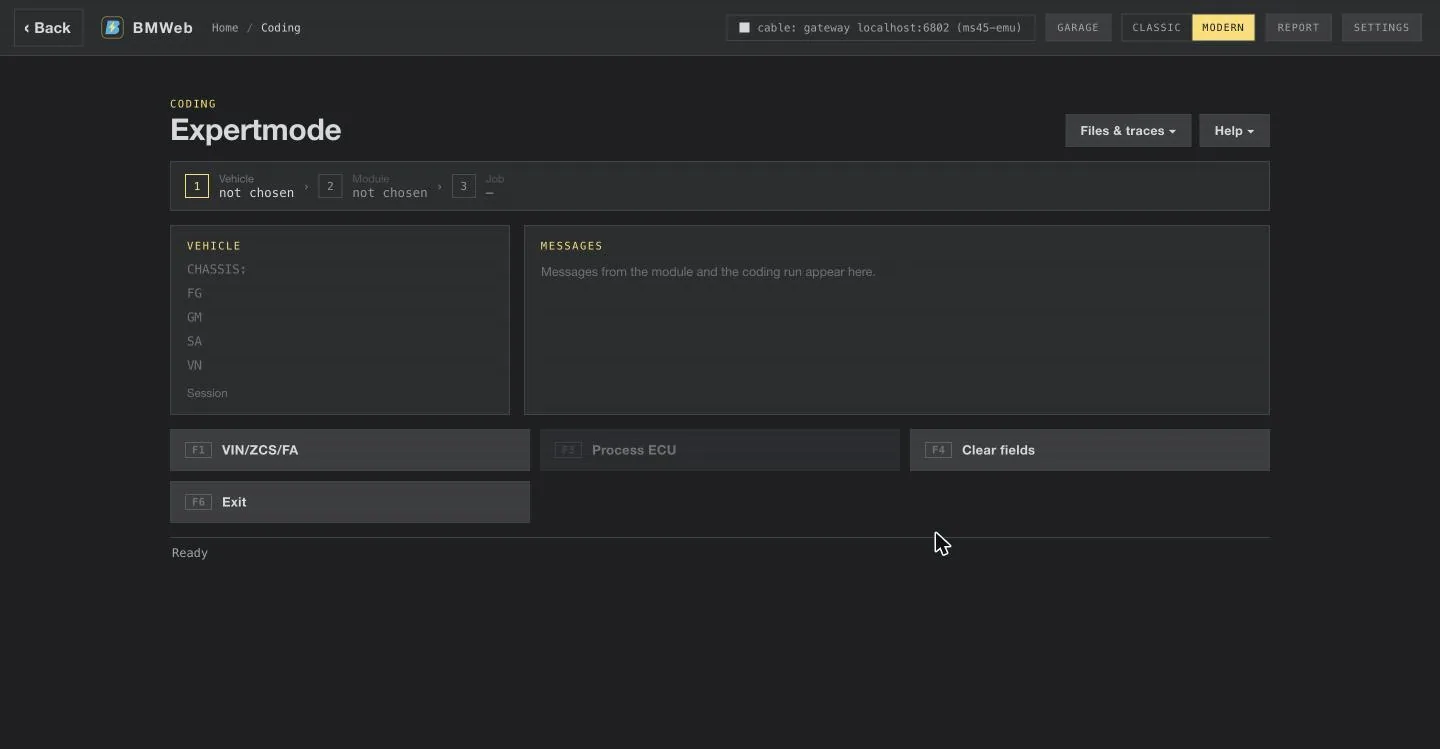
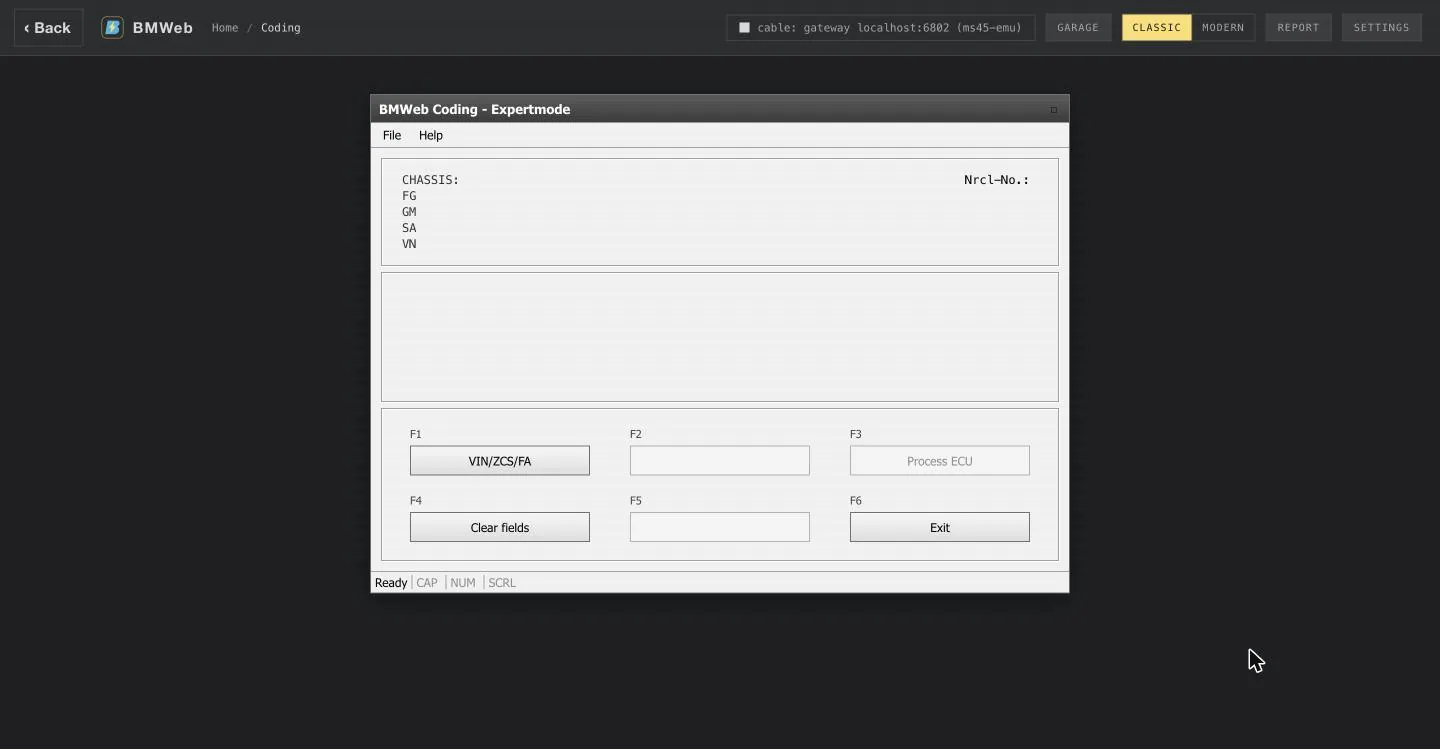
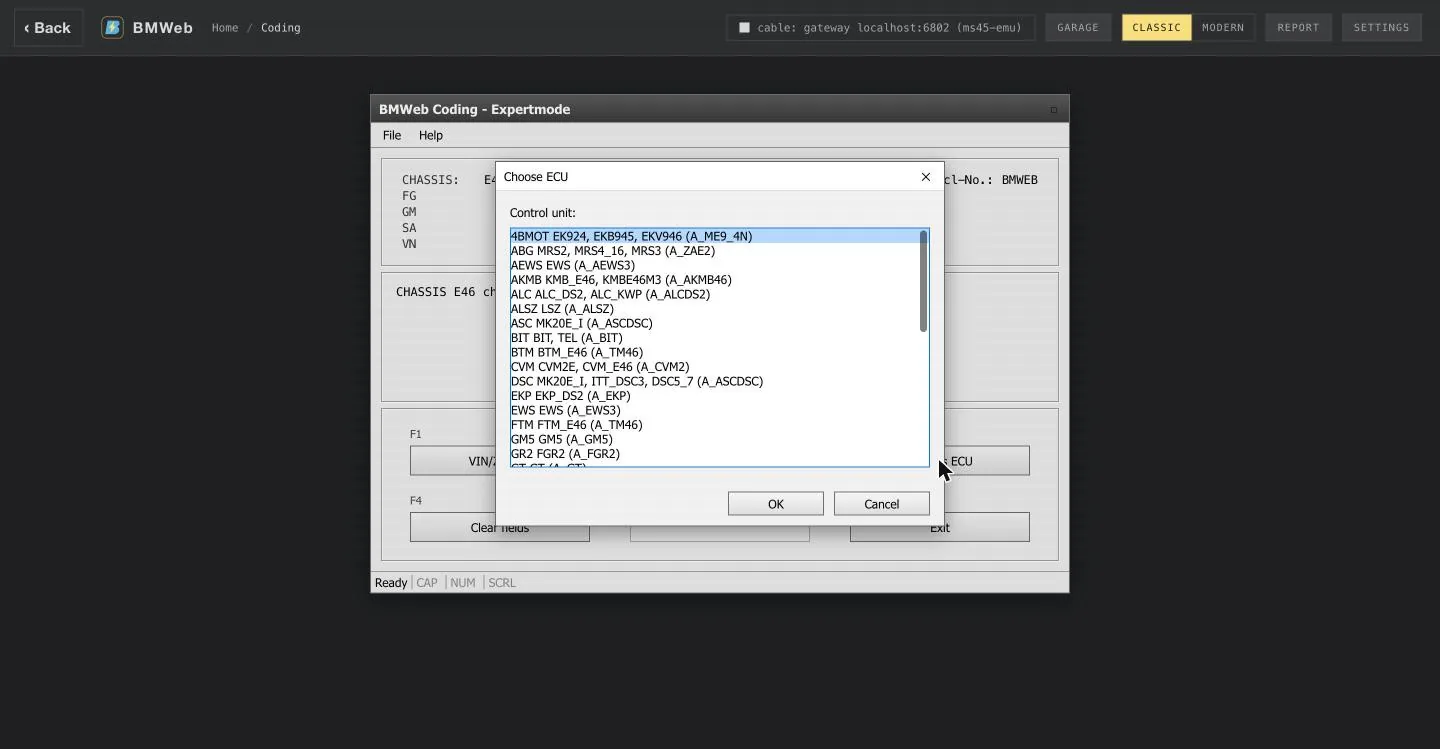
Expertmode. Chassis, FA and VIN above, the module's
messages beside, the steps on the F-keys.modernExpertmode. Chassis, FA and VIN above, the module's
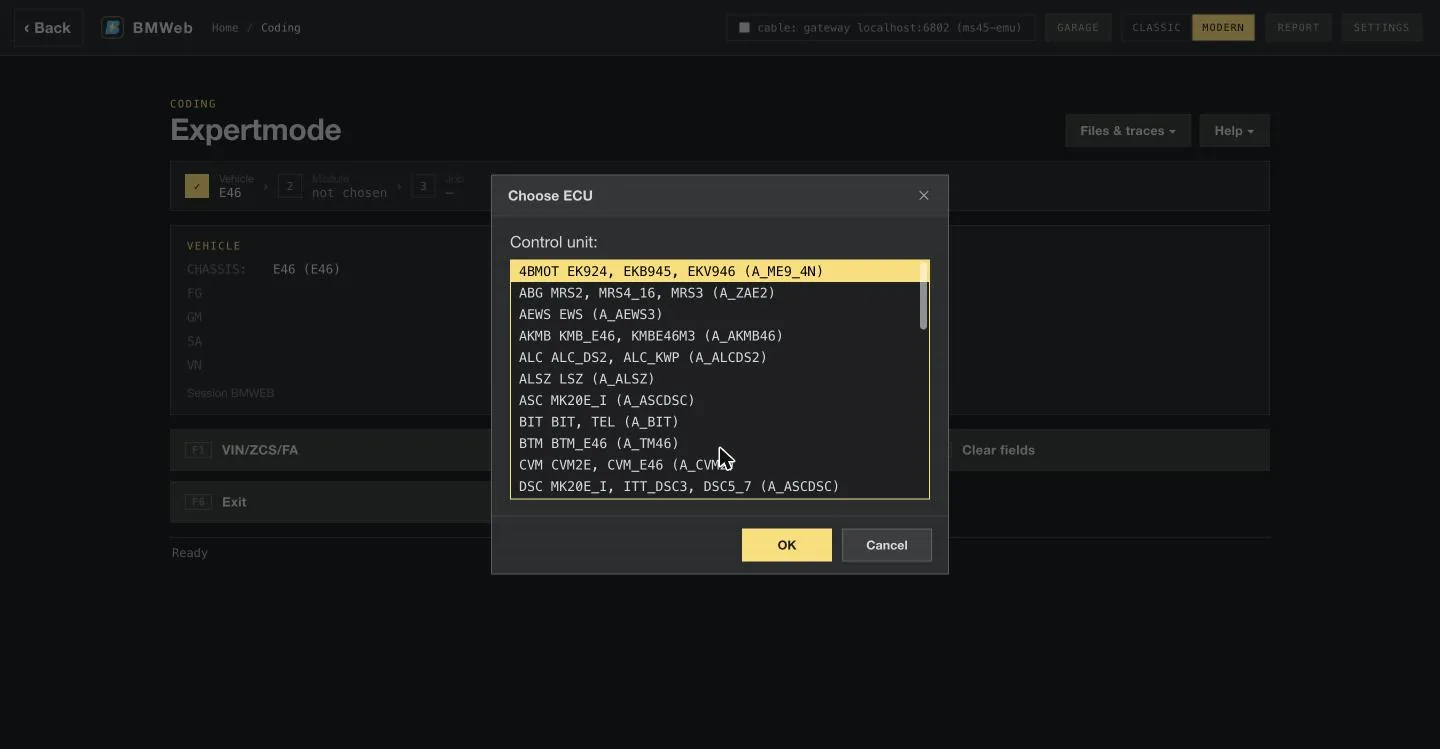
messages beside, the steps on the F-keys.classicChoose ECU. Every module of the chosen chassis, with
the coding file it uses.modernChoose ECU. Every module of the chosen chassis, with
the coding file it uses.classic
WebKFP
Stock programs from BMW's own data, flashed the factory way.
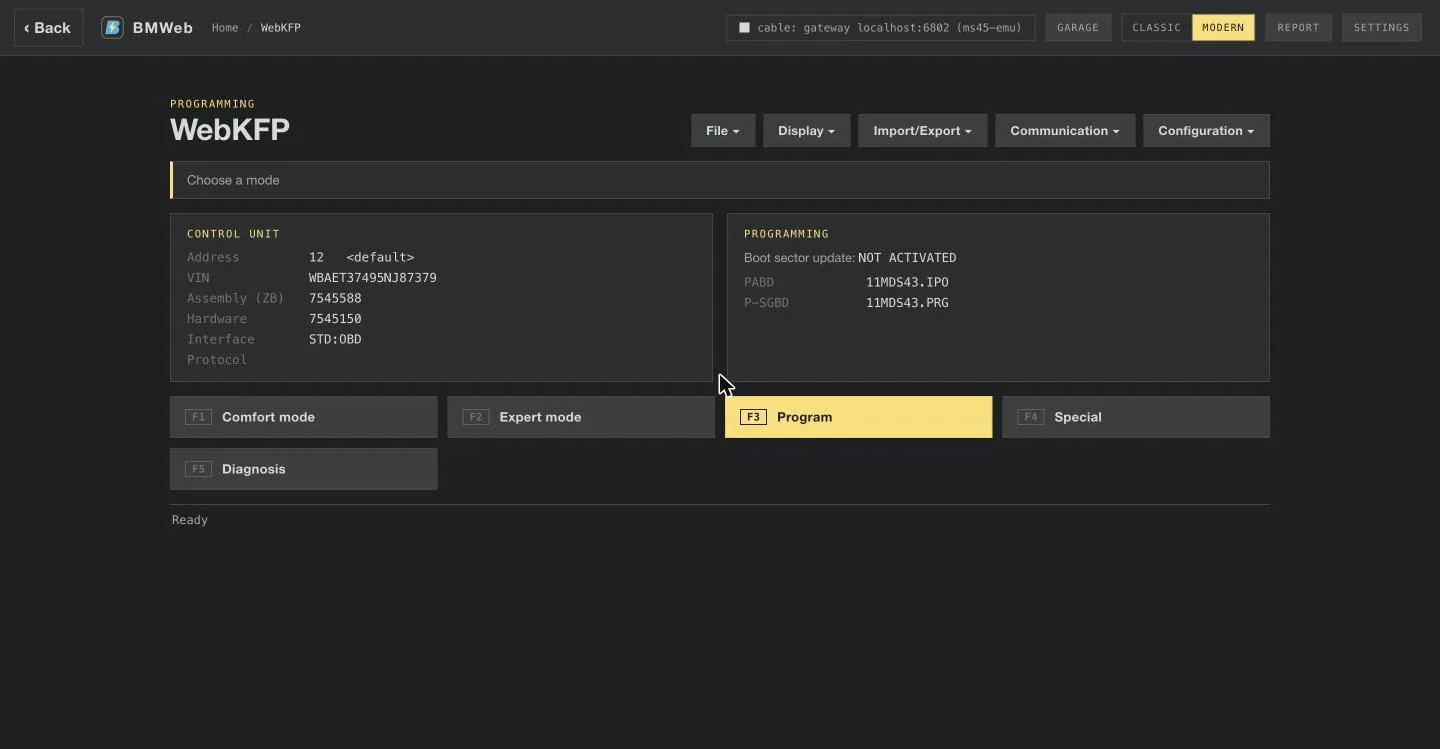
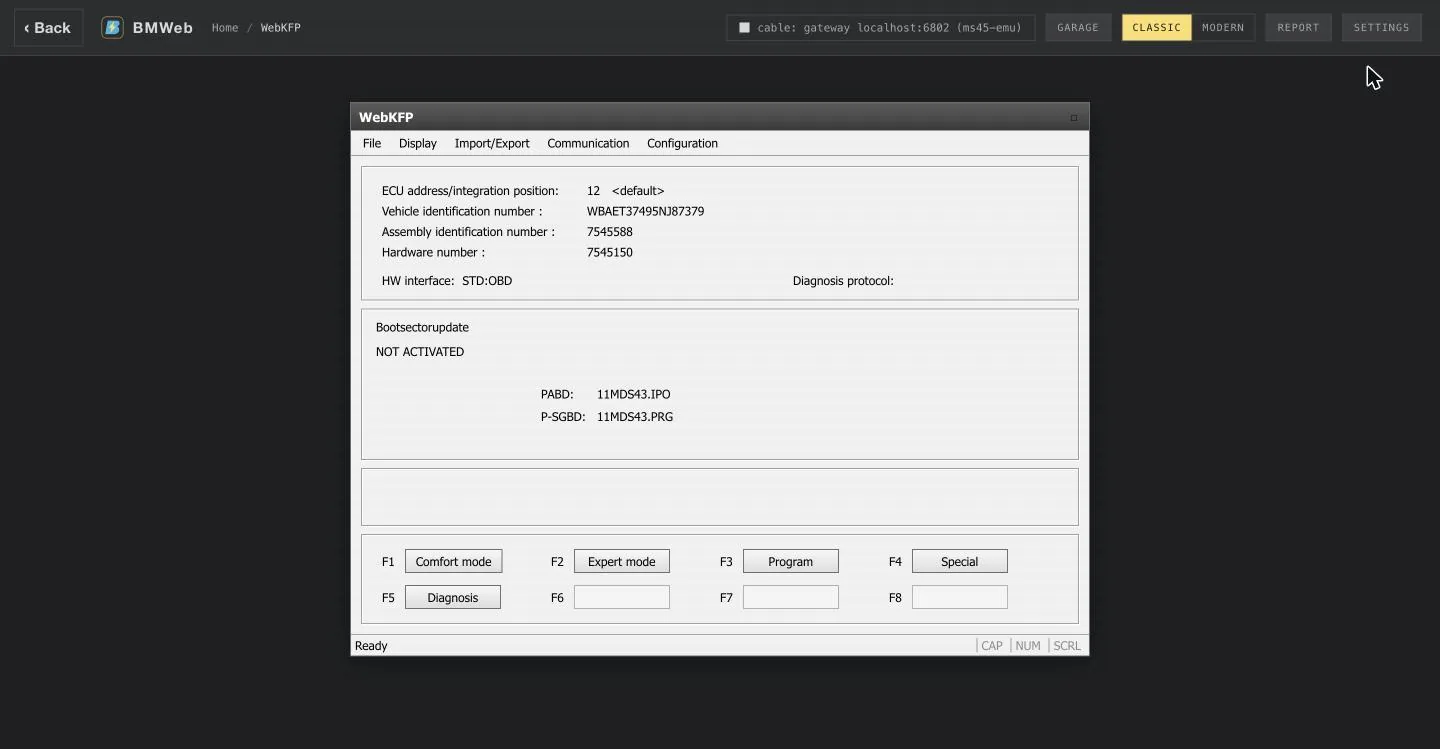
WebKFP. The control unit, its programming data, and the
modes on the F-keys.modernWebKFP. The control unit, its programming data, and the
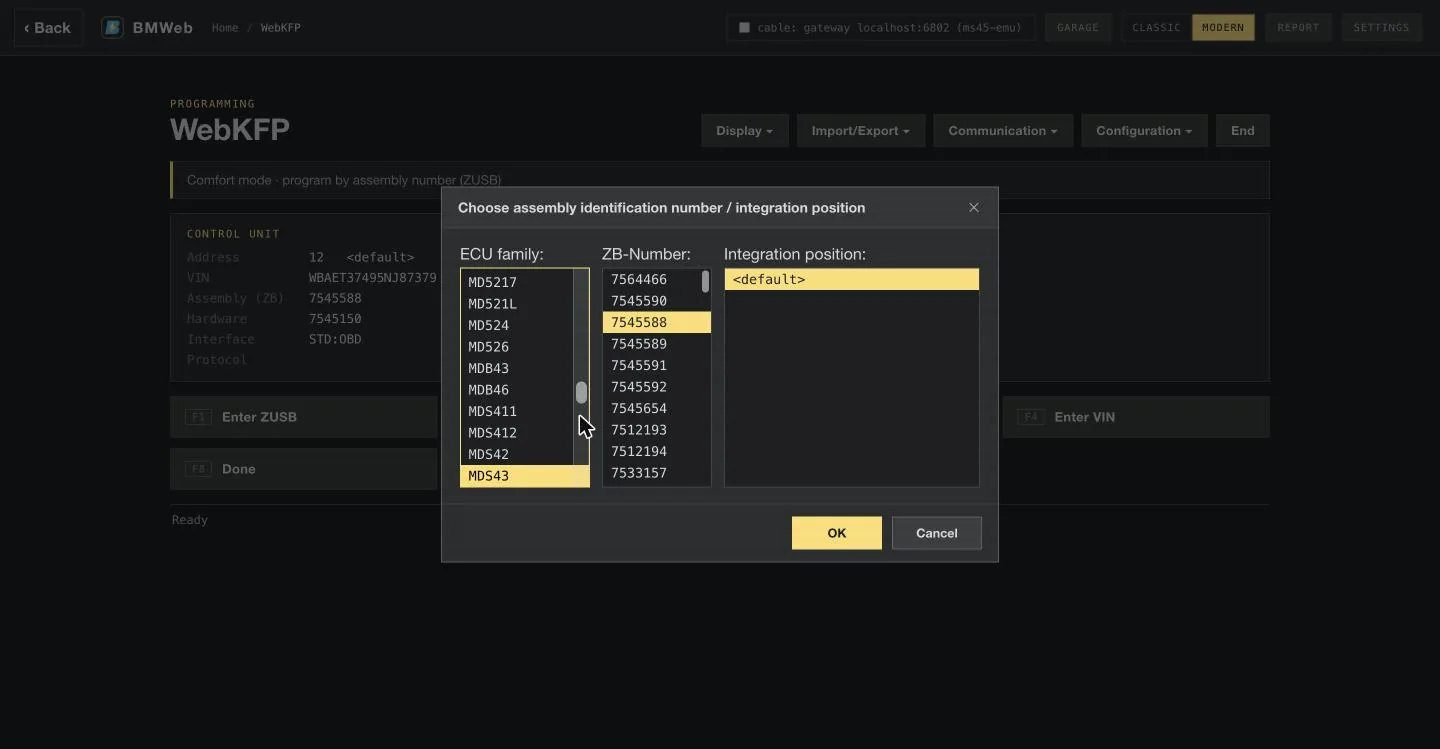
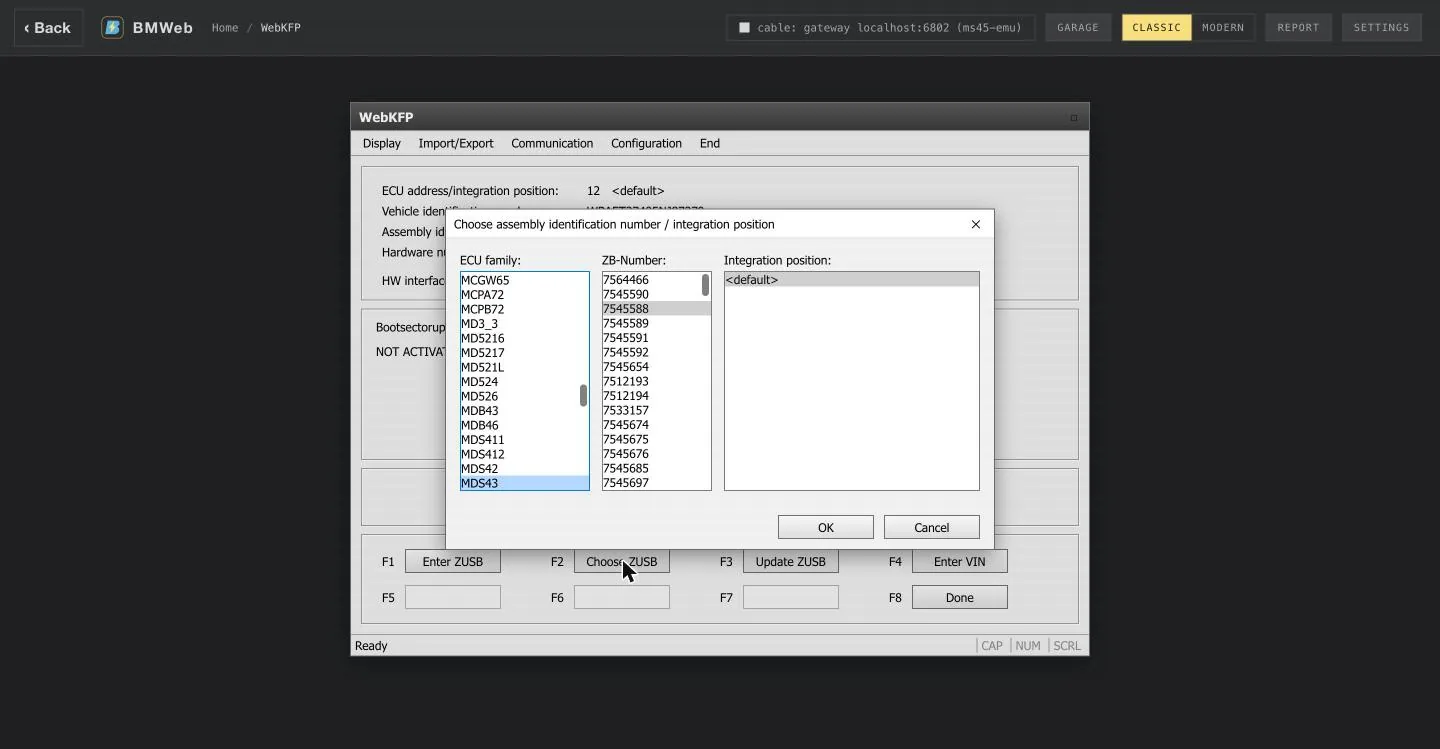
modes on the F-keys.classicChoose ZUSB. ECU family, assembly number and
integration position, from the data.modernChoose ZUSB. ECU family, assembly number and
integration position, from the data.classic
Job runner
For when you know the job name: pick a definition file and a job,
give it an argument, and read the raw result registers. Jobs that
write are marked.
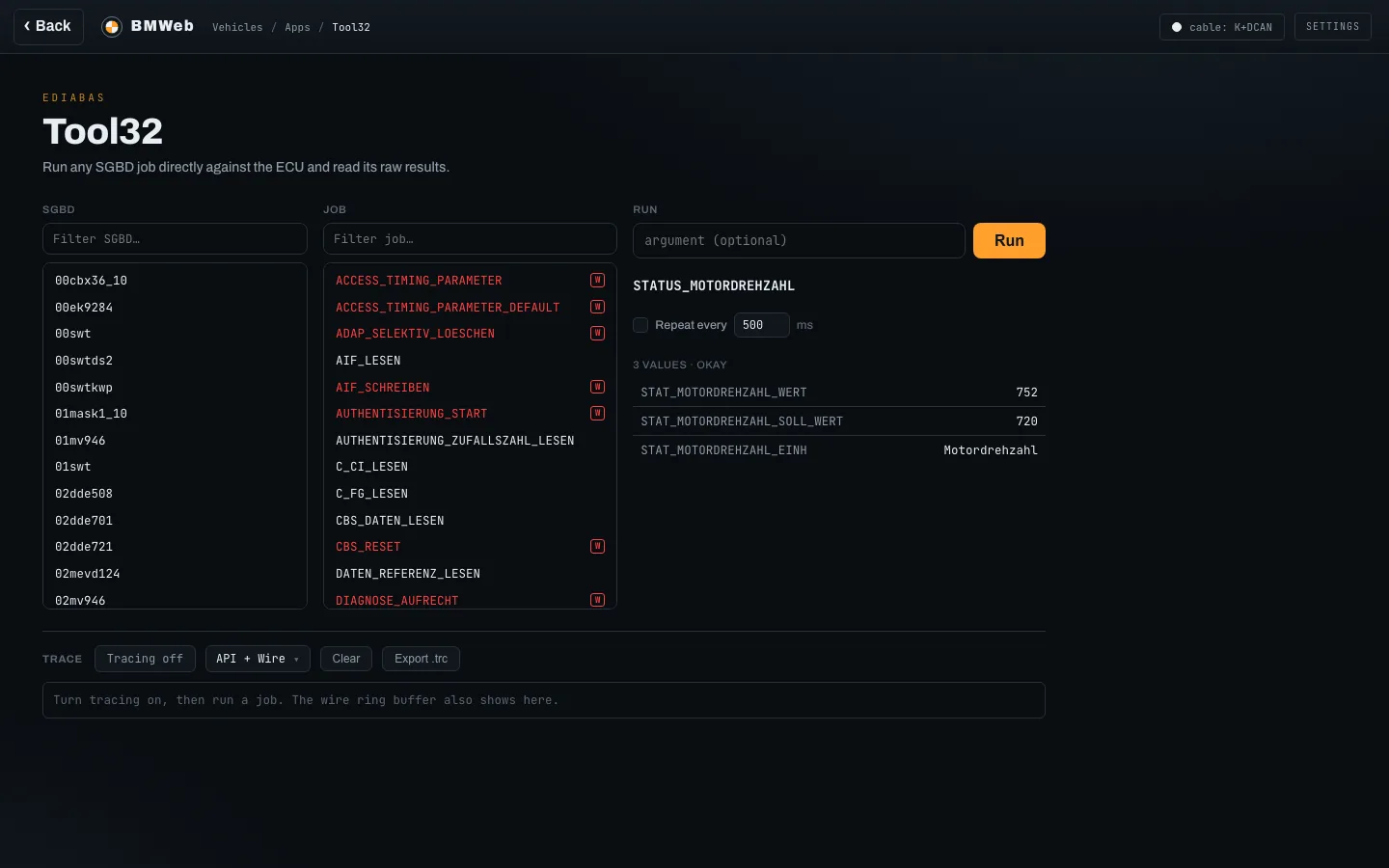
Tool32. The engine speed job run against the engine
module: three result values, a repeat timer, and a wire trace
underneath.
Script runner
Your own INPA script, run through the same runtime and the same
write gates as the shipped ones.
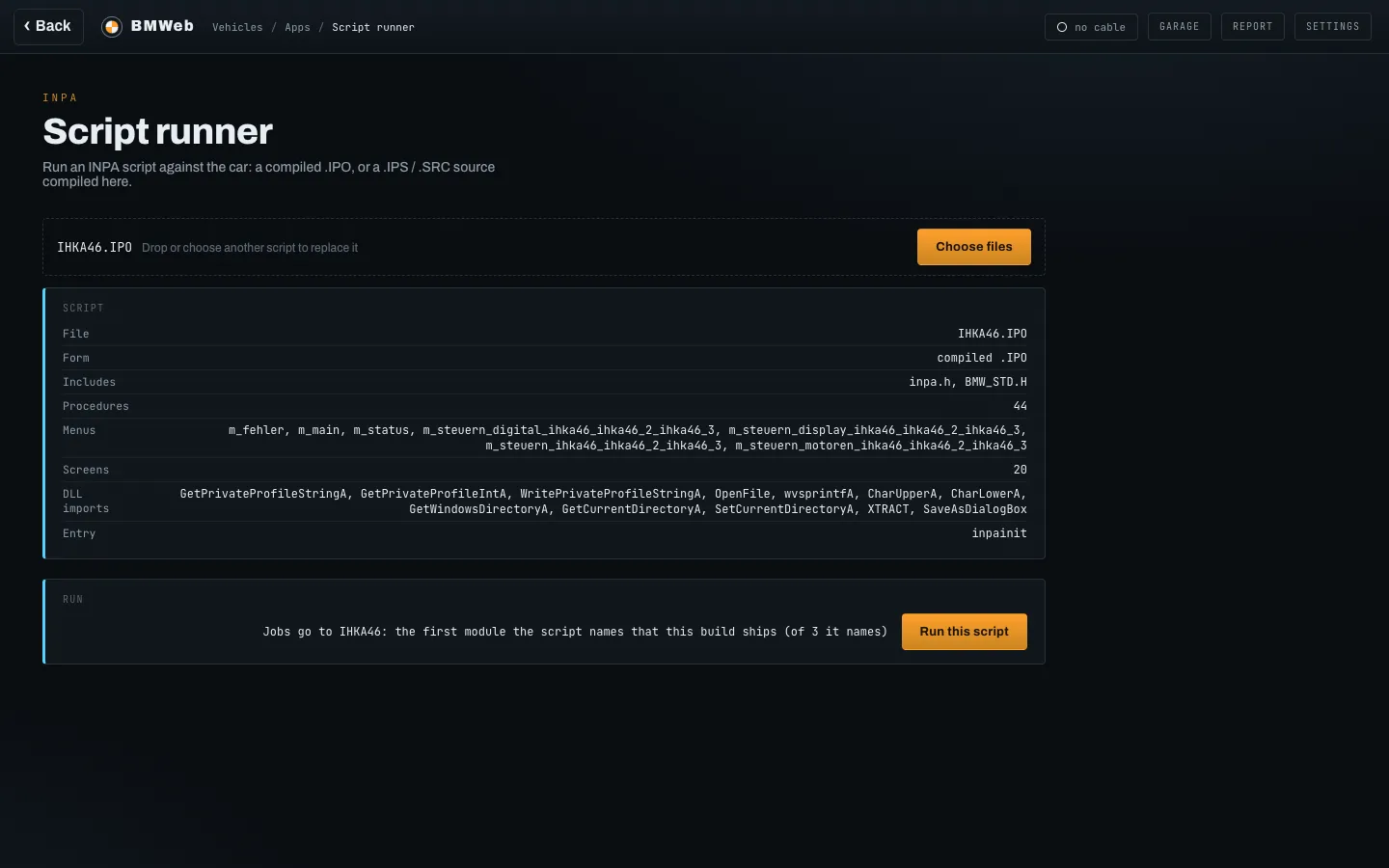
Script runner. Drop in your own compiled .IPO, or an
.IPS or .SRC source to compile here, and the runner reads what
is inside it before running it against the car.
Remote sessions
Share your cabled car with someone who knows the diagnostics
better, or connect to theirs. The car stays on its own machine;
only jobs cross, and every write is approved at the car.
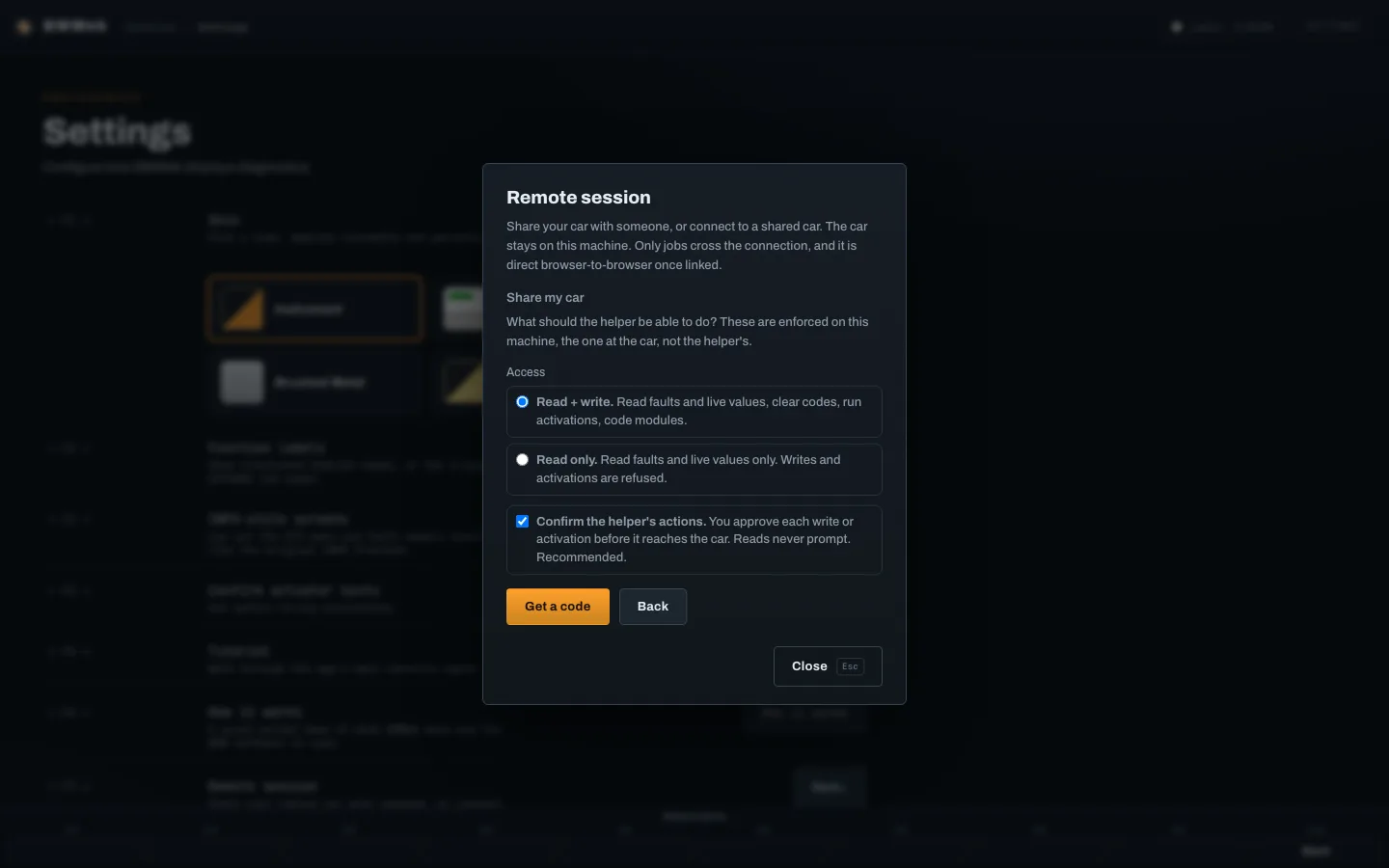
Share my car. Choose read-only or read-and-write, and
whether every write needs your approval first. Then get a
short code to pass on.
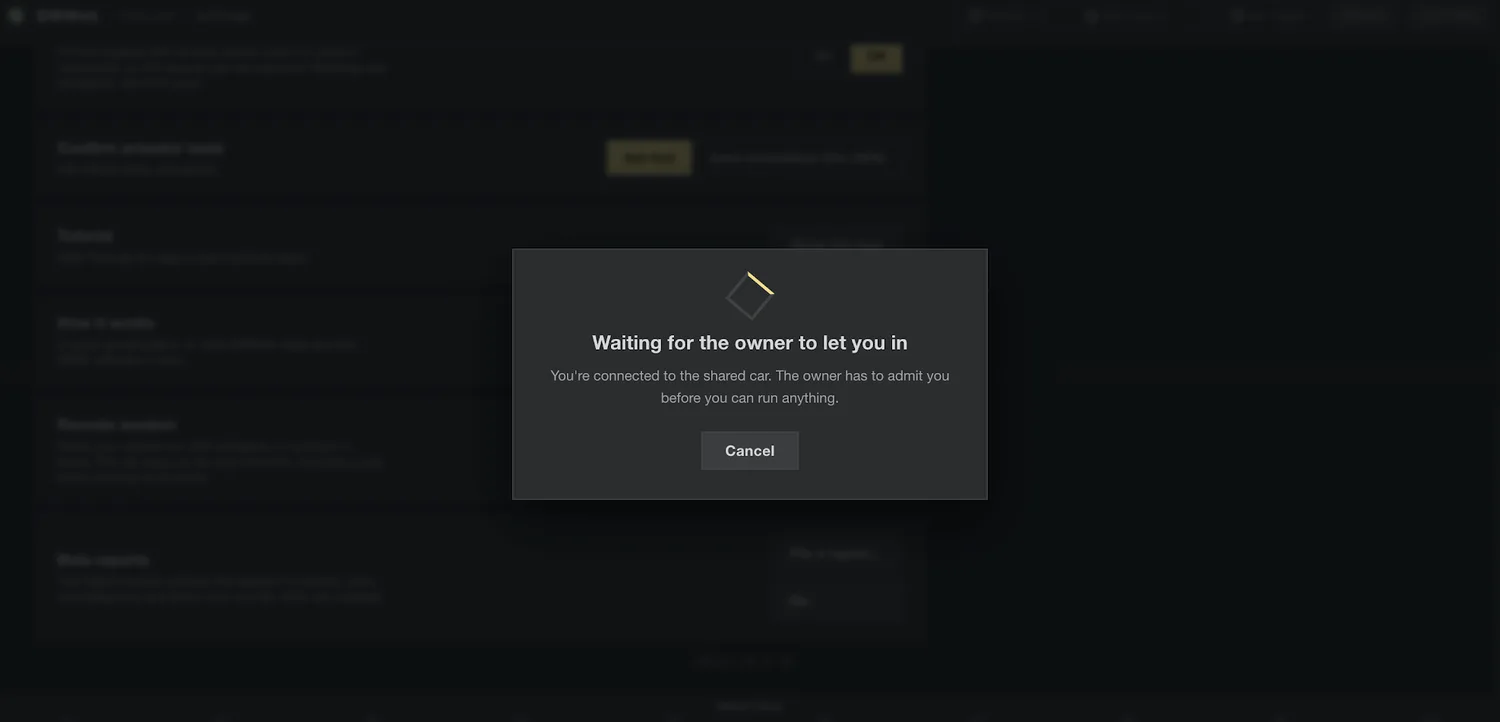
Waiting to be admitted. The helper enters the code and
waits; nothing reaches the car until the owner lets them in.
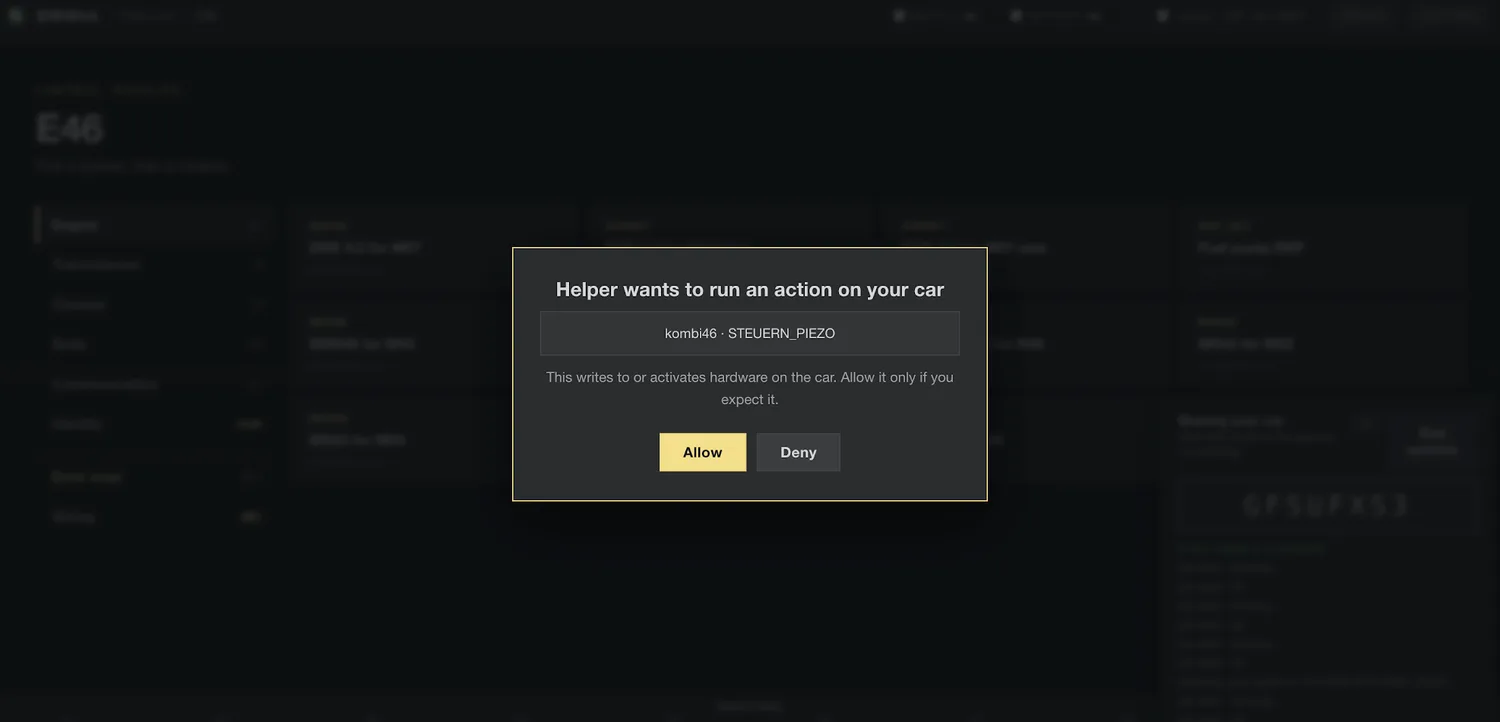
Approve a write. The owner sees the exact job before it
goes to the car and can refuse it.
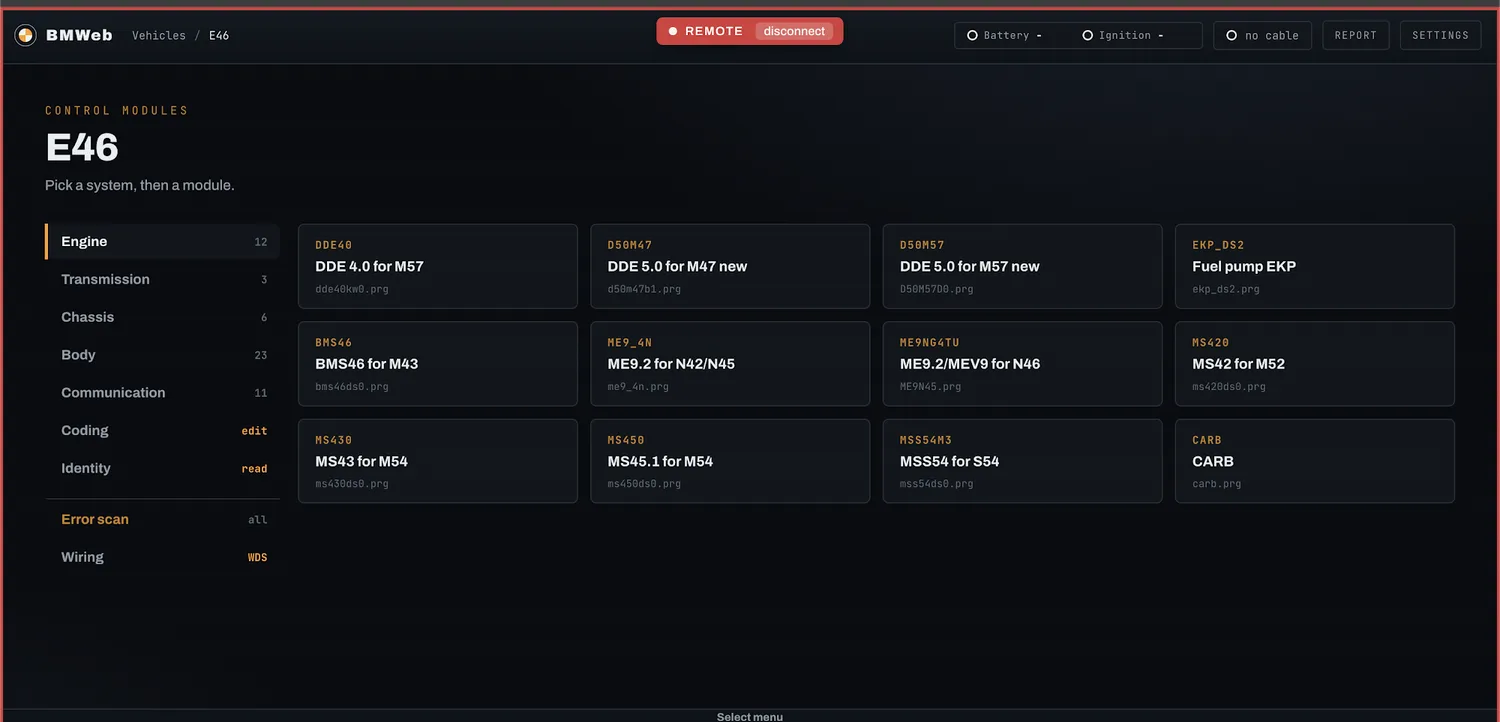
Live session. A red badge and an orange frame the whole
time someone else is driving the screens.
Skins
Six looks for the same screens, picked in Settings. The skin
changes colours and chrome only; the layout switch is separate.
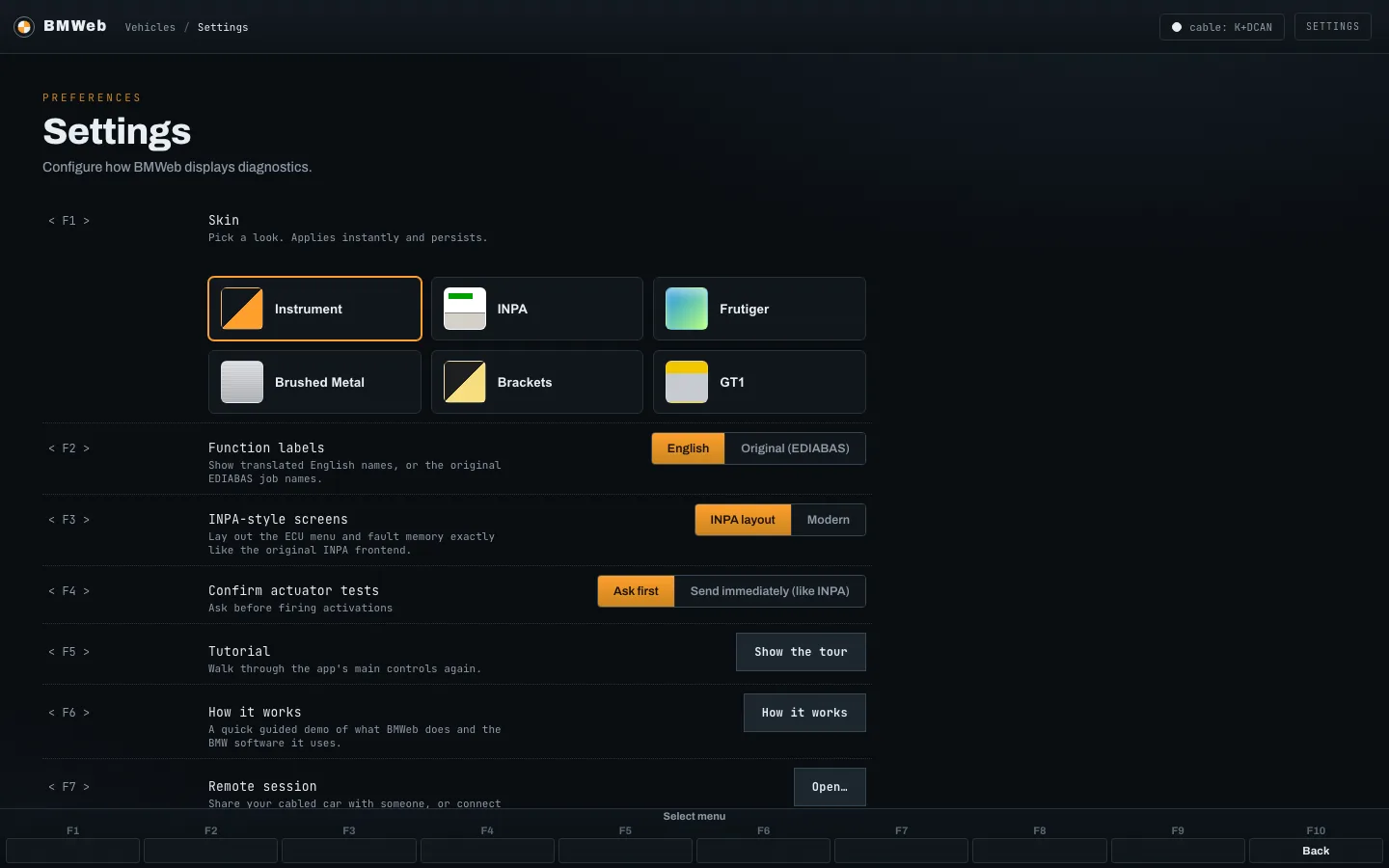
Settings. The skin picker, English or original job
names, the layout switch, whether activations ask first, and
the remote session entry.
INPA skin. White screen, black text, the green marker
above the keys.
INPA skin. The fault list in the same look.
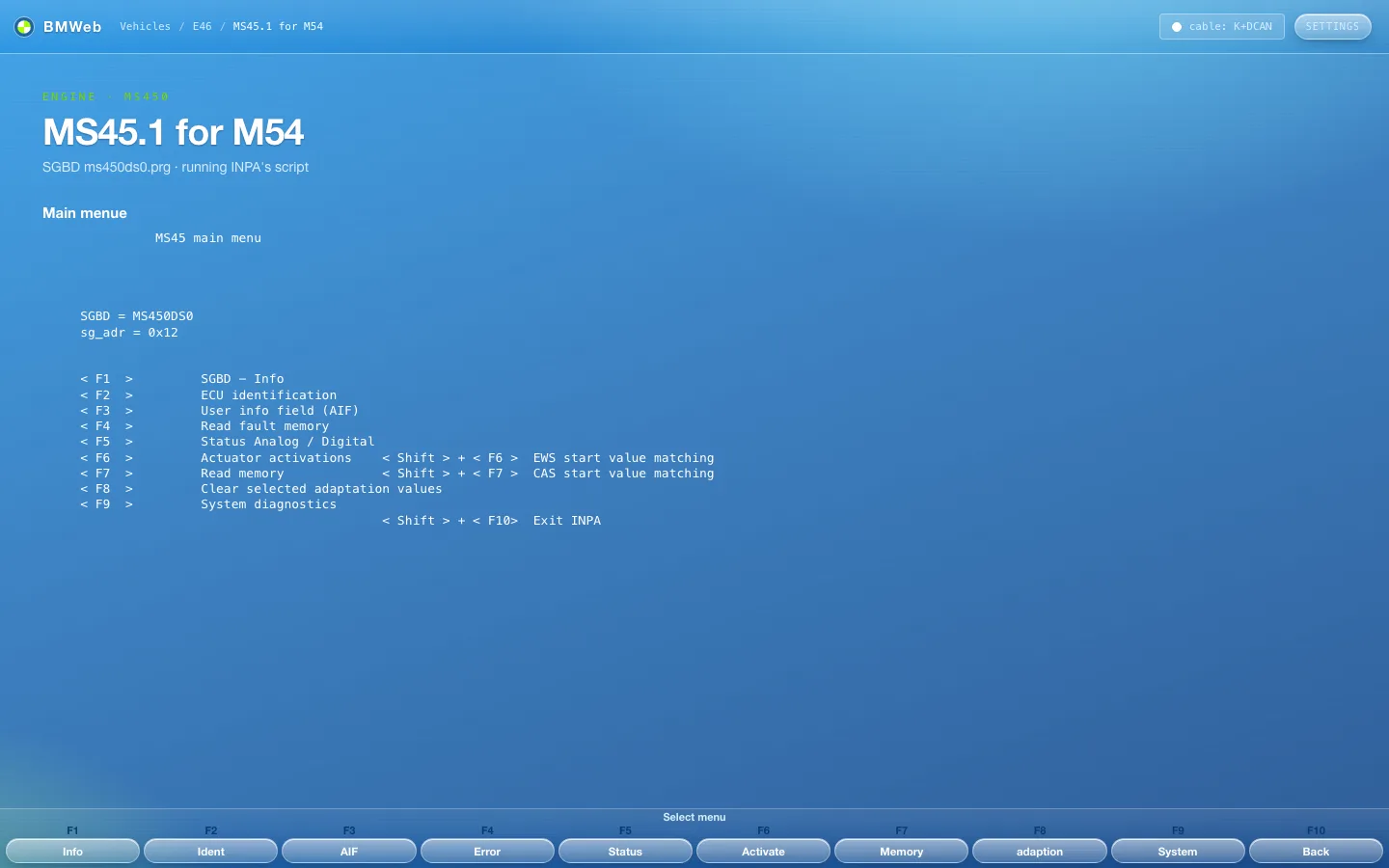
Frutiger skin. Blue glass and pill keys.
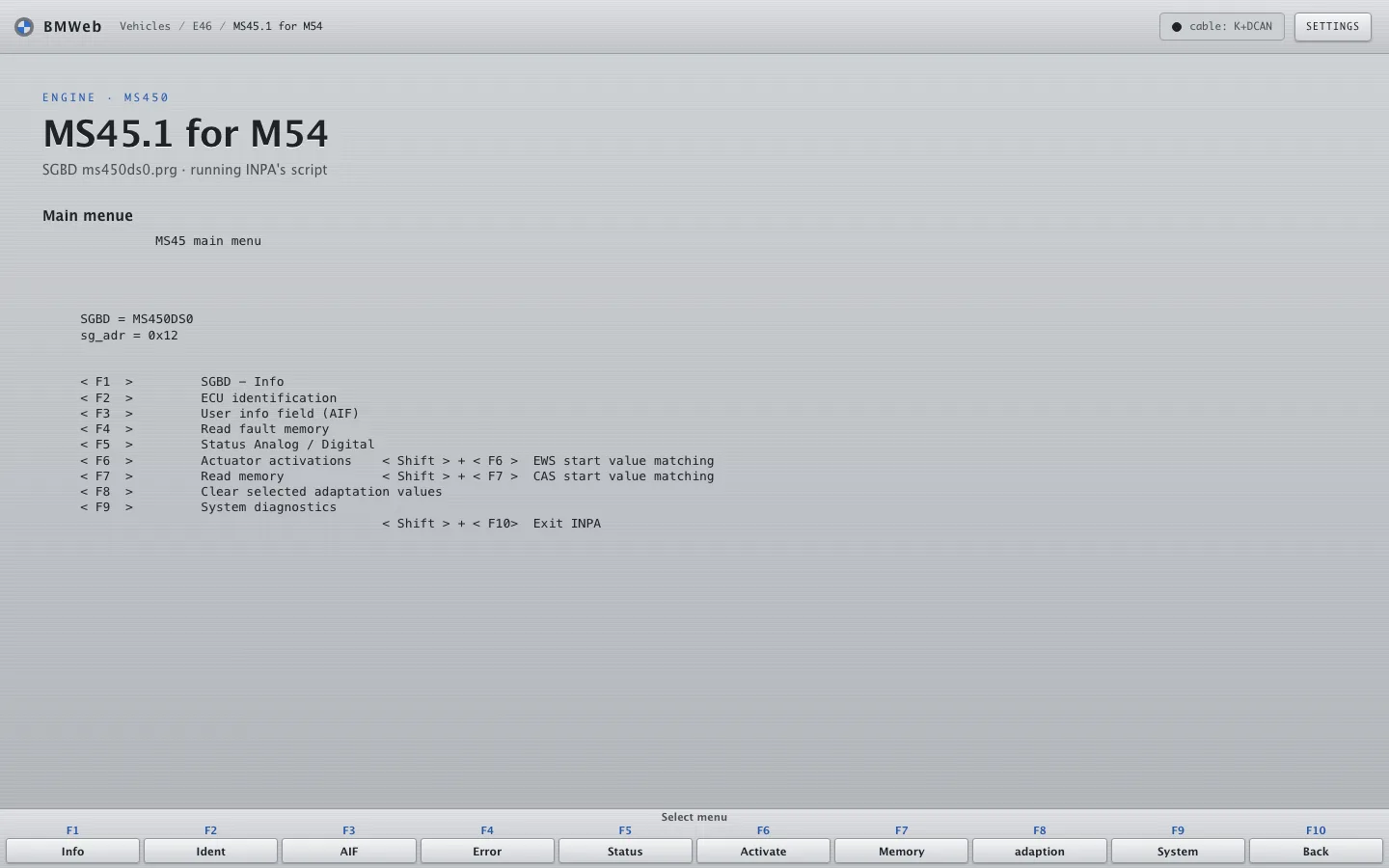
Brushed Metal skin. Grey panels and bevelled keys.
GT1 skin. Yellow bar, light grey screen.
Brackets skin. Flat dark grey, quiet keys.